
Can I back up only photos and documents?
Yes. In Backup by Zaweba, list the extensions you want in a pair's filters, such as .jpg; .docx, and only those file types are copied to the backup.
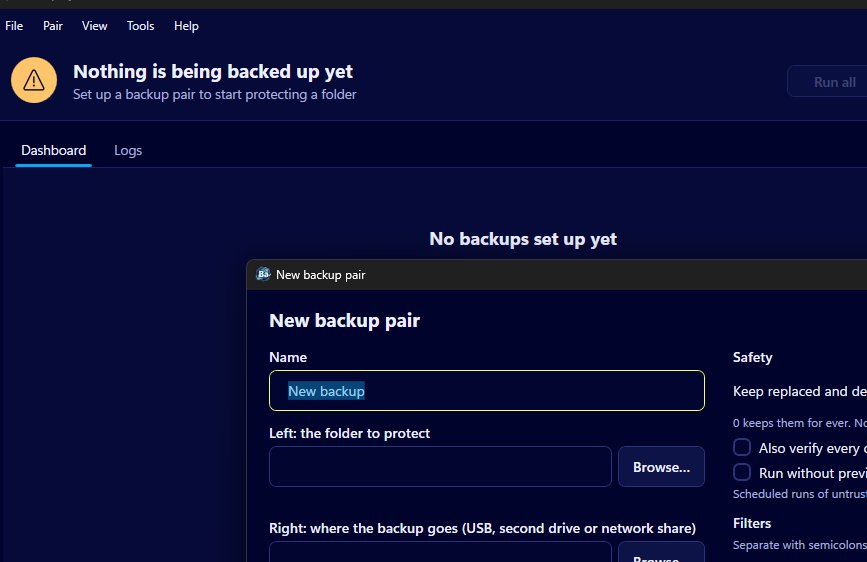
Yes. Backup by Zaweba lets each backup pair copy only the file types you choose. Open the pair, type the extensions you want into the box called only these extensions, separated by semicolons (for example .jpg; .docx), and run it with the preview to check. Folder names and a file size range can narrow it further.
Copying just the types you care about makes a backup smaller and quicker, and it means a modest USB stick can hold years of photos and paperwork without filling up with downloads and program files.
Before you start
You need Backup by Zaweba, the folder you want to protect, and somewhere to put the copy: a USB stick, a second drive or a network share. The app is free, works offline and needs no account.
Make a list of the file types you actually keep. Photos from a phone or camera usually have one or two extensions, and documents a handful more. If you're not sure, look at the files in File Explorer with extensions shown, since the filter works on those endings.
Setting up a photos and documents pair
Choose File > New backup pair, or press Ctrl+N. Give the pair a name, browse to the folder you want to protect on the left, and to the backup location on the right. Leave the mode on Echo, the default, which copies new and changed files across and never removes anything from the backup.
In the filters, find only these extensions and type the endings you listed, separated by semicolons. Wildcards are allowed, * for any run of characters and ? for one character, which helps when a camera uses a family of similar extensions.
Save the pair, then choose Preview and run from its card menu. The preview lists every file it plans to copy, with counts and sizes. Scroll through it. If you see only photos and documents, you're set, so click Run.
Making the selection more precise
The extension box is often enough on its own, but more filters on the same pair help when it isn't. Only inside folders named limits the pair to folders with particular names, so a pair could take images from your camera folders without sweeping up every picture saved by other programs. Skip folders named does the opposite. The size range, set in MB with an at least and an at most figure, can keep giant files off a small stick. Leave a size box empty for no limit.
You can also work the other way round. Instead of naming the types to keep, use skip these extensions to name the ones to leave out and let everything else through. That's safer when you aren't sure you've thought of every type you care about.
Two pairs instead of one
Photos and documents often live in different places and change at different rates. Two pairs, one for Pictures and one for Documents, each with its own extension list, are easier to follow than one big pair. Each gets its own card on the dashboard, with its own tick, file count and schedule, so you can see at a glance that both are up to date.
A handy schedule for a stick is run when the drive is connected. Plug it in and the pairs run. Once you've watched them run cleanly, tick Run without preview and they'll go by themselves.
Things to watch
Filters apply to the backup side too. A file on the stick that doesn't match the filters is left completely alone, so narrowing a pair later won't remove older copies of other types from the backup.
New file types won't be included until you add them. If you start shooting in a new format, add its extension to the pair, or the new pictures will quietly be left out. A look at the preview now and then catches this.

