
Snap by ZawebaCapture, mark up and share in a few seconds.
Press Print Screen, drag a box, draw an arrow, copy. Done. Capture a region, window or screen, add arrows, text, numbered steps and blur that really hides things, then copy or save. Lives in the tray.
This version isn't signed for Windows yet: if SmartScreen warns you, choose More info › Run anyway. Why?
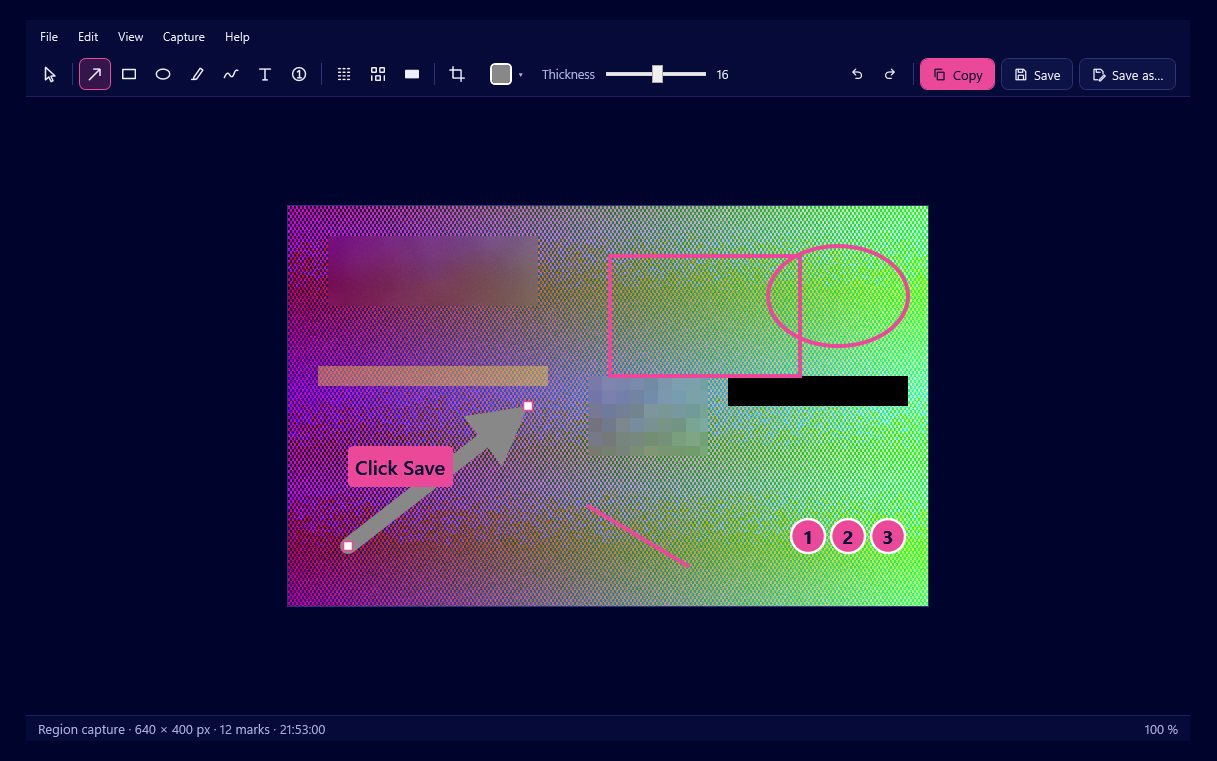
Snap by Zaweba lives in the notification area, waiting for Print Screen. Press it, drag a box or click a window, and the editor opens straight away. Add an arrow, a note or numbered steps, press Ctrl+C and paste it into an email, a chat or a bug report. The whole thing takes seconds.
No account and no cloud. Blur and pixelate really destroy the pixels underneath, so a hidden password stays hidden. Your last 50 captures stay in the tray with every mark still editable.
Who it's for
- Support staff and testers writing clear bug reports
- Anyone writing step-by-step instructions
- Office workers who explain things with a quick picture
- People who need to hide personal details before sharing
Good to know
- Windows 11 can give Print Screen to Snipping Tool; Snap warns you and offers a button to let it use the key
- Copy text needs Read by Zaweba, which reads the words in a capture
- The mouse pointer isn't included in captures
Private by design
- Works offline, with no account and no adverts.
- Checks zaweba.com once a day for a newer version, sending only the app's name.
- Problem reports and feedback are sent only if you click Send.
Everything you need, nothing you don't.
Print Screen hotkeys
Region, full screen, active window and repeat last region, each on its own hotkey, all changeable in Settings.
Pixel-perfect selection
A magnifier shows the pixels at 8x with the colour under the pointer. Arrow keys nudge one pixel at a time.
Quick annotation
Arrows, boxes, ellipses, highlighter, pen and text boxes with backgrounds. Each tool remembers its size.
Numbered steps
Click to drop 1, 2, 3 markers for instructions. The next number is always one higher than the last.
Blur that can't be undone
Blur, pixelate or black out. Exports contain only the visible pixels, with no hidden original and no metadata.
History of 50 captures
Reopen any of your last 50 captures from the tray, with every arrow and blur still editable.
Redaction you can trust
Many tools blur with a filter that can sometimes be reversed. Snap pixelates first, adds random noise and then smooths, so the detail is gone for good. Exported files carry only the pixels you can see: no EXIF, no comments, no hidden copy of the original.
- Blur, pixelate or solid black out
- No metadata in exported PNG or JPG
- Black out for secrets that could be guessed
Sharp on every monitor
Snap reads the screen pixel for pixel, across every monitor at once, and what you select is exactly what you get. Hover to highlight a window and its visible frame is picked out cleanly, without the invisible border around it.
- Region, window, full screen or repeat last region
- Magnifier at 8x with pixel position and colour
- Works across several monitors
The details
| Works on | Windows 10 and 11 (64-bit) |
|---|---|
| Captures | Region, window, full screen (all monitors or one) and repeat last region |
| Saves | PNG, JPG, and .ozsnap with every mark editable |
| Copies | PNG and bitmap to the clipboard |
| Hotkeys | Print Screen, plus Ctrl, Alt or Shift+Print Screen, all changeable |
| Version | Version 1.0.6 |
| Download | ZawebaSnap-1.0.6.zip (66 MB): unzip and run, no installer |
| Licence | Free for everyone, with every feature included. No warranty |
Snap FAQ
Can I use the Print Screen key on Windows 11?
Yes. Windows 11 can give Print Screen to Snipping Tool. Snap spots this and offers a button to let it use the key, plus a link to give it back. It never changes the setting on its own.
Is the blur safe for passwords and card numbers?
In exported PNG and JPG files, yes: the original pixels are destroyed. The editable .ozsnap file keeps the original so you can move the blur later, so share PNG or JPG. For very short secrets such as PINs, use Black out.
Can it record video or scrolling pages?
No, Snap is for still pictures. To copy the words out of a capture, use Copy text with Read by Zaweba.
Related apps

Paint
Layers, masks, live layer effects, a brush engine that feels like paint and one-click background removal, all offline on your own PC.
Explore Paint
Read
Reads the text in scans, phone photos, screenshots and scanned PDFs on your PC, and saves it as text, .docx, searchable PDF or CSV.
Explore Read
Clip
A private clipboard history in the tray: press Ctrl+Shift+V, type a few letters, press Enter. Pins, snippets and plain-text paste too.
Explore Clip
Macro
Record clicks and keystrokes, edit them as plain English steps and replay at up to 10 times speed, in loops, from hotkeys or row by row from a CSV.
Explore Macro
Try Snap today.
Download Snap by Zaweba: no account, no adverts, every feature included.