
Filtering a backup by type, folder and size in Backup by Zaweba
Use the per-pair filters in Backup by Zaweba to include or skip file types, folder names and file sizes, with wildcards, safely on both sides.
Not everything in a folder deserves a place on your backup stick. A Documents folder can hold years of letters alongside installer downloads, cached files and temporary junk that nobody will ever miss. The filters in Backup by Zaweba let each pair of folders decide what goes across and what stays behind, so the backup holds what you care about and fits on the drive you have.
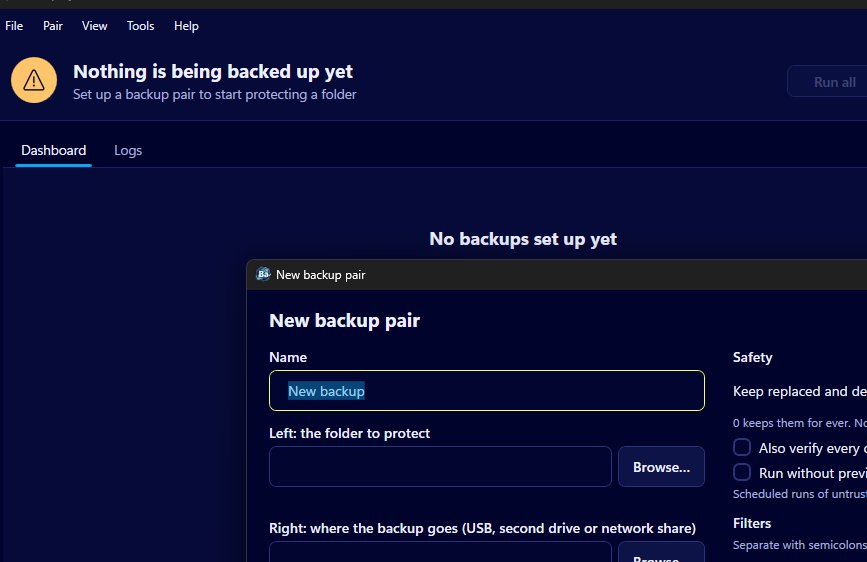
Filters belong to a pair. Open the pair editor, either while making a new pair or with Edit pair on the card menu, and you'll find them alongside the mode and the schedule. Because every pair has its own filters, one pair can copy only photos while another copies everything in your work folder except a few bulky subfolders.
The five kinds of filter
There are four text boxes and a size range. Only these extensions limits the pair to the file types you list, which is the quickest way to make a photos only or documents only backup. Skip these extensions does the reverse: everything goes across except the types named. Only inside folders named restricts the pair to folders with particular names, and Skip folders named leaves out any folder with a name you give. Finally the size range takes a lower and an upper figure in MB, labelled at least and at most. Leave either one empty and that end has no limit.
Each text box takes several entries separated by semicolons, and you can use the usual wildcards: * stands for any run of characters and ? for a single character. So a skip list might read .iso; .tmp, and a folder list can use a wildcard to catch a family of similarly named folders.
A new pair isn't completely unfiltered. By default it skips .tmp files and the small ~$ lock files that Microsoft Office leaves next to a document while it's open. Neither is any use in a backup, and lock files in particular appear and vanish as you work.
Jobs the filters are good for
A photo archive is the classic case. Point a pair at your Pictures folder, list the image types you shoot in under only these extensions, and the stick fills up with pictures rather than the odd video export or editing file you didn't mean to keep.
Developers, and anyone who works with large generated folders, will reach for skip folders named. Build output and package caches can be rebuilt at any time, and leaving them out can shrink a backup a great deal.
The size range helps when the backup drive is small. An upper limit keeps huge files such as disc images or raw video from crowding out thousands of documents. A lower limit is used less often, but it can keep a folder of tiny scraps out of the way.
Filters work on both sides
This is the detail that makes filters safe to use with Mirror and Synchronise. The filters apply to the right folder as well as the left. A file that a filter excludes is ignored on the backup side too, so it's never copied, updated or moved away. If an old disc image already sits on the stick and you then add a size limit that excludes it, Backup leaves it exactly where it is rather than treating it as something to remove.
The same holds the other way round. Excluding a folder doesn't clear it out of an existing backup. If you want that old copy gone, delete it yourself once you're sure you don't need it.
Using them well
Change a filter, then use Preview and run from the card menu before anything else. The preview lists every step with its reason, and its counts and sizes show at a glance whether the filter did what you intended. A list that's suddenly much shorter than you expected usually means an only filter is narrower than you thought.
Prefer skip lists to only lists when you're unsure. An only list quietly leaves out every type you forgot to name, which is easy to miss months later. A skip list leaves out just what you named.
Keep filters close to the folders they serve. Rather than one giant pair with a long tangle of rules, two or three smaller pairs with simple filters are easier to read on the dashboard and easier to check.
Hidden and system files have their own tick boxes in the pair editor, separate from these filters, and both are on by default. Between the two layers you can shape a pair quite precisely.
A few well chosen entries can make a backup faster, smaller and far easier to trust, which is a good return for a minute in the pair editor.

