
How to make a backup start when Windows starts
Tick Tools > Start with Windows in Backup by Zaweba and it starts quietly in the notification area at login, so every pair's schedule keeps running.
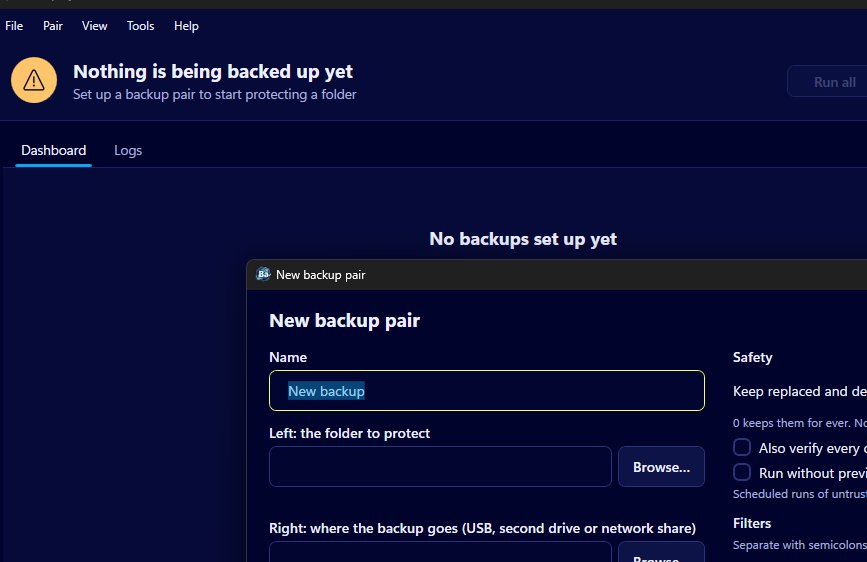
In Backup by Zaweba, tick Tools > Start with Windows. From then on the app starts quietly in the notification area each time you log in, and its schedules run without you opening anything. The same option is in Tools > Settings as a box labelled Start with Windows, quietly in the notification area (so schedules always run).
Then give each pair a schedule that suits it. A pair set to run at login runs once per Windows session, so together the two settings make a backup that starts with Windows.
Why the app has to be running
Backup by Zaweba keeps its own scheduler rather than adding tasks to Windows. That scheduler works while the main window is open or while the app sits in the notification area. If Backup isn't running, nothing is watching the clock or the drives. Start with Windows solves that by putting the app in place every time you sign in.
Step by step
First, open the Tools menu and click Start with Windows so it's ticked. It creates a startup entry for your own Windows account, so it applies when you log in.
Next, open each pair with Edit pair from its card menu and choose a schedule. At login runs the pair once each time you start a Windows session. Daily and weekly let you pick the time, and the day for weekly. When the drive is connected runs the pair as soon as its USB stick or drive arrives, and counts a drive that's already plugged in when Backup starts as connected.
Then decide whether the pair should stop at its preview. A pair that isn't trusted waits at the preview on a scheduled run until you look. Once you've watched it run cleanly a few times, tick Run without preview in the pair editor, and scheduled runs will happen in the background with a notification instead.
Finally, restart or log out and back in. Backup should be waiting in the notification area, and the dashboard will show each pair's next run.
Missed times and a closed window
If your PC was off at a daily or weekly time, Backup doesn't skip it. The missed slot runs once as soon as the app is running again, so an evening backup on a day the PC was switched off early runs when you next log in. A restart won't run a slot twice.
Closing the window doesn't stop the schedules while any pair has one, because Backup moves into the notification area instead. That behaviour has its own box in Settings. To stop it fully, use File > Exit (stop schedules), and bear in mind nothing will run until it starts again, either by hand or at your next login.
Checking that it works
The dashboard is the easiest proof. Each card shows when it last ran and when it runs next, and the header says whether all your backups are up to date. If a scheduled run's drive was missing, that's recorded as a failure, so a stick left in a drawer shows up as a red cross rather than passing unnoticed. The Logs tab, on View > Logs or Ctrl+2, records what started each run, so you can see that a run came from a schedule.
Once Start with Windows is ticked and each pair has a schedule, Backup by Zaweba needs very little attention. A glance at the ticks now and then is enough.

