
Light and dark themes in Backup by Zaweba
Switch Backup by Zaweba between its light and dark theme with View or Ctrl+T, and why its status ticks read clearly whichever one you pick.
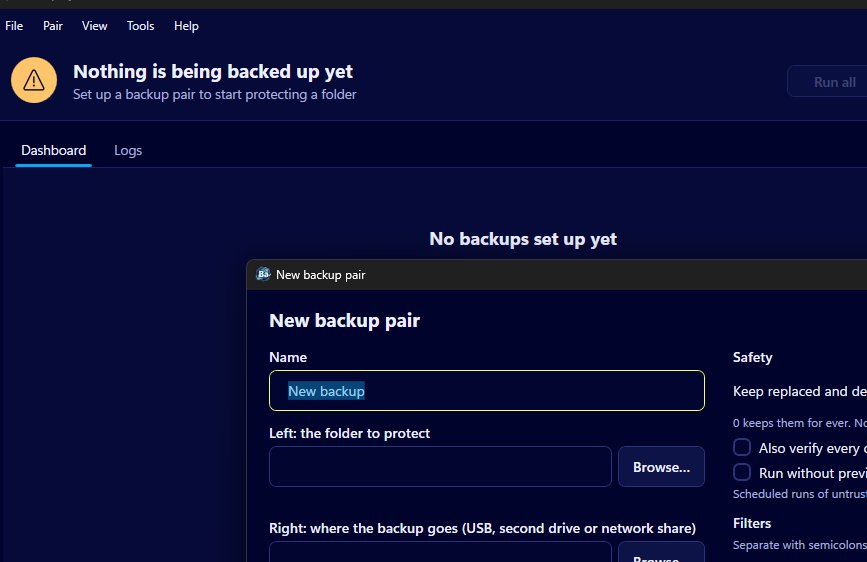
There are two looks in Backup by Zaweba, a light theme and a dark theme, and switching between them takes one keypress. It's a small thing, but a backup app is one you glance at often, sometimes late in the evening, and it should be comfortable to read whatever the room is like.
Switching themes
Open the View menu and choose Light theme or Dark theme, or press Ctrl+T to flip between the two. Try each in turn and settle on whichever suits your screen and your eyes.
There's no right answer. A light theme often suits a bright office in daytime, while a dark one is kinder in a dim room and doesn't glare when you check on a backup before bed. Some people simply switch with the time of day, and Ctrl+T makes that easy.
Why readability matters for a backup tool
The main job of the Backup window is to tell you, at a glance, whether your files are safe. Each pair has a card with a green tick, an amber exclamation mark or a red cross, plus the last run time, the file count and size, the schedule, the next run and which drive the backup lives on. The header sums the whole lot up in a sentence, such as All 3 backups are up to date, or 1 backup needs attention.
That status was designed so it doesn't rely on colour alone. A tick, an exclamation mark and a cross are different shapes, so the meaning comes through in either theme, and for anyone who finds red and green hard to tell apart. Choosing the theme you find easiest to read is the last step in making that glance reliable.
Reading the cards in either theme
Whichever theme you choose, the cards say the same things. Green means the pair's last run went well and wasn't long ago. Amber means a run finished with errors or was cancelled, or that more than a set number of days have gone by without a backup: seven by default, a figure you can change in Tools > Settings anywhere from 1 to 3650. Red means the pair has never run, or its last run failed or was interrupted.
The last run time is written in plain words, such as Today at 18:00 or 2 hours ago, and the drive is named, so even a quick look tells you which stick the backup is on and when it was last touched.
Logs deserve a thought too. The Logs tab, on View > Logs or Ctrl+2, shows long lists of files in full text, so pick the theme in which long lists are comfortable for you to scan. If you read logs a lot, that may be the deciding factor.
Other small comforts
The theme sits alongside a few other touches meant to keep Backup low effort. It can start with Windows and wait quietly in the notification area, so you rarely need to open it at all unless a card needs attention. Help > How modes work explains Mirror, Echo and Synchronise inside the app, so you don't have to look elsewhere when choosing a mode for a new pair.
None of this changes how your files are copied. The theme is purely about how the window looks to you, and Ctrl+T is there whenever you change your mind.

