
Everything on a pair's card menu in Backup by Zaweba
Run, preview, verify, read logs, open folders and edit or delete a pair: a tour of the card menu in Backup by Zaweba and when to use each item.
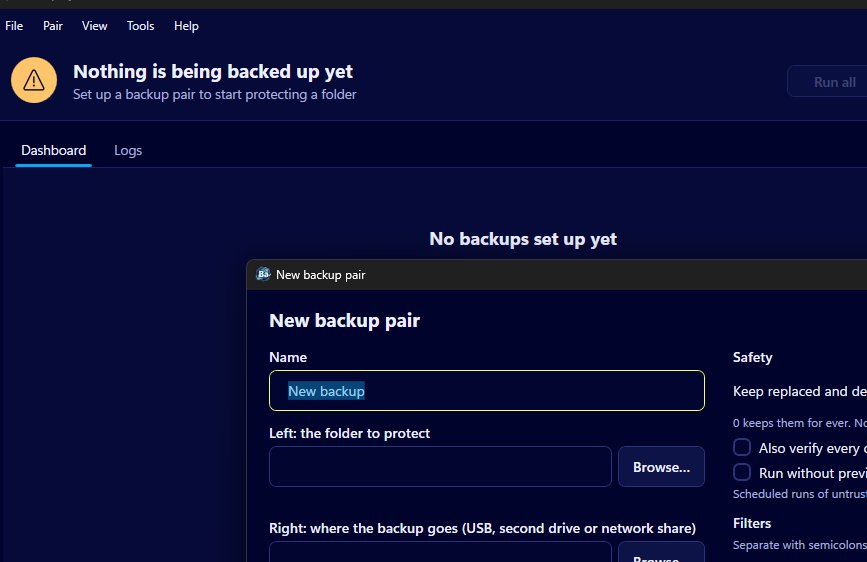
Each backup pair on the dashboard is a card, and almost everything you do with a pair after setting it up starts from that card's menu. It's worth learning what each item is for, because between them they cover running, checking, finding files and tidying up. What follows walks through the menu in Backup by Zaweba in roughly the order you're likely to need it.
Running a pair
Preview and run is the everyday choice. It opens the preview window, which lists every step the run would take with the reason for it, plus counts, sizes and any warnings. Nothing changes until you click Run, and Cancel closes it with your files untouched.
Run now without preview skips that window. It's meant for pairs you already trust, the ones you've watched run cleanly enough times that the preview has stopped telling you anything new. Even then the mass-removal guard still applies: if a Mirror or Synchronise run would move a large share of files to _zaweba_versions, it stops at the preview anyway.
To run everything at once, the menu bar has File > Run all pairs, also on F5. That's handy at the end of a working day when you'd like every card to go green before you shut down.
Checking a backup
Two items check a backup that already exists without copying anything. Verify backup (size and date) compares each file in the backup with its source by size and date, which is quick. Verify backup with SHA-256 compares hashes, which takes longer but looks at the contents themselves. Both write a log of what they found.
These suit a pair you haven't looked at for a while, or a backup drive that has been knocked about in a bag. View logs, the next item, takes you to the run and verify logs for the pair so you can read what each past run did, what failed and why.
Getting to the files
Open left folder and Open right folder open the source and the backup. They save hunting for a USB stick that has come back under a different drive letter, since Backup finds drives by volume ID rather than letter and knows which one belongs to the pair.
Open _zaweba_versions goes straight to the safety net. Whenever a run would overwrite or remove a file, the old copy is moved into a dated folder under _zaweba_versions on the same side first. When you need an older version of a document back, this item gets you there in one click, and you copy the file out by hand.
Changing or removing a pair
Edit pair reopens the pair editor, where the name, the two folders, the mode, the schedule, the filters, the number of days to keep old versions, the optional SHA-256 check and the Run without preview box all live. Change what you need and save. It's a good idea to use Preview and run straight after an edit, so you can see the effect of a new filter or mode before a schedule acts on it.
Delete pair removes the pair from the dashboard when you no longer need that backup.
The Pair menu as a second route
Everything on a card's menu is also in the Pair menu on the menu bar, listed per pair. If you prefer menus to clicking around the dashboard, or you have enough pairs that the dashboard needs scrolling, that route can be quicker.
A good habit is to use the menu in a loop. Preview and run until a pair behaves the way you expect, then let it run on its schedule, and every so often use Verify backup and View logs to make sure the green tick still means what it says. The card menu in Backup by Zaweba keeps all of that within reach of the pair it belongs to.

