
Why Backup by Zaweba skips hidden and system files
Two tick boxes in each Backup by Zaweba pair skip hidden and system files on both sides. What they leave out, and when to untick them.
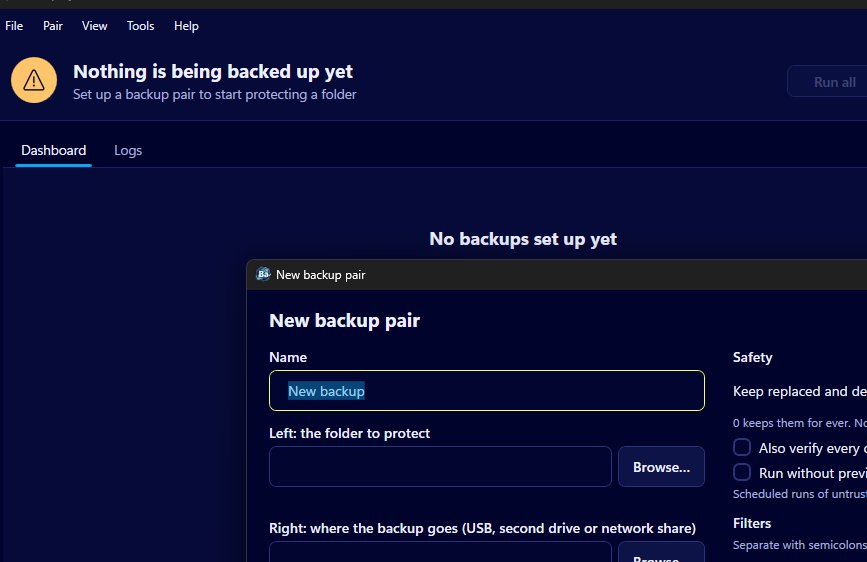
Two small tick boxes in the pair editor decide whether a backup bothers with the files Windows normally keeps out of sight. One reads skip hidden files and folders, the other skip system files and folders, and in Backup by Zaweba both are ticked for every new pair. Most people never need to touch them. It still helps to know what they do, because now and then you'll want to change one.
What hidden and system files are
Windows lets any file or folder carry a hidden attribute, and some carry a system attribute as well. Programs use them for things you aren't meant to fiddle with: settings folders, thumbnail caches, the little files that describe how a folder should look, and pieces that belong to Windows itself. File Explorer doesn't show them unless you ask it to, which is why a folder can look smaller in Explorer than it really is on disk.
For a backup of documents, photos and project folders, these files are mostly noise. They change for reasons that have nothing to do with your work, they can be locked by the program that made them, and copying them to another drive rarely helps you get anything back.
What the two boxes change
With skip hidden files and folders ticked, anything marked hidden is left out of the pair. With skip system files and folders ticked, anything marked as a system file is left out too. The two are separate, so you can keep one and untick the other.
Like the extension, folder and size filters, these settings apply to both sides of the pair. A hidden or system item on the backup side is ignored just as one on the source side is. That matters for Mirror and Synchronise, because it means the app will never move a hidden file on your backup drive into _zaweba_versions simply because it doesn't appear in the source. Things it has been told to skip are left alone wherever they are.
When to untick them
Some programs keep their own data in hidden folders, and some people deliberately hide folders they care about. Version control folders are often hidden too. If a folder you want to protect is hidden, either untick skip hidden files and folders on that pair or, better still, make a separate pair for that folder with the box unticked. A small dedicated pair keeps the change contained and doesn't drag every hidden file in a big parent folder along with it.
Unticking skip system files and folders is rarely useful for an ordinary folder backup. Backup by Zaweba copies folders, so it isn't the tool for making a copy of Windows itself, and pointing it at system areas is more likely to produce files it can't read than anything worth keeping.
After changing either box, run the pair with its preview. The list shows every file that will be copied and why, so you can see straight away whether the hidden folder you had in mind is now included, and whether anything unexpected has come with it.
How it fits with the other filters
Think of the two tick boxes as the first sieve and the filter boxes as the second. The tick boxes remove the background clutter that Windows and other programs leave around. The filters for extensions, folder names and file size then shape what's left to suit the pair. Office's ~$ lock files and .tmp files are already handled by the default filters as well.
Both layers work per pair. A photo pair can keep every default while a pair for a program's data folder unticks skip hidden files and folders. Each card on the dashboard then shows its own file count and size, which makes a handy check: if a pair you've just widened suddenly reports far more files than before, the preview is the place to find out why.
A sensible default
Leaving both boxes ticked keeps backups smaller and runs quieter, with fewer files that are in use by some other program at the moment the run reaches them. For the folders most people back up, that's the right trade. Change it on purpose, on the pair that needs it, and check the preview when you do.

