
Where Backup by Zaweba keeps its logs and settings
Backup by Zaweba keeps its logs and settings in %APPDATA%\Zaweba\Backup. The Logs tab and Tools > Open the logs folder take you straight there.
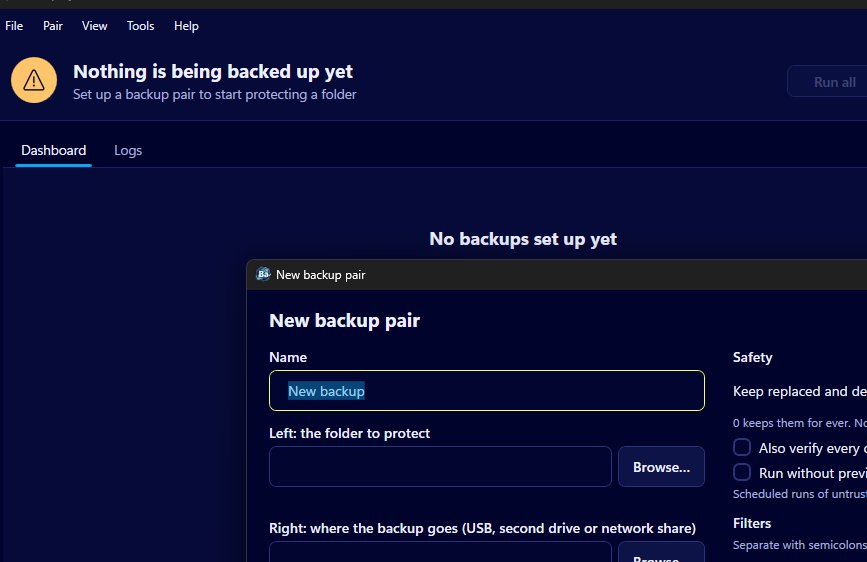
Your logs and settings for Backup by Zaweba live in your user profile, in the folder %APPDATA%\Zaweba\Backup. You rarely need to go there: the Logs tab (View > Logs, or Ctrl+2) shows every run log inside the app, and Tools > Open the logs folder opens the folder in File Explorer for you.
The backed up files themselves are not stored there. They live in the right-hand folder of each pair, on your USB stick, second drive or network share.
Getting to the folder
%APPDATA% is a standard Windows shortcut to the Roaming application data folder inside your user profile, where programs keep data for each user. You can type %APPDATA%\Zaweba\Backup into the address bar of File Explorer and press Enter to go straight there. The simpler route is Tools > Open the logs folder in Backup, which opens it without any typing.
Because it sits in your profile, each Windows account on a shared PC has its own folder.
What the logs contain
Every run and every verify writes a log. A run log lists which files were copied, updated or moved to _zaweba_versions, where each old copy went, what failed and why, and what started the run, such as a schedule or the command line. A verify log records the result of checking a backup against its source.
The Logs tab lists them newest first, and you can show all pairs together or pick one. Select a log to read its full text. From a pair's card menu, View logs takes you to the same place.
What lives on the backup drive instead
Old copies of your files aren't in the app's folder. When a run would overwrite or remove a file, it's moved to _zaweba_versions on the same side as the file, in a dated subfolder that keeps the original folder structure. Open _zaweba_versions on the card menu goes straight there. That keeps your old versions next to the backup they belong to, rather than on the PC's own drive.
Half-written files are on the drive too while a copy is in progress, under a name ending .zaweba-partial. Each is renamed into place only once it has been written and checked, and if a run is interrupted, any left over are cleaned up at the next run.
Moving to a new PC
Knowing where things live helps when you replace a computer. Your backups are on the drives you chose, so they move with those drives. The baseline that lets Synchronise tell a new file from a deleted one is kept on the PC, though, so the first Synchronise run from a different computer copies both ways and removes nothing. That's the cautious result, and it means a fresh machine can't mistake missing files for deletions.
When to look in the folder
Most of the time the Logs tab is all you need. Opening the folder itself is handy when you want to search many logs with another program, keep a copy of a log for your records, or attach one when you use Help to report a problem. Leave any files you don't recognise alone, since the app manages them itself.
Knowing the one folder to look in makes Backup by Zaweba easy to understand and easy to troubleshoot, without anything hidden away in a cloud account.

