
Codabar barcodes for libraries and membership cards
Codabar is the older barcode still used by libraries, blood banks and some membership systems. How to match one in Barcode by Zaweba, start and stop included.
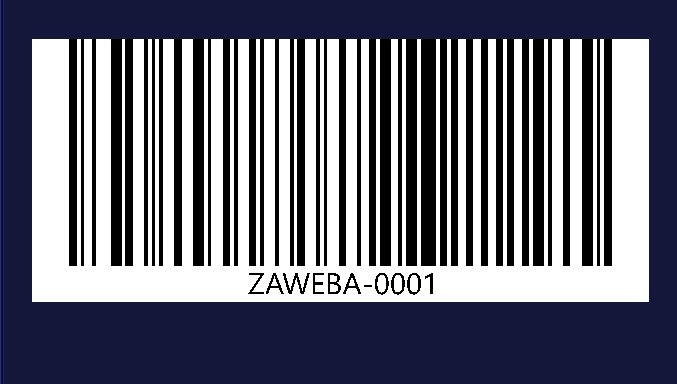
Codabar is the barcode you meet when you're matching something that already exists. Libraries, blood banks and some parcel and membership systems have used it for a long time, and when you need a new card or label to fit in with theirs, Barcode by Zaweba can make it.
Matching, not choosing
Hardly anyone picks Codabar for a brand new system. Code 128 is more compact and holds far more kinds of character. Codabar is chosen because an existing system asks for it: the library's issue desk, a club's membership scanner, a sample-tracking setup that has worked for years. The guidance in the app is the same. Use it when a system you must match asks for Codabar.
That framing helps with every decision that follows. You aren't designing a barcode so much as copying a format, so the existing cards or labels are your reference.
What it holds
Codabar holds digits and a few symbols. It also uses special start and stop letters at each end, which tell the scanner where the code begins and ends. Barcode by Zaweba adds those for you, so you type only the number itself.
If you type a character Codabar can't carry, the app says so in plain words rather than producing something that won't scan. Letters in the middle of a number are the usual cause.
Making a replacement card or label
Pick up an existing card or label and look at the number printed under the bars. That's what you'll type. Open Barcode by Zaweba, choose Codabar, and enter the number.
Watch the preview as you go. It draws the barcode and reads it back with a scanner library on every change, saying Checked when it reads exactly. If it can't read it, you get a reason, such as colours too close together, light bars on a dark background, or a margin too small.
Set the narrowest bar in millimetres, the bar height and the margin. Hold the existing card next to the screen and aim for a similar size, so the new one sits comfortably in the same card holders and readers. Choose whether the number appears underneath. Library and membership cards usually show it, since staff often type it in by hand.
Colours and card designs
Membership cards are often printed in a club's colours, and that's where Codabar codes get into trouble. You can set the bar colour and the background colour in the app, and the read-back tells you straight away if they're too close together to scan. Dark bars on a pale panel remain the safe option, even on a colourful card. If the card's design is dark, put the barcode on a light panel rather than reversing it to light bars, which the read-back will flag.
Saving and printing
Save an SVG to place the barcode on a card design in layout software; it stays sharp and keeps the bars at the millimetre widths you set. Save a PDF for a print shop that wants a single vector page. Save a PNG at a high dpi for printing at home or on a card printer, or use Copy picture to paste it into a document.
Then test against the real thing. Scan your new card with the system's own scanner. Older systems can be fussy, and only their scanner can tell you whether it's happy.
When you don't need Codabar
If you're setting up something new, a membership list for a club or a lending scheme for a tool shed, you don't need to follow Codabar at all. Code 128 holds letters as well as digits and packs them more tightly. Keep Codabar for when the system on the other end expects it, and let Barcode by Zaweba handle the start and stop letters for you.

