
Making Code 128 barcodes in Barcode by Zaweba
How to make a Code 128 barcode for parcels, stock codes and internal references in Barcode by Zaweba, and how to size it so scanners read it.
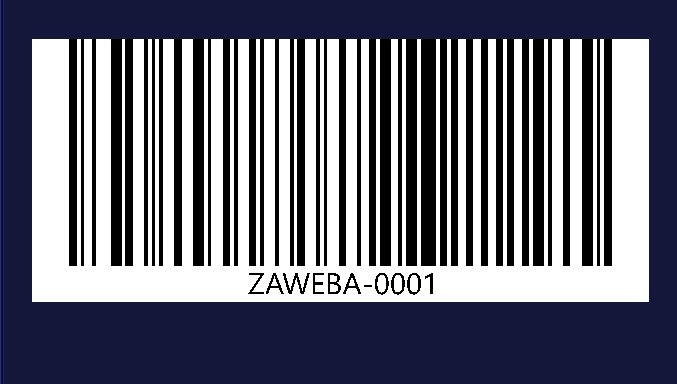
Code 128 is the barcode most people end up using once they step away from the shop shelf. It holds letters, digits and punctuation in a compact run of bars, so a parcel reference, a part number with a hyphen in it or an internal job number all fit without fuss. In Barcode by Zaweba it is one of eight types, and for most jobs that never go near a till it's the sensible first choice.
This piece covers what Code 128 is good for, how to make one, and how to size it so it reads first time.
What Code 128 is good for
Code 128 accepts letters, digits and punctuation, and it packs them tightly. That combination makes it the usual pick for shipping labels, parcels, internal references and stock codes. If the number is yours to choose, because it's a shelf location, a batch number or an order reference, Code 128 will carry it.
What it isn't for is retail products sold through shops. Those use EAN-13 or UPC-A, with numbers allocated to you. The type list in the app explains each type in plain words, so if you're unsure, read the description beside each one before you start.
Making one step by step
Open Barcode by Zaweba and choose Code 128 as the type. Type your text into the box. The app tells you in plain words what the type accepts, and if something in your text doesn't fit, it says so rather than drawing a barcode that quietly drops a character.
The preview draws the barcode as you type and reads it back on every change. When it reads back exactly, you'll see Checked underneath. If it doesn't, the message explains why, for example colours that are too close together or a margin that is too small. Fix that first, then save as PNG, SVG or PDF, or use Copy picture to paste it straight into another program.
Getting the size right
Because Code 128 is dense, size matters more than it does for a chunky retail code. You set the narrowest bar in millimetres, the bar height and the margin around the code, and the overall size follows from those. Longer text means a wider barcode at the same bar width, so a long reference on a small label can leave you choosing between a narrower bar and a bigger label.
Give it a sensible bar width and a decent height. Very thin bars can look perfect on screen and still be hard for a scanner, especially from a cheap printer or on a thermal label. A generous height helps too, because a scanner held at a slight angle still crosses every bar. Keep the margin clear on both sides, and if the preview warns that it is too small, believe it.
If you're saving a PNG for print, choose a high enough dpi. The PNG rounds each bar to whole pixels so the edges stay crisp, which means the printed width can differ slightly from the figure you typed. For exact sizes, SVG and PDF keep the true millimetre widths.
Keeping your text short and scannable
The shorter the text, the smaller the barcode can be at a comfortable bar width. If you control the format, trim references down: drop spaces you don't need, avoid a long prefix that every code repeats, and keep the scheme consistent so people and scanners know what to expect. A scheme you can read aloud is also one you can type in by hand when a label gets torn.
Check with a real scanner as well. The read-back in the app proves the drawing is correct, but it can't tell you how your printer, your label stock or the light in your stock room will behave. Print one, scan it, then print the rest.
Where Code 128 sits among the other types
Code 39 holds capitals, digits and a few symbols and is longer for the same text, so pick it when an older system asks for it. Code 93 is a more compact relative of Code 39, again chosen when a system names it. For cartons of retail products, ITF-14 is the usual choice. For everything else that's yours to number, Code 128 is the default you can rely on.
Make one, check that it reads, and you have a barcode ready for a label, a sheet or a parcel.

