
Using the barcode creator inside Labels by Zaweba
The Barcode by Zaweba creator also opens inside Labels by Zaweba. How Put on the label works, and how to print a barcode on every label from a list.
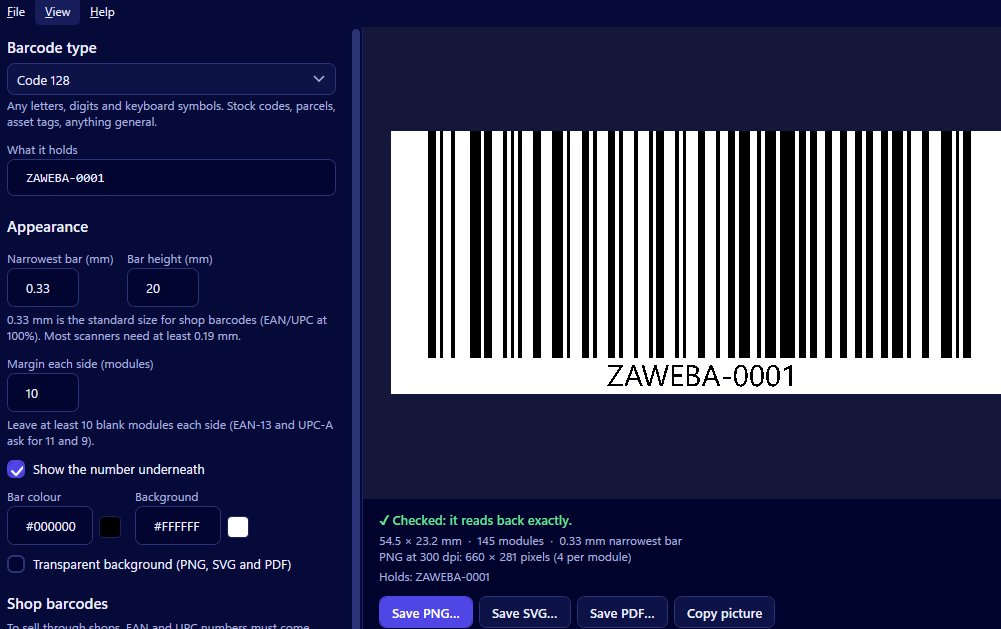
Making a barcode is often only half the job. The other half is getting it onto a label, and onto the right label, often dozens of times. That's why the creator in Barcode by Zaweba isn't only a stand-alone program. The same creator opens inside Labels by Zaweba, the address book and label printer, where the barcode goes straight onto your design.
Opening it in Labels
In Labels by Zaweba, choose Insert > Barcode creator. You'll see the same creator you know from Barcode by Zaweba: pick a type, type the number, set the narrowest bar, height and margin, decide on the number underneath and the colours, and watch the live read-back say whether it reads.
When it's right, press Put on the label. The barcode is added to the label with the same type, size, colour and number underneath that you chose, so there's no saving a file, finding it again and resizing it to fit.
One barcode or a different one on each label
A single barcode on every label is handy for a product label that's printed many times. More often, though, each label needs its own code: an asset tag per machine, a shelf code per bin, a stock number per item.
Labels barcode items offer every type, and Labels can print a barcode on every label from a list. Labels works from contacts kept in groups or rows from a spreadsheet, with merge fields filling in each label. So you can keep your codes in a list, design the label once, and print a sheet where each label carries its own barcode.
A typical stock-room run
Say you're labelling shelves. Start in Barcode by Zaweba with one location code to settle the type and size; Code 128 suits codes made of letters and digits. Check the read-back says Checked, and print a single copy to try with your scanner.
Then move to Labels by Zaweba. Choose your label stock, such as one of the standard Avery UK sheets it supports or a thermal roll. Design the label with a barcode item, a line of text for people to read, and perhaps your logo. Point it at your list of location codes and print. If you have half a sheet left from last time, Labels lets you click the first free label and start there.
Keeping the two in step
Because it's the same creator in both programs, the rules are the same too. Check digits for EAN, UPC and ITF-14 are added or checked. Code 39 and Code 93 take capitals. The read-back warns about weak colours and small margins in both places.
A sensible habit is to use Barcode by Zaweba when you want a file, such as an SVG for packaging or a PNG for a document, and Labels by Zaweba when the barcode is going onto label stock. Neither one is a cut-down version of the other.
Printing it right
Labels prints at actual size through the normal print dialog, and it can export a PDF at the exact stock size. If labels drift on your printer, its calibration corrects the offset once and remembers it, which matters for barcodes because a code clipped at the edge of a label won't scan.
Print one sheet, scan a few labels from different corners of the sheet, and check they read. Then print the rest.
For one-off barcodes, the stand-alone app is the quickest route. For anything that ends up on a sheet of labels, opening the same creator inside Labels saves a lot of copying, pasting and lining up.

