
EAN-8 barcodes for small packs in Barcode by Zaweba
Make an 8-digit EAN-8 barcode for small packages in Barcode by Zaweba, with the check digit added or checked for you and a live read-back.
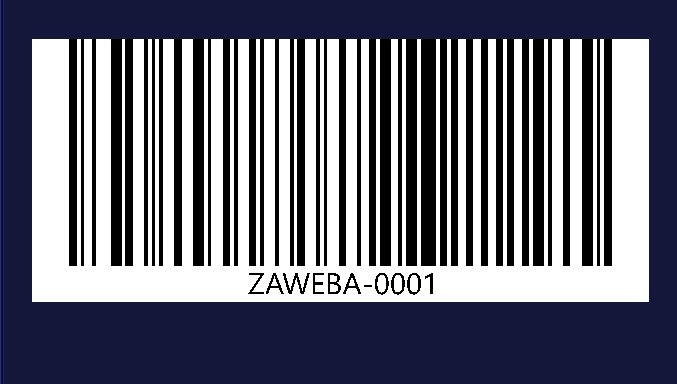
A lip balm, a seed packet or a small bottle of oil rarely has room for a full-size EAN-13. That's the job EAN-8 was made for: a short 8-digit retail barcode for small packages where the longer code simply won't fit. Barcode by Zaweba makes it, adds the check digit, and reads the result back so you know it's right before it goes to print.
Before you start: the number
EAN-8 is a retail barcode, so the number in it matters as much as the bars. As with EAN-13, it has to be a number properly allocated to you, through your number allocator or supplier. Barcode by Zaweba will draw any valid number you give it, but drawing a number isn't the same as owning it, and shops' systems look the number up.
If your product is only ever sold by you, at a market stall or from your own website, you may not need a retail barcode at all. A Code 128 with your own stock number does the job internally. Once a shop wants to scan it at the till, though, you need the allocated number.
Making the barcode
Open Barcode by Zaweba and choose EAN-8. Type the first seven digits and the app adds the eighth, the check digit, for you. If you already have all eight digits, type them all and the app checks the last one. If it's wrong, you're told which digit it should be, which is a handy way to catch a typo copied from a spreadsheet.
EAN-8 takes digits only. Type a letter and the app explains, in plain words, that this type can't accept it. Fix the number and the preview redraws at once.
That preview is doing more than showing you a picture. Every time you change something, the app reads the barcode back with a scanner library and says Checked when it reads exactly. If it doesn't, it explains why.
Fitting it on a small pack
Small packs are exactly where sizing goes wrong. You set the narrowest bar in millimetres, the height of the bars and the margin around them, and the overall size follows. It's tempting to shrink everything to fit a tight space, but very thin bars and a squashed height make scanning harder at the till.
The margin is the part people trim first and shouldn't. The clear space either side of the bars tells the scanner where the code starts and ends. If you make it too small, the preview warns you. Treat that warning as a reason to rethink the layout, not something to work around.
Choose whether the number shows underneath. On retail packaging it normally should, so a cashier can type it in if a scan fails. You can also set the bar and background colours. Dark bars on a light background are the safe choice, and the read-back flags colours that are too close together.
Into the artwork
For packaging, save an SVG. It's vector, measured in millimetres, with the number drawn as outlines, so placing it at 100 per cent in your design software keeps the exact size you chose and it stays sharp. A PDF works the same way when your printer prefers a PDF. A PNG suits proofs and quick tests; set a high dpi and remember that bars are rounded to whole pixels, so its printed width can differ a touch from your figure.
Then print a proof on the real material and scan it. Curved bottles, shiny films and textured card all behave differently from paper, and only a test on the real thing tells you how.
EAN-8 or EAN-13
If there's room, most products carry EAN-13, and the app makes that too. EAN-8 is for when space genuinely runs out. Ask whoever allocates your numbers which one your product should carry before you design around either.
Get the number right, leave the margins alone, and EAN-8 gives a small product a barcode that works.

