
How to make a barcode on your own PC
To make a barcode, open Barcode by Zaweba, pick a type, type the number, check it reads back and save it as a PNG, SVG or PDF. Here's each step.
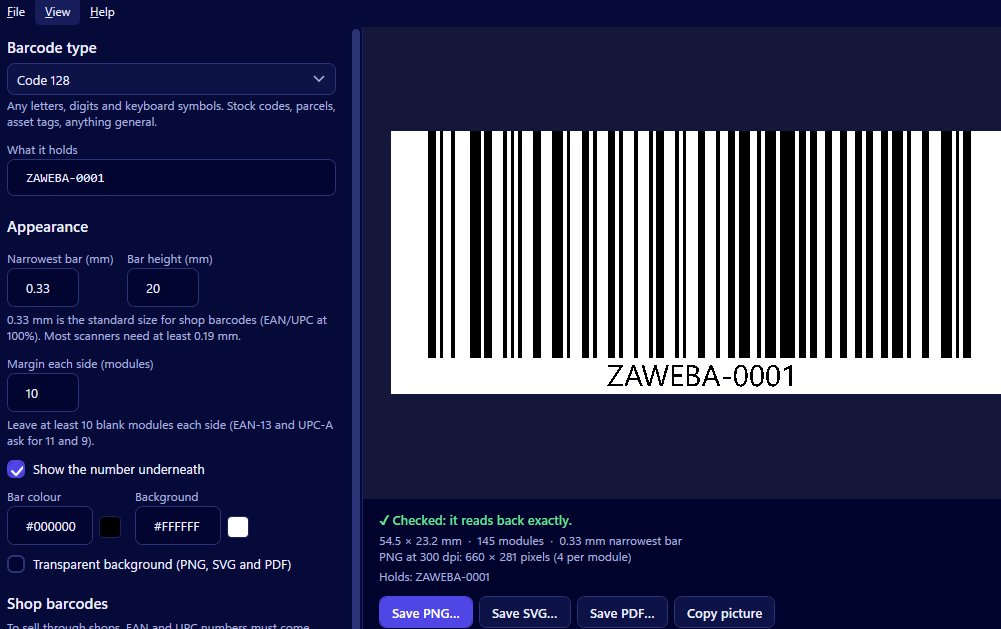
The simplest way to make a barcode is with Barcode by Zaweba, a free Windows program that works offline. Open it, pick a type such as Code 128 or EAN-13, type the number, check that the preview says it reads back, and save it as a PNG, SVG or PDF. The whole thing takes a minute or two once you know which type you need.
Here's the process in a little more detail, with the choices that make the difference between a barcode that looks right and one that scans.
What you need
You need two things before you start: the number or text the barcode will carry, and an idea of what it's for. If it's a product going into shops, you'll need a retail number allocated to you, and the type will be EAN-13 (UK and Europe) or UPC-A (North America). If it's for your own use, such as a stock code, a parcel reference or an asset tag, you can choose the number yourself and Code 128 is the usual type.
Barcode by Zaweba makes eight types in all: Code 128, Code 39, Code 93, EAN-13, EAN-8, UPC-A, ITF-14 and Codabar. Each one is described in plain words in the app, so you can read what it accepts and what it's for before you pick.
Step by step
Open Barcode by Zaweba and choose the type. Type your number or text into the box. If the type can't accept something you've typed, such as a letter in an EAN number or lower-case text in Code 39, the app explains why in plain English.
For EAN-13, EAN-8, UPC-A and ITF-14, leave off the last digit and the app adds the check digit for you. If you type the full number, it checks the last digit and tells you the right one if yours is wrong.
Now look at the preview. It draws the barcode and reads it back on every change. When it says Checked, the barcode reads back exactly. If it doesn't, the message says why.
Set the size: the narrowest bar in millimetres, the bar height and the margin around the code. Choose whether the number appears underneath and pick the bar and background colours if you want something other than black on white.
Finally, save. A PNG suits documents and printing at home, at 150, 300, 600 or 1200 dpi. An SVG suits design and packaging software because it stays sharp at any size. A PDF gives a single vector page the exact size of the code. Or press Copy picture and paste the barcode straight into Word, Excel or an email.
Getting a good result
Most barcode trouble comes from three things: poor contrast, a margin that's too small and bars that are too thin for the printer. The read-back catches the first two, warning about colours that are too close and margins too tight to read. The third depends on your printer, so be generous with bar width and height, especially on thermal labels or rough card.
Then print one and scan it with a real scanner before printing a batch. The app's read-back proves the barcode is drawn correctly; a test print proves your printer and paper are up to it.
Making lots of them
If you need many barcodes on label sheets, the same creator is built into Labels by Zaweba under Insert > Barcode creator. Its Put on the label button puts the barcode onto your design, and Labels can print a barcode on every label from a list.
Barcode by Zaweba also remembers your type, bar width and colours between uses, so the second barcode is quicker than the first.
That's all there is to it: the right type, the right number, a check that it reads, and a file in the format you need.

