
How to make an EAN-13 barcode
Choose EAN-13 in Barcode by Zaweba, type the first 12 digits and the check digit is added. The preview then reads the barcode back before you save.
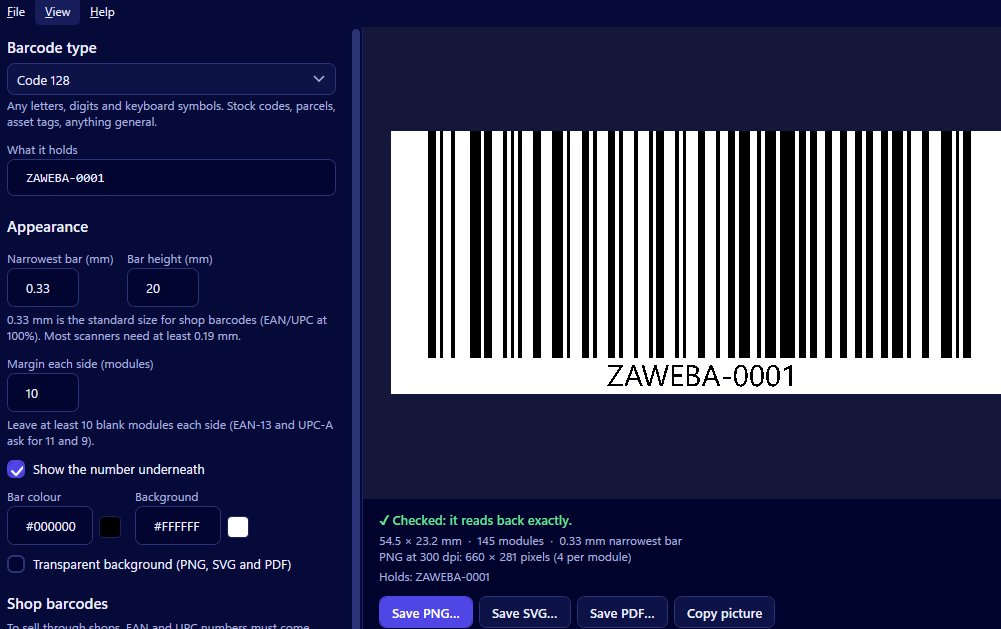
Open Barcode by Zaweba, choose EAN-13 as the type and type the first 12 digits of your product number. The app adds the 13th, the check digit, and the preview reads the finished barcode back to confirm it scans. Then save it as a PNG, SVG or PDF, or copy it as a picture.
EAN-13 is the 13-digit retail barcode seen on products in shops in the UK and Europe. Making one is quick. Making one that's right for your product takes a little more thought, so here's the full picture.
Have your number ready
An EAN-13 barcode is only as good as the number inside it. Shops look that number up, so it has to be one properly allocated to you, from your number allocator or your supplier. Barcode by Zaweba draws any valid number, but it can't give you one, and inventing a number risks clashing with somebody else's product.
If you've been given a full 13-digit number, keep it to hand. If you've been given a range, decide which number goes on which product and keep a record before you make anything.
Making it in Barcode by Zaweba
Choose EAN-13 from the type list. Type the first 12 digits and the check digit appears on the end. If you type all 13, the app checks the last one instead; if it's wrong, it tells you which digit it should be. Use that whenever a number has been copied from an email or spreadsheet, because a single swapped pair of digits is easy to miss.
EAN-13 accepts digits only, and the app explains in plain English if you type anything else.
The preview reads the barcode back with every change. You're looking for Checked underneath, which means it reads back exactly. If you see a warning instead, it tells you the cause.
Size, margin and the digits underneath
Set the narrowest bar in millimetres, the bar height and the margin. The barcode's overall size follows from those, so you can work towards the space on your pack. The margin, the clear space either side, matters more than it looks; the preview warns if it's too small to read back.
Leave the number showing underneath so a cashier can type it in if a scan fails. It's centred and drawn as outlines. It isn't in the OCR-B font often seen on shop goods, and the digits aren't split into groups beside the guard bars, but neither of those affects scanning.
Bar and background colours are yours to choose. Keep the contrast strong, with dark bars on a light background, and the read-back will let you know if a pairing is too weak.
Saving it for your packaging
For packaging artwork, save an SVG and place it at 100 per cent in your design software; it's vector, in millimetres, and keeps the bar widths you set. Save a PDF for a printer who wants a single vector page at the barcode's size. A PNG at 300 dpi or more is fine for labels you print yourself. Copy picture is the quickest way to paste the barcode into a product sheet.
Before approving a print run, print a proof on the real material and scan it with a real scanner. The app's read-back proves the barcode is drawn correctly; only a real test proves the printing is too.
If your pack is tiny
When there simply isn't room for EAN-13, the shorter EAN-8 exists for small packages, and Barcode by Zaweba makes that too. Check with whoever allocates your numbers before switching. And if your buyer is in North America, they may ask for UPC-A instead, which the app also makes.

