
ITF-14 carton barcodes with Barcode by Zaweba
How to make an ITF-14 barcode for outer cartons and cases in Barcode by Zaweba, with the check digit handled and a word on bearer bars.
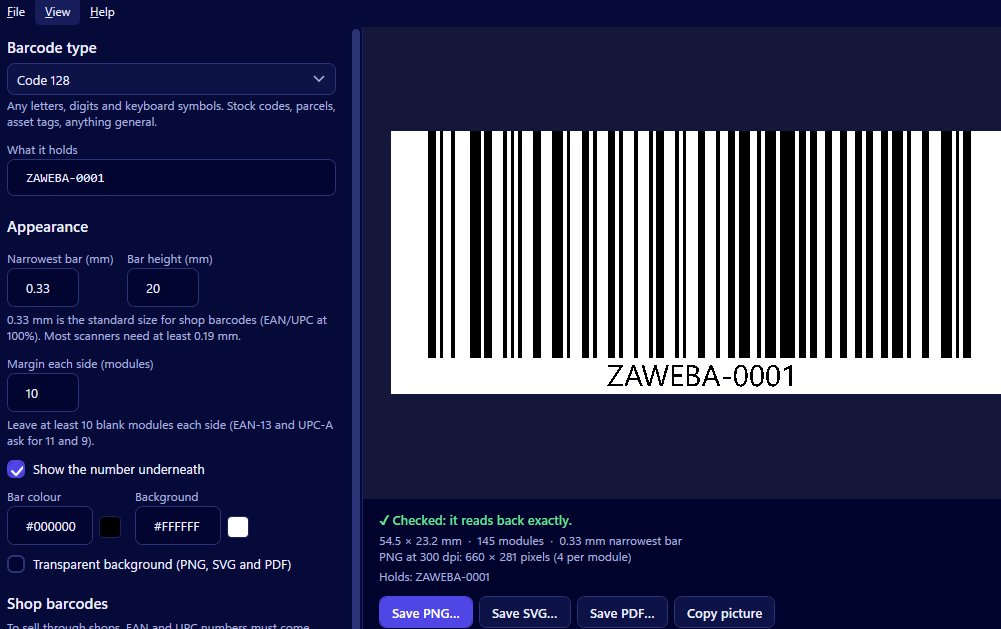
Once your products are on a shop shelf, the boxes they travel in need barcodes of their own. Outer cartons and cases holding several retail items usually carry an ITF-14, a 14-digit barcode made for exactly that. Barcode by Zaweba makes it, adds or checks the check digit, and reads it back before you print.
Where ITF-14 fits in a product range
Think of it in layers. Each item you sell carries a retail barcode, usually EAN-13 in the UK and Europe or UPC-A in North America. Those items are packed into an outer carton or case for delivery to a warehouse or a shop's stock room, and that carton gets an ITF-14. Staff scan the carton at goods in without opening it.
The ITF-14 number belongs to the same family as your retail numbers, so it comes from the same place: whoever allocates your product numbers. The app draws whatever valid number you give it, but it can't decide what that number should be.
Making one
Open Barcode by Zaweba and choose ITF-14. Type the first 13 digits and the check digit is added for you. If you've been given all 14, type them and the last is checked. A wrong check digit is flagged, and the app tells you what it should be, which catches the copying mistakes that creep in when numbers pass through several spreadsheets.
ITF-14 takes digits only. A stray letter or symbol gets a plain-English explanation rather than a broken barcode.
As you work, the preview draws the code and reads it back on every change. Checked means it reads exactly. Anything else comes with a reason, so you know whether to fix the colours, the margin or the number.
About bearer bars
If you've seen ITF-14 on cardboard boxes, you may have noticed a thick frame or a pair of heavy lines around it. Those are bearer bars, which some print shops add. Barcode by Zaweba doesn't draw them. Scanners read ITF-14 without them, and the app's read-back confirms the code itself is sound.
If a printer or a customer's specification asks for bearer bars, that's something to add in your layout or packaging software around the barcode, or to ask the print shop about. The barcode file from the app gives them a clean code to work with.
Sizing for cardboard
Cartons are often printed in one colour straight onto brown board, or labelled with a thermal printer in a warehouse. Neither is kind to fine detail. Set the narrowest bar in millimetres with that in mind, give the bars plenty of height, and keep the margin around the code clear. The preview warns if the margin is too small to read back.
Set the bar and background colours to match how the carton will really be printed, then watch the read-back. It flags colours that are too close together and light bars on a dark background, both easy mistakes on coloured board.
Getting it to the printer
For carton artwork, save an SVG or a PDF. Both are vector and keep the bars at their true millimetre widths, so the code prints at exactly the size you set. A PNG at a high dpi suits labels printed in-house. Copy picture lets you paste the barcode into a packing specification or a spreadsheet you're sending to a supplier.
If you print carton labels on label sheets, Labels by Zaweba has the same barcode creator under Insert > Barcode creator, with a button to put it straight on your label design.
A sensible order of work
Start with the retail items: get their EAN-13 or UPC-A codes made and checked. Then make the ITF-14 for each carton size. Print one carton label or proof, scan it at goods in with the scanner that will really be used, and only then send the full run to print.
ITF-14 isn't glamorous, but a carton that scans at the door gets put away quickly, and a carton that doesn't gets set aside. Barcode by Zaweba makes sure the code is right; a test scan makes sure the box is.

