
Colours and the number under the bars in Barcode by Zaweba
Show or hide the number under a barcode and choose bar and background colours in Barcode by Zaweba, without losing a scan.
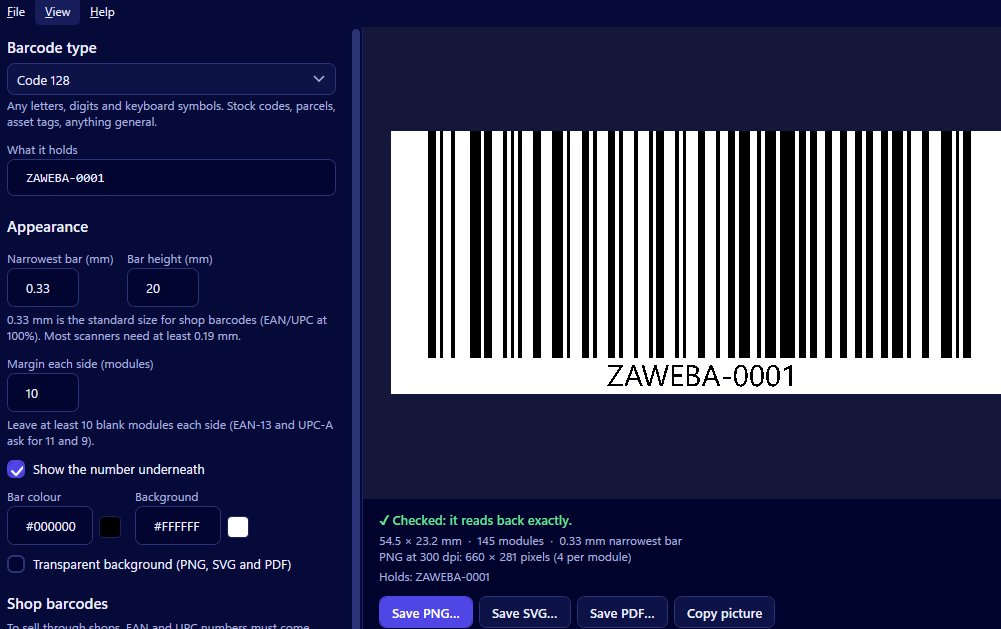
A barcode is mostly bars, but two small choices change how it looks on the finished label: whether the number is printed underneath, and what colours the bars and background are. Barcode by Zaweba gives you both, and its live read-back stops a nice-looking choice from becoming one that won't scan.
Showing the number, or not
You can choose whether the number is printed under the bars. For most jobs, leave it on. Cashiers type the number in when a scan fails. Warehouse staff read it out over the phone. Someone checking stock against a list can match the label without a scanner. The number underneath is the backup that keeps things moving when the bars can't be read.
There are cases for turning it off. On packaging artwork the number might be set elsewhere in the design, or a tiny label may have no room for it. If you hide it, make sure the number is still available somewhere a person can find it.
How the number is drawn
When the number is shown, it's centred under the bars and drawn as outlines rather than typed text. That means it looks exactly the same in a PNG, an SVG and a PDF, on your computer and on the print shop's, without depending on which fonts are installed.
Two details are worth knowing if you're used to how retail barcodes look in shops. The number isn't set in the special OCR-B font often seen on products, and on EAN codes the digits aren't split into groups beside the guard bars. Neither of these stops the barcode scanning. They're matters of convention and appearance, and the bars themselves are what the scanner reads.
Choosing colours
You can set the bar colour and the background colour. Black on white is the classic for good reason, but a dark brand colour on a pale background can work perfectly well. The rule scanners care about is contrast: dark bars on a light background, with plenty of difference between the two.
Two mistakes catch people out. One is colours that are too close together, such as a mid grey on a light grey or a dark red on a dark brown. The other is reversing the code into light bars on a dark background, which looks striking but many scanners won't read. Barcode by Zaweba's read-back catches both. It reads the barcode on every change and tells you if the colours are the reason it can't.
Letting the read-back guide you
The quickest way to settle colours is to experiment with the preview in view. Try your brand colour for the bars and watch the message under the preview. Checked means it reads back exactly. If it doesn't, the message explains why, and you can nudge the colour darker or the background lighter until it does. If you try to save a barcode that doesn't read back, the app asks you first.
Remember that screens and printers differ. A pairing that reads on screen might print lighter or muddier, especially on coloured card or with a thermal printer. Print a test and scan it.
Saving the result
Your choices carry into every format. A PNG keeps the colours and the number as you see them in the preview. An SVG and a PDF keep them as vector shapes, so the outlined number stays crisp at any size. Copy picture puts the coloured barcode on the clipboard for pasting into a document.
Your colours are remembered between uses too, so once you've settled on a house style, it's there next time you open Barcode by Zaweba.
Keep the number on unless you have a reason not to, keep the contrast strong, and let the preview tell you when you've gone too far.

