
Starting Barcode by Zaweba with your data ready
Start Barcode by Zaweba with data after the program name and it goes straight into the barcode. Your type, bar width and colours are remembered too.
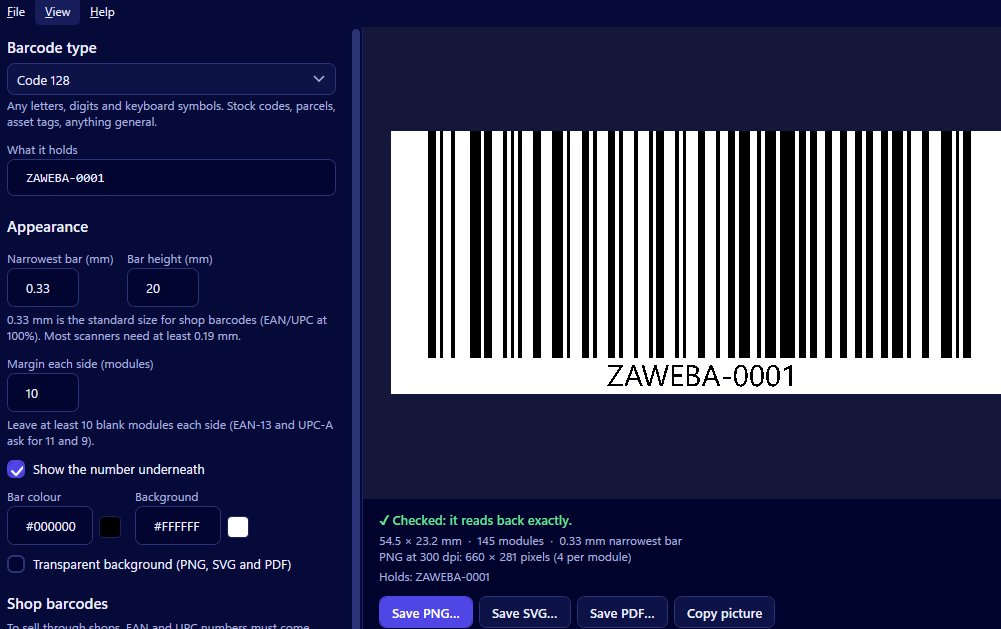
Most of the time you open Barcode by Zaweba, pick a type and type a number. Two quieter features make repeat jobs quicker: you can hand it the data when you start it, and it remembers how you like your barcodes from one session to the next.
Data after the program name
If you start Barcode by Zaweba with some data after the program name, that data is put into the barcode straight away. The app opens with your text already in the box and the preview already drawn and read back.
That's the whole feature, and it's deliberately simple. It means anything that can start a program with some text after it can open the app ready to go. A Windows shortcut can have text after the program in its target. A small script or batch file can start it with a code taken from somewhere else. Another program that launches helper tools can pass a number across.
Jobs it helps with
Think about the codes you make over and over. A workshop might print the same asset tag prefix every week. A stock room might reprint a handful of shelf codes whenever labels get damaged. A shortcut on the desktop that opens the app with a particular code already filled in turns a reprint into a double-click, a glance at the preview and a save.
If you keep codes in a list elsewhere, a script that starts the app with the next code saves typing, and typing is where mistakes creep in. You still see the preview and the read-back before you save anything, so you keep the safety check.
For printing whole sheets of different codes from a list, Labels by Zaweba is the better tool, since it can put a barcode on every label from a list. The command line suits one code at a time.
Settings that stay put
Barcode by Zaweba remembers your type, bar width and colours between uses. Close it and open it again and you're back where you were. If you always make Code 128 in your brand's dark blue with a particular bar width, you set that once.
Together with starting from the command line, that means a shortcut can open the app with your data in place and your usual look already applied. All that's left is to check the preview says Checked, then save or copy the picture.
It's worth remembering the flip side. If you switch to an unusual type or colour for a one-off job, the app will still have those settings next time. Glance at the type and colours before you save, especially when the data has arrived from a shortcut or script and you haven't typed it yourself.
The safety check still applies
Data that arrives automatically is still checked like data you typed. If it doesn't suit the type, for example lower-case letters for Code 39 or a letter in an EAN number, the app explains why in plain words. EAN, UPC and ITF-14 check digits are added if missing or verified if present, with the right digit shown when it's wrong. The read-back runs as normal, and saving something that doesn't read back asks you first.
On other systems
Mac and Linux versions of Barcode by Zaweba also exist, built from the same code library, so the barcodes they make follow the same rules as the Windows app. If your team works across different computers, everyone gets the same types, the same check digit handling and the same read-back.
Small conveniences, then, but the kind that add up when barcodes are a weekly chore rather than a one-off.

