
When to choose Code 93 in Barcode by Zaweba
Code 93 holds the same capitals, digits and symbols as Code 39 in less space. When to use it, and when Code 128 is the better pick, in Barcode by Zaweba.
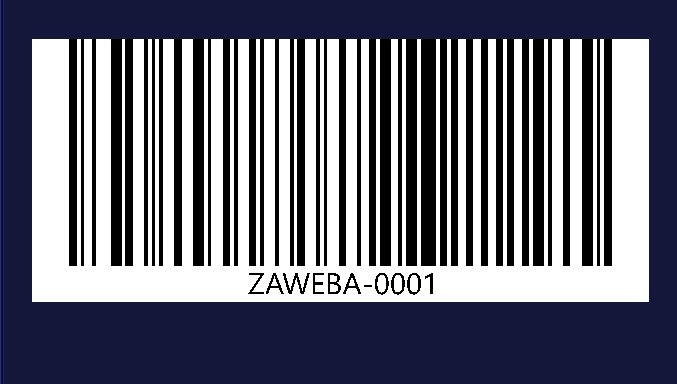
Most people never need Code 93, and that's fine. It earns its place in Barcode by Zaweba for one reason: some systems ask for it by name, and when they do, nothing else will do. Knowing what it is and when to pick it saves you guessing.
A compact relative of Code 39
Code 93 holds the same kind of characters as Code 39, which means capitals, digits and a few symbols, but it draws them in a more compact form. For the same text you get a shorter barcode. Like Code 39, it takes capitals, so lower-case letters are turned away with a plain explanation rather than drawn badly.
That compactness is the whole appeal. If you're working with a system built around the Code 39 character set but need the barcode to fit a smaller space, Code 93 can be the answer, provided the system's scanners read it.
When it's the right choice
The honest rule is short: choose Code 93 when a system you work with asks for Code 93 specifically. That might be a supplier's specification, a piece of stock software, or an existing set of labels you need to match. In those cases, match what's there.
When you have a free choice, Code 128 is the more common pick. It's compact too, it accepts letters, digits and punctuation, and it's what most people reach for. Choosing Code 93 without a reason just adds a type your scanners may not be set up to expect.
How to make one
Open Barcode by Zaweba and choose Code 93 from the type list. Each type there comes with a plain-words description of what it accepts and what it's for, which is a good place to double check you've got the one your system expects. Type your text in capitals.
The preview draws the barcode at once and reads it back with every change. If it reads exactly, you'll see Checked. If something's wrong, the message says what, whether that's a character the type can't take, colours too close together, light bars on a dark background, or a margin that's too small.
Then set the size. You choose the narrowest bar in millimetres, the bar height and the margin, and the finished size follows from those. Decide whether the number should show underneath, and pick the bar and background colours. Dark bars on a light background is the safe default; the read-back will flag a pairing that a scanner would struggle with.
Saving it for the job
Save a PNG for documents and quick printing, choosing a dpi from 150 up to 1200. The dpi is written into the file, so it prints at its real size. Save an SVG for artwork, since it stays sharp at any size and keeps true millimetre widths when placed at 100 per cent. Save a PDF when you want a single page at the exact size of the code, ready for a printer. Or use Copy picture to drop it into a document you already have open.
Testing against the system that asked for it
Because Code 93 is usually chosen to satisfy a particular system, test it against that system. Print one copy on the label or paper you'll really use and scan it with the scanner the system uses. The app's read-back proves the drawing is correct, but it can't know how a given scanner has been set up. Scanners can have some types switched off, and a quick test now saves reprinting a batch later.
If the scanner won't read it and the system allows a choice, Code 128 is the obvious fallback. If it must be Code 93, the scanner's own settings are the place to look, not the barcode.
That's Code 93 in practice: rarely the first choice, sometimes the only one, and simple to get right in Barcode by Zaweba when you need it.

