
How to change Clip's Ctrl+Shift+V hotkey
Clip by Zaweba opens with Ctrl+Shift+V, which some programs use for paste as plain text. How to pick a different hotkey in Settings in one click.
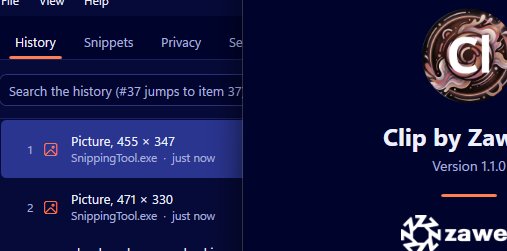
The popup in Clip by Zaweba opens with Ctrl+Shift+V. It's a natural choice, close to the Ctrl+V you already use, but it isn't free everywhere. Some programs, including Office, Chrome and VS Code, use Ctrl+Shift+V for their own paste as plain text. Changing Clip's hotkey takes a moment and settles the question.
Why there's a clash
Only one thing can answer a shortcut at a time. While Clip is running with its default hotkey, pressing Ctrl+Shift+V opens Clip's popup instead of the program's own plain-text paste. If you rely on that plain-text paste, you'll notice.
Clip itself can paste as plain text, with Shift+Enter in the popup, so many people are happy to let Clip have the shortcut. Others have years of muscle memory in their favourite program. Settings explains the clash and lets you pick another hotkey if you'd rather keep the program's behaviour.
Changing it
Open Clip's main window, from Open Clip on the tray menu, and go to Settings. Click the hotkey box and press the keys you want to use. That's it; the new shortcut takes over from then on.
If another program already owns the shortcut you pressed, Clip tells you so, rather than saving a hotkey that would never fire. Try a different combination until it's accepted.
Choosing a good hotkey
A good popup hotkey is one you can press without looking, with one hand if possible, and that no program you use already claims. Combinations with Ctrl and Alt, or Ctrl, Shift and a letter other than V, tend to be quieter than single-modifier shortcuts, which programs use heavily.
Think about the programs you live in. If you write in Word, browse in Chrome and code in VS Code, try the new shortcut in each to make sure nothing else happens when you press it. Also avoid Ctrl+Alt+C, which Clip uses for Quick clip, and any hotkeys you've given to your snippets.
Snippet hotkeys are separate
Each snippet can have its own optional global hotkey, such as Ctrl+Alt+1, that pastes it from anywhere. Those are set on the Snippets page, not with the popup hotkey. Clip checks those for clashes too, explaining the problem and not saving a hotkey or trigger that's already taken.
If the popup won't open
If pressing your hotkey does nothing, a few checks help. Make sure Clip is running: look for its icon in the tray. If you've used Exit from the tray menu, it isn't running until you start it again. You can always open the popup by left-clicking the tray icon, which is a useful fallback while you sort out the shortcut.
If Clip is running and the shortcut still does nothing, another program may have taken it since you set it. Go back to Settings and set it again; Clip will say whether something else owns it.
Learning the new keys
Whatever you choose, give it a few days. The popup opens at the mouse pointer, numbered, with pins at the top, and typing a few letters filters it. Once the new keys are in your fingers, recalling something you copied earlier is a matter of seconds again, and the program that wanted Ctrl+Shift+V gets it back.
It's one of the first settings worth checking when you install Clip by Zaweba, and one of the quickest to change.

