
Can you copy a picture and paste it again later?
Yes. Clip by Zaweba keeps copied pictures in your history. Type picture in the popup to find them and press Enter to paste one again.
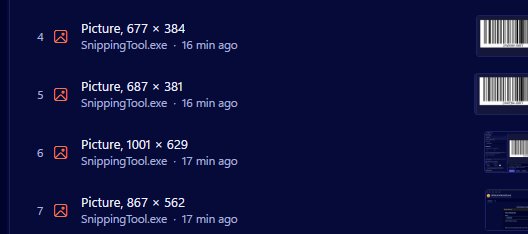
Yes. With Clip by Zaweba running, every picture you copy is kept in your clipboard history, not just the last one. Open the popup with Ctrl+Shift+V, type the word picture to show only pictures, choose the one you want and press Enter to paste it, whether you copied it a minute ago or last week.
Normally, Windows' clipboard holds one thing at a time, so copying something new loses the picture. Clip removes that problem.
How pictures are kept
When you copy a picture, from a web page, a chat, a document or a screenshot tool, Clip stores it as a PNG. If a program puts the picture on the clipboard in the older DIB format, Clip converts it to PNG. Each picture is noted with the program it came from, just like text.
The history is kept in a local database on your PC, so pictures survive a restart, and Clip can start when you sign in so it's always recording.
Finding and pasting one
Press Ctrl+Shift+V. The popup opens at the mouse pointer, with pins first and then everything else newest first, every row numbered. Type picture and the list shows only pictures. Add another word, such as the name of the program you copied from, to narrow it further, since every word you type has to match.
Use the arrow keys to choose, then Enter. The picture is pasted into the window you were using.
If you'd rather see pictures properly before choosing, open the main window and use the History page. It has search and a preview, and Copy puts the selected picture back on the clipboard for you to paste.
Keeping a picture safe
Pictures take more space than text, so Clip caps them by total size, 100 MB by default, and ignores any single copy over 32 MB. The oldest unpinned items go first when a limit is reached. If there's a picture you'll need again and again, such as a logo or a signature image, pin it. Pins stay at the top and are never removed by any limit.
Turning a picture into a file
Sometimes you want a file rather than a paste. On the History page, Save as JPG saves a picture from your history as a named JPG, in lower-case hyphenated words, in Pictures\Clips unless you've chosen another folder. It uses the same naming and quality as Quick clip, Clip's Ctrl+Alt+C snip-and-name tool. See-through parts become white, since JPG has no transparency.
If pictures aren't showing
Pictures can be switched off in Settings, separately from text, so check there if your popup only shows words. Also check the tray icon: grey with a pause mark means recording is paused, and nothing new is being kept. Pictures copied in a program on the excluded list won't appear either.
When it's handy
Pasting a product photo into an order form after you've copied an address in between. Dropping the same diagram into several emails across the day. Rescuing a screenshot you took before copying something else over it. Each of those used to mean going back and copying the picture again.
With Clip by Zaweba, copying it once is enough.

