
A tour of Clip's main window and its four pages
Clip by Zaweba's main window has History, Snippets, Privacy and Settings pages. What each one does, and when to use it instead of the popup.
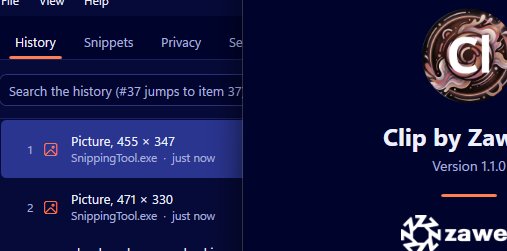
Day to day, most of your time in Clip by Zaweba is spent in the little popup that opens at the pointer. The main window is where you go when you want to look around, tidy up or change how things work. It has four pages: History, Snippets, Privacy and Settings.
Open it from the tray icon's right-click menu with Open Clip. When you close it, Clip carries on running in the tray, so closing the window never stops your history being recorded.
History
The History page is the full view of everything Clip has kept. It has search, a preview of the selected item, and buttons to copy, copy as plain text, pin, delete and clear.
The preview is the reason to use this page over the popup. You see the item properly, whether that's a long passage of text, a picture or a list of files, before you do anything with it. Copy puts it back on the clipboard for you to paste wherever you like. Copy as plain text puts just the words on the clipboard, stripped of fonts, colours and links.
Pin here does the same as Ctrl+P in the popup: the item moves to the top and stays there, safe from any history limit. Delete removes a single item, which is useful for something you copied by mistake. Clear empties the history while keeping pins.
The History page also has Save as JPG for any picture in your history, which saves it as a named file using the same naming rules as Quick clip.
Snippets
Snippets are named blocks of text you write yourself, each with a trigger such as ;addr and, optionally, a global hotkey. The Snippets page is where you create and edit them. If a trigger or hotkey clashes with one you already have, Clip explains the clash and doesn't save it, so you never end up with two snippets fighting over the same keys.
Snippets are plain text. Keep them for the things you type often in exactly the same words: addresses, sign-offs, stock replies.
Privacy
The Privacy page holds the list of excluded programs. Anything copied in one of them is ignored entirely. The list comes pre-filled with common desktop password managers, and you can add programs by typing a name or picking from the programs that are running.
This is also where you'll find Pause recording and Clear history. Clear history keeps your pins; Clear everything asks for confirmation and then removes the lot. When recording is paused, a bar in the main window reminds you.
Settings
Settings covers how Clip behaves. You can change the popup hotkey, which is Ctrl+Shift+V by default, set the history limits, and choose what to record, with pictures, file lists and formatting each able to be switched off. There's a Move pasted item to the top option, encryption of the stored history, Start with Windows, and the theme.
A few of these are worth looking at on your first day. If Ctrl+Shift+V clashes with a program you use, change it. If you'd like your history kept between sessions from the moment you sign in, turn on starting with Windows. If the history holds sensitive work, consider encryption.
When to use which
Reach for the popup when you want to paste something now. Open the main window when you want to find something and look at it first, sort out your pins, write snippets, check privacy or change a setting.
Between the two, Clip by Zaweba gives you a quick way in and a calm place to manage what it keeps.

