
Quick clip: snip the screen and save a named JPG
Press Ctrl+Alt+C in Clip by Zaweba, snip part of the screen, say or type a name and press Enter. It's saved as a tidy, named JPG in Pictures\Clips.
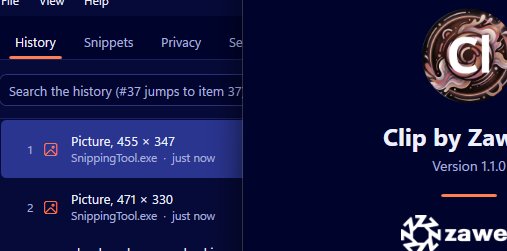
Taking a screenshot is easy. Finding it again a week later, in a folder of files called Screenshot followed by a date and time, is not. Quick clip in Clip by Zaweba fixes that by asking for a name at the moment you take it, and it lets you say that name out loud.
How it works
Press Ctrl+Alt+C from anywhere. Windows' own snipping overlay appears, and you drag across the part of the screen you want. As soon as you let go, a name box opens in front of everything else.
Windows voice typing, the one you'd normally start with Win+H, can start in that name box, so you can simply say the name. Say something like paint side bar menu align options, check the words, and press Enter. If you'd rather type, type.
The file is saved as lower-case words joined by hyphens. That example becomes paint-side-bar-menu-align-options.jpg. It goes into Pictures\Clips, a folder you can change.
Names that never clash
Quick clip never overwrites an existing file. If you save two clips with the same name, the second gets -2 on the end, the third -3, and so on. You can be relaxed about reusing a name for a series of similar shots, knowing nothing is lost.
The lower-case, hyphenated style is deliberate. It's easy to read, easy to search in File Explorer, and safe to upload to websites and share in documents without spaces or capitals causing trouble.
Quality and see-through parts
JPG quality is 85 by default, which keeps files small while text and edges stay clear. JPG can't store transparency, so any see-through parts of the snip become white. For most screenshots of windows and web pages you won't notice.
Jobs it suits
Quick clip shines whenever you're collecting lots of screenshots that need to make sense later. Writing instructions or a help guide, you can name each shot after the step it shows. Reporting a problem, you can name the snip after what went wrong. Gathering design references, product pictures or bits of a long document, you can name each one as you go rather than renaming a pile of files afterwards.
The voice option makes it quicker still. Your hands stay on the mouse, the name is said in a couple of seconds, and Enter finishes the job.
Naming well
Start names with the thing that matters most, so files sort together in the folder. If you're documenting a program, begin every name with its name; if you're working on a project, begin with the project. Keep names descriptive but short. Voice typing sometimes mishears, so glance at the box before pressing Enter.
Working with the rest of Clip
Quick clip is about files, but your clipboard history is still there. If you've already copied a picture, perhaps from a web page or another screenshot tool, Save as JPG on the History page of the main window saves it with the same naming rules, into the same folder, at the same quality. So a picture can end up as a named file whichever way it arrived.
Clip by Zaweba stays offline throughout. The snip, the name and the file all stay on your PC, in a folder you choose.

