
Clip's tray icon and what its menu can do
Clip by Zaweba lives in the Windows tray. Left-click opens the popup; the right-click menu pauses recording, clears history, opens settings and more.
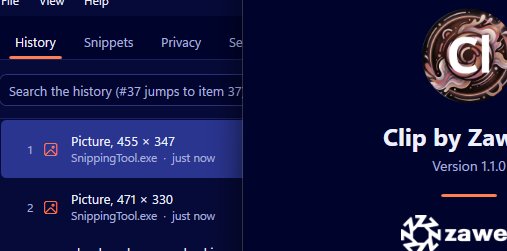
Most of the time, Clip by Zaweba sits out of sight in the notification area at the bottom right of the screen. Its tray icon is the way in when you don't want to use the keyboard, and its right-click menu puts the most common jobs one click away.
Left-click and right-click
Left-click the tray icon and the paste popup opens, the same list you get with the hotkey. That's handy when your hands are on the mouse, or when you've forgotten the shortcut on a new machine.
Right-click and you get the menu. It has Open Clip, History and snippets, Pause recording, Clear history, Privacy and excluded apps, Settings, Send feedback, About and Exit. Each one is a shortcut into a part of the app you'd otherwise reach through the main window.
What each menu item is for
Open Clip opens the main window. History and snippets goes straight to your saved items and snippet list. Privacy and excluded apps takes you to the list of programs Clip never records, and Settings opens the options for the hotkey, limits, what to record, encryption, start with Windows and theme.
Pause recording is the one you'll use most from the tray. It stops Clip capturing anything new. While it's paused, the tray icon turns grey with a pause mark, so a glance at the corner of the screen tells you whether Clip is listening. Pausing is remembered across restarts, so if you pause before shutting down, Clip will still be paused next time. Choose it again from the menu to resume.
Clear history empties your history but keeps your pins, so your address and signature survive a clear-out. If you want to remove everything, Clear everything does that, after asking you to confirm.
Send feedback and About do what you'd expect. Exit closes Clip completely, and nothing is recorded until you start it again.
Good moments to pause
Pausing from the tray is quick enough to make a habit of. Browser-extension password managers can't be detected, so pause while you use one. Pause when you're handling something sensitive that you'd rather not have in your history, such as bank details for a one-off payment. And pause when you're copying a lot of throwaway material that would push useful items down the list.
Just remember to resume. The grey icon is your reminder.
Exit or close
Closing the main window doesn't stop Clip; it keeps running in the tray and keeps recording. Exit from the tray menu is the only way to stop it fully. If you exit and later wonder why nothing was recorded, that's why.
Only one copy of Clip runs per session. If you start it again while it's already running, you won't end up with two icons and two histories.
Starting at sign-in
There's an optional Start Clip when I sign in setting. With it on, Clip is in the tray from the moment you sign in, ready to record your first copy of the day. With it off, you start Clip yourself when you want it. Most people who rely on their clipboard history turn it on, because the thing you need is usually the thing you copied before you remembered to start the app.
Hiding and finding the icon
Windows sometimes tucks tray icons behind the small arrow in the notification area. If you use the tray menu a lot, drag Clip's icon out so it's always visible. You'll see the pause state at a glance, and Clip by Zaweba is never more than a click away.

