
What Clip by Zaweba records when you copy
Clip by Zaweba keeps plain text, formatted text, web content, pictures and file lists, with the program each came from. Here's what it keeps and how to trim it.
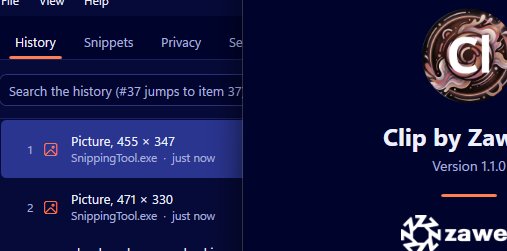
A clipboard manager is only useful if it has kept the thing you need. Clip by Zaweba records more than plain words: formatted text, web content, pictures and lists of files all go into the history, each tagged with the program it came from. Knowing exactly what it keeps, and what it deliberately leaves alone, helps you trust it and tune it.
The kinds of thing it keeps
Clip remembers five kinds of copied content. Plain text is the obvious one. Rich text, in the RTF format that word processors use, keeps fonts, bold and colours. HTML is what you get when you copy from a web page or an email, with links and formatting intact. Pictures are kept as PNG, and when a program puts a picture on the clipboard in the older DIB format, Clip converts it to PNG. File lists are what Windows puts on the clipboard when you copy files in File Explorer.
Alongside each item, Clip notes the program it came from. That matters later, because searching in the popup matches the program name as well as the text. Typing the name of your browser or your mail program narrows the list to things you copied there.
No duplicates, no echoes
Copy the same thing twice and you won't see it twice. Clip moves the existing item to the top of the history instead of adding a second copy, so the list stays short and the newest position reflects when you last used it.
Clip's own pastes aren't recorded again either. When you pick an item from the popup and paste it, Clip puts it on the clipboard to do the job, but it doesn't treat that as a fresh copy. Without that rule, every paste would add another entry and the history would fill with echoes.
Choosing what to record
Not everyone wants everything. In Settings you can switch off pictures, file lists and formatting, each on its own.
Turning off pictures is sensible if you copy a lot of large images and only care about text, or if you'd rather screenshots didn't sit in your history. Turning off file lists suits people who move files around all day and never want to paste a file list again. Turning off formatting keeps just the text, which can be handy if you nearly always want plain words anyway.
If you only sometimes want plain text, you don't need to turn formatting off at all. Shift+Enter in the popup pastes just the words, and the main window has Copy as plain text.
What it leaves alone
Some things Clip skips on purpose. Content that password managers flag as private is ignored before Clip reads any of it. Programs on the excluded list, which comes pre-filled with common desktop password managers, are never recorded. Pause recording stops capture until you turn it back on, and it stays paused across restarts.
There are size limits too. By default Clip keeps 500 unpinned items, caps pictures by total size at 100 MB, and ignores any single copy over 32 MB. The oldest unpinned items go first, and pins are never removed.
Making the most of it
Once you know Clip keeps formatting and pictures, you can lean on it. Copy a formatted table from a document, then paste it later with its formatting, or as plain text if the destination needs that. Copy a picture now and paste it into an email an hour later. Copy a set of files in Explorer and paste that list again into another folder.
Remember that pasting spreadsheet cells brings back text, RTF, HTML or a picture rather than the spreadsheet's own object, so formulas don't travel through the history.
Everything stays in a local database on your PC, which you can encrypt. Clip by Zaweba keeps a lot, but it keeps it at home.

