
A colour picker for Linux, on X11 and Wayland
Colour by Zaweba has a Linux version for X11 and Wayland with the same values as on Windows: hex, RGB, HSL, CMYK, CIE Lab, contrast and more.
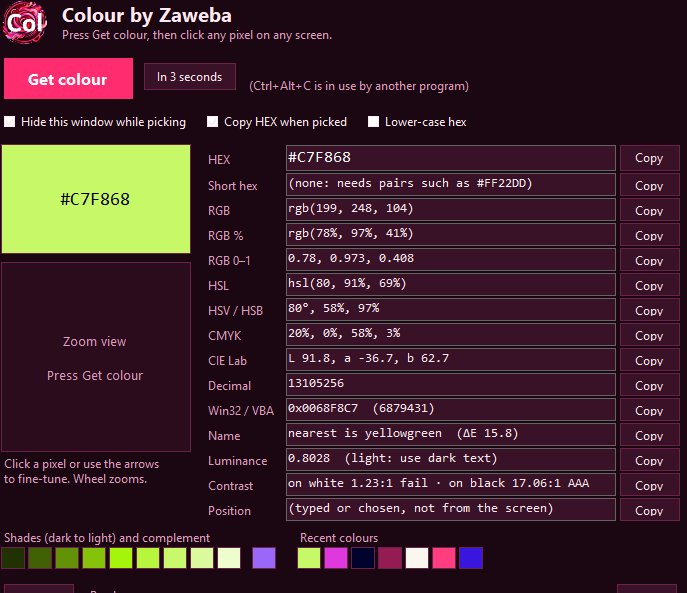
There is a Linux version of Colour by Zaweba that works on both X11 and Wayland desktops. It has the same layout and shows the same values as the Windows version: HEX, RGB, HSL, HSV, CMYK, CIE Lab, decimal, COLORREF and more, each with a Copy button, plus the nearest CSS colour name and a contrast check.
How the pick itself happens depends on which kind of desktop session you are running, so it helps to know which one you have.
X11 and Wayland, briefly
Linux desktops draw the screen through one of two systems. X11 is the older one and lets programs read the screen freely. Wayland is newer and, for good privacy reasons, does not let an ordinary program look at other windows. Many current distributions use Wayland by default, though X11 sessions are still common, and some login screens let you choose.
Picking on X11
On an X11 session Colour uses its own frozen-screen magnifier, the same idea as on Windows. Press Get colour and the screen is captured as one still picture while a magnifier follows the pointer, with the chosen pixel boxed. Nothing moves under you while you zoom and line up the pixel, and the magnifier can never pick itself. Click to take the colour.
After the pick, the zoom view in the main window shows the pixels around the one you chose. Click a neighbour, or use the arrow keys, to move the pick without starting over. That makes it easy to get the exact pixel of a thin line or the middle of a small icon.
Picking on Wayland
On Wayland, Colour asks the desktop's own picker to do the sampling. The desktop shows its picker, you click a pixel, and the desktop hands the colour back to Colour, which fills in every format. This is the proper route on Wayland, because the desktop is the one thing allowed to read the whole screen, and it means Colour does not need any special workaround or extra rights.
The look of the picker will vary a little between desktops, since it belongs to the desktop rather than to Colour. The values you get afterwards are the same.
What you get once the colour is in
Whichever route the pick took, the main window works the same. Every format is listed with its own Copy button, and Copy all puts them all on the clipboard. The HEX box takes typed or pasted colours too, so the app doubles as a converter: paste an rgb() value, three comma-separated numbers, a 0x number or a CSS colour name and press Enter.
Below the values you will find the nearest of the 148 CSS colour names with a delta E figure, the WCAG luminance and contrast ratios against white and black, shades from 10 to 90 percent lightness, the complementary colour and your last 12 colours, each a click away.
Same app on every machine
Plenty of people move between a Linux workstation and a Windows or Mac machine. Colour keeps its layout the same on all three, so your hands know where the Copy buttons are wherever you sit. It makes no network connections at all on any of them, which suits anyone who likes their tools to stay quietly local.

