
Copying every colour value at once in Colour by Zaweba
Colour by Zaweba copies one value with its own button, every value with Copy all (Ctrl+Shift+C), or the HEX automatically each time you pick.
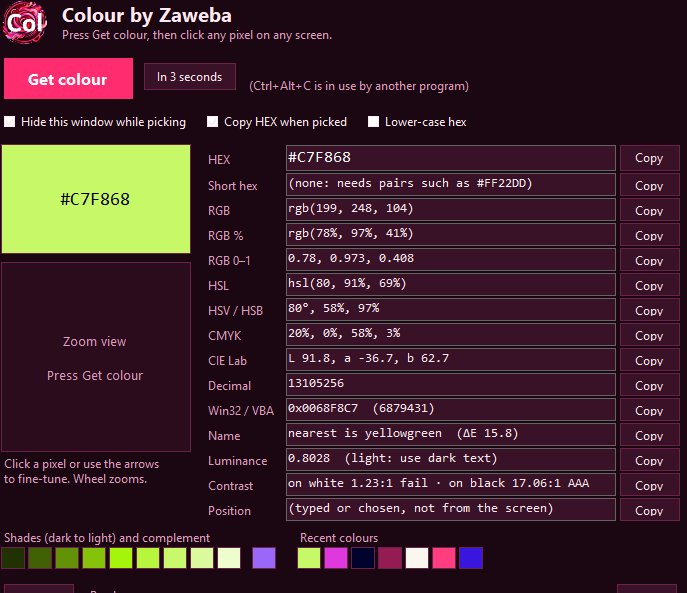
Sometimes you need one value, and sometimes you need the lot. Colour by Zaweba covers both: every format in its window has its own Copy button, and Copy all (Ctrl+Shift+C) puts every value on the clipboard together. There's also an option to copy the HEX by itself the instant a colour is picked.
These three ways of copying suit different jobs, so it helps to know which one to reach for.
One value, one button
After a pick, the main window lists the colour as HEX, short hex, RGB, RGB percent, RGB 0 to 1, HSL, HSV (also called HSB), CMYK, CIE L*a*b* using D65, a decimal number and the Win32 or VBA COLORREF written as 0x00BBGGRR. Each line has a Copy button beside it. Click it and that value, in that format, is on the clipboard ready to paste.
The single buttons are best when you know where the colour is going. A stylesheet wants the HEX or an rgb() value. A design program might take HSL or HSV. A spreadsheet macro may want the decimal or the COLORREF. Copy the one you need, switch programs and paste.
When Copy all is the better choice
Press Copy all, or Ctrl+Shift+C, and every value goes onto the clipboard at once. Paste it into a note, an email or a document and you have a full record of that colour in every format.
Brand notes are the obvious use. If you're writing down a company's house colours for someone else, you won't always know whether they'll be working on a web page, a printed leaflet or a slide deck. Pasting all the values means they have the HEX for the web, the CMYK for a print job and the RGB for everything else, without needing a converter. It's also good for handing colours to a developer who works in a different format from you, and for keeping your own reference file of colours you use often.
Checking is another. Pasting every value side by side makes it easy to compare a colour you picked today with one you noted last month, format by format.
Letting each pick copy its own HEX
If most of your picks end up in a stylesheet or a design file, the option to copy HEX automatically when a colour is picked saves a click every time. Turn it on and each pick lands on the clipboard as a HEX the moment you click, so you can go straight back to your editor and paste. A related option writes the hex in lower case, for people whose code style prefers it.
Combine it with the Ctrl+Alt+C hotkey and the whole job becomes: press the hotkey, aim with the magnifier, click, paste. Colour's window doesn't even need to be in front.
Clipboard pitfalls
The clipboard only holds one thing at a time, so if automatic HEX copying is on, picking a second colour replaces the first. If you need several colours, the recent colours row keeps your last 12 picks and lets you load any of them again, then copy what you need.
Check that the format you paste matches what the other program expects. COLORREF stores the colour as blue, green, red rather than red, green, blue, so pasting it where a HEX is wanted gives the wrong colour even though both look like hex numbers. RGB 0 to 1 suits some graphics code but not most design programs. When in doubt, use Copy all and take the right line from the pasted text.
Between the single buttons, Copy all and the automatic HEX option, you can set Colour up to fit the way you work, whether that's one quick value or a complete record of a colour.

