
An eyedropper tool for the whole screen
Most eyedroppers only work inside one program. Colour by Zaweba picks from anywhere on the desktop, across every monitor, with a zoomable magnifier.
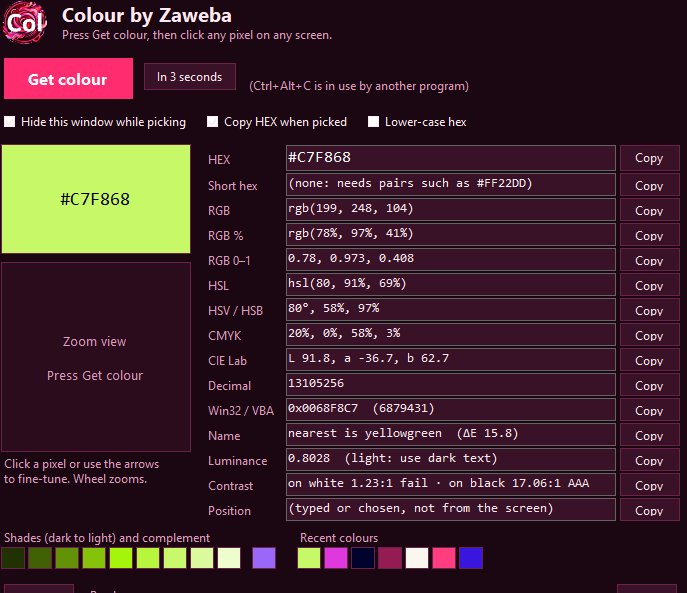
A screen-wide eyedropper is exactly what Colour by Zaweba is. Press Ctrl+Alt+C from any program, or Get colour in its window, and the whole desktop freezes under a magnifier that zooms from 3x to 32x. Click a pixel anywhere, on any monitor, and you get its colour in every common format.
The eyedropper in an image editor or a browser extension only sees what is inside that program. This one sees whatever is on the screen.
Why a built-in eyedropper often is not enough
Design programs have their own eyedroppers, and they are fine for sampling from the picture you are editing. The trouble starts when the colour you want is somewhere else: in a client's PDF, in a video paused in a player, in a chat message, in a game, in the title bar of another program. You end up taking a screenshot, pasting it into the editor and sampling from that. A screen-wide picker cuts out the middle steps.
How the magnifier works
When a pick starts, Colour takes a still picture of the entire desktop, every monitor at once, and hides its own window. The magnifier then travels over that frozen picture. The pixel under the cursor is boxed, and its hex value, RGB value and screen position are shown beside it. Roll the mouse wheel or press plus and minus to zoom. Use the arrow keys to move the pick by exactly one pixel, or ten with Shift.
Freezing the screen is what keeps things calm. A video does not move on, an animation does not change frame, and the magnifier never picks its own border. Click, Enter or Space takes the colour; Esc or a right-click cancels.
On high-DPI screens and mixed monitor setups the capture uses real screen pixels, because the Windows app is per-monitor DPI aware. A laptop screen at one scaling and an external monitor at another are both picked accurately.
Things a screen eyedropper is good for
Web developers use it to grab a colour from a mock-up or a live site and paste the hex into CSS. People making slides borrow the exact blue from a company logo so the deck matches. Artists sample a few colours from a reference photo to build a palette. Anyone fixing a document that has drifted off its house colours can pick the right shade from an older file and compare it with the new one.
There is a useful trick for colours that only appear while you hover or have a menu open. Press In 3 seconds instead of Get colour, open the menu or hover, and the screen is frozen with it showing.
After you click
The main window lists the colour as HEX, short hex, RGB, RGB percent, RGB 0 to 1, HSL, HSV, CMYK, CIE Lab, decimal and COLORREF. Each has a Copy button, and Copy all takes everything. There is an option to copy the hex automatically every time you pick, which turns the whole thing into a two-key job: Ctrl+Alt+C, click, paste.
A zoom view of the 81 by 81 pixels around your pick lets you shift to a neighbouring pixel without starting over. Below that are the nearest CSS colour name, WCAG contrast against white and black, a row of shades, the complementary colour and your last 12 picks.
Small enough to keep running
On Windows, Colour is one exe of about 230 KB using the .NET Framework 4.8 that comes with Windows 10 and 11. There is no installer and nothing else to download. It makes no network connections, so it is fine to leave running all day, ready for the next time a colour catches your eye. Mac and Linux versions show the same values.

