
A hex to HSL converter that works offline
Colour by Zaweba turns a hex code into HSL on your own PC: type the hex, press Enter and read the HSL line. No browser, no connection, no install.
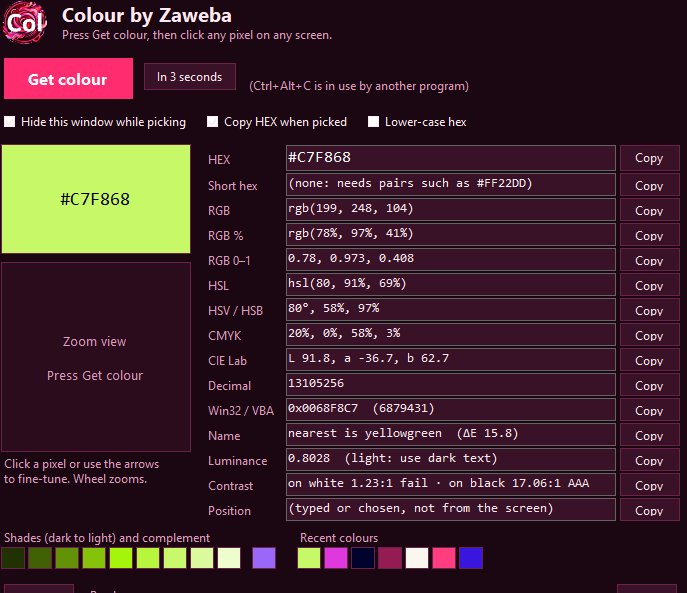
For a hex to HSL conversion that never touches the internet, Colour by Zaweba does the job in one step. Type or paste the hex code into its HEX box, press Enter and read the HSL line underneath. It is a small Windows program with nothing to install, and it makes no network connections at all.
HSV, also called HSB, sits on the line below if that is the model your design program uses.
Why people want HSL in the first place
Hex is compact but tells you nothing at a glance. HSL describes a colour the way people tend to think about it: a hue, given as an angle round the colour wheel, a saturation that says how strong it is, and a lightness from black through the colour to white. That makes it easy to reason with. If you want the same colour a bit paler for a background, you raise the lightness. If you want a calmer version, you lower the saturation and leave the hue alone.
CSS accepts hsl() directly, and many people now write their colour variables that way precisely so they can make lighter and darker versions by changing one number.
Making the conversion
Open Colour and click in the HEX box. Type the code, for example 2D6FFF, with or without the hash. Short three digit codes are fine too. Press Enter. The swatch shows the colour and every row is recalculated, including HSL. Press the Copy button at the end of the HSL row to put the value on the clipboard.
If the colour you need is not written down but showing on screen, press Get colour or Ctrl+Alt+C instead and click the pixel. The HSL line fills in the same way.
Reading the figures sensibly
HSL values are worked out from the red, green and blue amounts and rounded for display. That is fine for nearly every practical use, but it does mean that converting a rounded HSL back to hex can land one step away from where you started. Keep the hex as your master copy and treat the HSL as the handy, human version.
Be aware of how HSL behaves near the edges. A grey has no meaningful hue, so its hue figure is not worth reading anything into. Very dark and very light colours squash together too, which is one reason designers sometimes prefer CIE Lab when they need lightness that matches what the eye sees. Colour shows CIE Lab, calculated for the D65 white point, on its own line, so you can compare the two.
Getting the lighter and darker versions for you
The usual reason for wanting HSL is to build a family of shades, and Colour already does that part. Under the values is a row of shades of the same hue and saturation at lightness from 10 to 90 percent, plus the complementary colour. Click any chip and it becomes the current colour, with its own hex and HSL ready to copy. For a small palette of a brand colour with a light tint for panels and a dark one for text, that row often gives you everything you need without any arithmetic.
The last 12 colours you loaded are kept as chips and saved between sessions, so a palette built this way does not disappear when you close the window.
Where it fits
An offline converter is useful in more places than you might think. Some offices block unfamiliar websites. Some people simply prefer not to paste their client's brand colours into a page they know nothing about. And having the converter in the same window as a screen picker and a contrast check means fewer browser tabs open while you work.
Colour is one exe of about 230 KB that runs on the .NET Framework 4.8 built into Windows 10 and 11. There are Mac and Linux versions with the same layout and values, so the same HSL line is there whichever machine you are on.

