
How to convert a colour to CMYK
Colour by Zaweba shows CMYK for any colour you pick or type. Here is how to get it, and why a simple CMYK figure is not the same as a printer profile.
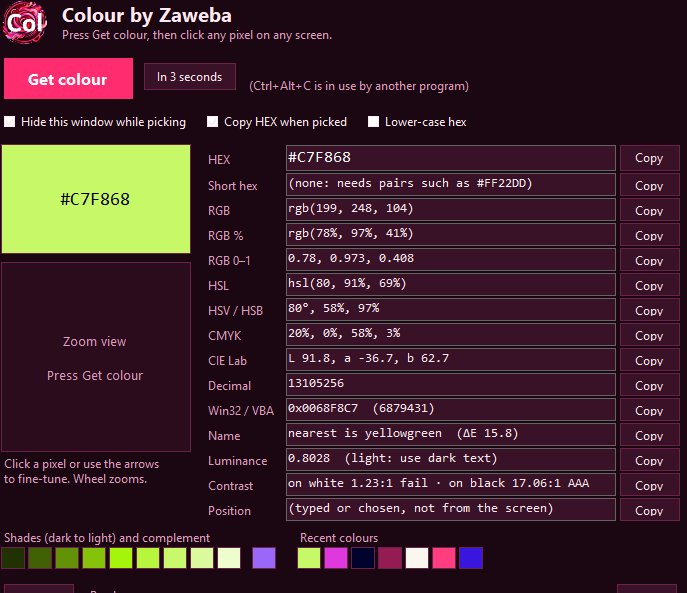
To get CMYK figures for a colour, load it into Colour by Zaweba, either by picking it from the screen or by typing its hex or RGB value into the HEX box, and read the CMYK line. It gives the cyan, magenta, yellow and black amounts, with a Copy button beside them. Bear in mind that this is a simple calculation from the RGB values, not a conversion through a printer's colour profile.
That second point matters for anything going to a commercial printer, so the rest of this article covers both how to get the numbers and how far to trust them.
Getting the figures
If the colour is already written down as hex, RGB or a CSS name, click in the HEX box, paste it and press Enter. If it lives on screen, in a logo, a photo or a PDF, press Get colour, or Ctrl+Alt+C from any program. The desktop freezes and a magnifier follows the pointer; zoom with the mouse wheel and click the pixel you want. Either way, the CMYK line updates along with every other format.
Copy the CMYK row on its own, or press Copy all (Ctrl+Shift+C) to take the full set of values. Pasting the whole lot into your notes is a good idea when a colour is moving between screen and print, because the person at the other end may want the hex as well.
What the calculation does
Screens make colour by adding red, green and blue light. Printing makes it by laying down cyan, magenta, yellow and black ink, which subtract light from white paper. The straightforward conversion works out how much of each ink would, in theory, take away the right amount of red, green and blue, with black standing in for the part all three have in common.
It is a fair rule of thumb. What it cannot know is how a particular press, ink set and paper behave. Real printing uses colour profiles that describe those things, and the same RGB colour can come out as noticeably different CMYK numbers depending on the profile. Bright screen colours, especially vivid blues, greens and oranges, may simply not be printable at all, and a profile decides how to bring them back into range.
When the simple figure is enough
For plenty of everyday jobs the calculated CMYK is perfectly useful. Filling in a field in a desktop publishing program for a club newsletter, choosing an ink colour for a home print, giving a printer a starting point, or matching roughly what a colour will look like on paper all work well with it. It is also a quick way of seeing how much black a colour carries, which tells you whether a dark shade is mostly black ink or a rich mix.
When to ask the printer
If you are producing brand material, packaging or anything where the colour has to match across print runs, treat Colour's figure as a reference and ask the printer, or use your layout program's profile-based conversion. Many brands publish official CMYK values worked out by their print supplier, and those beat any calculation done on the fly. Give the printer the hex and RGB as well, which is easy when you have used Copy all.
Checking a colour from both directions
A good habit is to look at the colour in a couple of models at once. The HSL line tells you how saturated it is; very high saturation on screen is a hint that print will look duller. The CIE Lab line, calculated for the D65 white point, describes the colour in a way that is not tied to screens or ink at all, which is why print people often use it when comparing samples. Colour shows all of these together, so you do not need three converters open.
Colour by Zaweba is a single small exe for Windows 10 and 11, with Mac and Linux versions laid out the same way. It never goes online, so a client's brand colours stay on your own machine while you work out their print values.

