
How to convert hex to RGB
Type or paste a hex code into Colour by Zaweba, press Enter and read the RGB value, along with HSL, CMYK and the rest. No website needed.
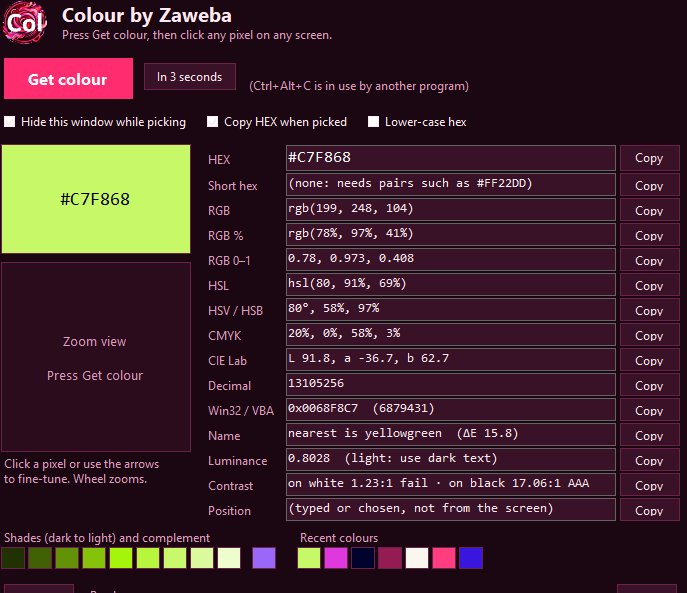
Paste the hex code into the HEX box in Colour by Zaweba and press Enter. The RGB line updates straight away, and so does every other format the app shows, so you can copy rgb() for CSS or the three numbers for a design program in one click.
You do not need to pick anything from the screen for this. The HEX box doubles as a converter for any colour you already have written down.
What the two notations mean
A hex colour such as #FF2D6F is three pairs of base 16 digits. The first pair is red, the second green, the third blue, and each pair runs from 00 to FF, which is 0 to 255 in ordinary numbers. RGB writes those same three amounts in decimal, so #FF2D6F and rgb(255, 45, 111) are exactly the same colour. Nothing is lost going one way or the other; it is simply a change of number base.
Short hex is a shorthand where each digit is doubled. #F2D means #FF22DD. Colour accepts that form too, and it also shows a short hex line for any colour that can be written that way.
Converting in a few seconds
Open Colour. Click in the HEX box at the top of the values, select what is there and type or paste your code. The hash at the front is optional. Press Enter. The swatch changes to your colour and every row below it is recalculated: RGB, RGB percent, RGB as 0 to 1 fractions, HSL, HSV, CMYK, CIE Lab, decimal and COLORREF.
Each row has a Copy button beside it. Press the one next to RGB and the value is on your clipboard, ready to paste. If you want everything, Copy all, or Ctrl+Shift+C, copies the full list in one go, which is useful when you are writing up a colour for someone else to use in a different program.
Which RGB form to copy
Different programs want RGB written differently, which is why Colour gives you more than one. CSS and most web tools accept rgb(255, 45, 111). Many desktop design programs have three boxes for red, green and blue that take whole numbers from 0 to 255. Some graphics code and 3D programs expect each channel as a fraction from 0 to 1, and some older tools ask for percentages. All of these are on screen together, so you are not converting again in your head.
If the colour is going into Excel or a VBA macro, look at the decimal and COLORREF rows rather than RGB; those are the forms Windows code tends to use, and the byte order in COLORREF is reversed, which catches people out.
Checking the colour while you are there
Because the conversion loads the colour into the app fully, you get the rest of the information for free. The nearest CSS colour name tells you, roughly, what you are looking at, with a delta E figure so you know whether it is an exact match or a loose one. The WCAG contrast ratios against white and against black tell you which text colour would be readable on it. A row of shades from dark to light and the complementary colour sit underneath, and clicking any of them loads it as the current colour.
Your recent colours are kept too. The last 12 colours are saved between sessions, so if you converted a brand colour yesterday you can click its chip today instead of finding the code again.
Why not just use a website
Plenty of web pages convert hex to RGB, and for a one-off that is fine. The difference is that Colour does it without a browser, without any network connection at all, and gives you every other format alongside. It is one small exe for Windows 10 and 11 with nothing to install. And when the colour you need is not written down anywhere but sitting in a screenshot or a logo on screen, the same window can pick it with Ctrl+Alt+C.
For something as simple as a number conversion, having it a keystroke away on your own machine is the quicker habit.

