
How to convert RGB to hex without a website
Paste rgb(255, 45, 111) or just 255,45,111 into Colour by Zaweba and press Enter to get the hex code offline, with every other format beside it.
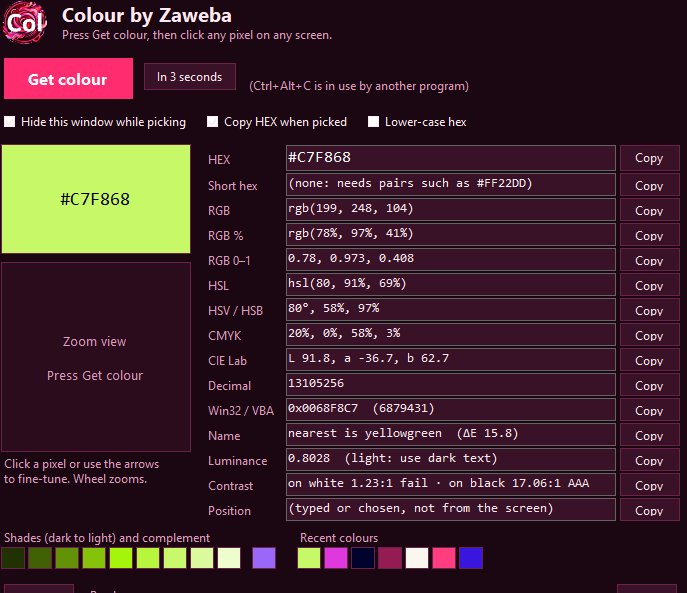
Colour by Zaweba converts RGB to hex on your own PC with no web page involved. Paste rgb(255, 45, 111), or simply 255,45,111, into its HEX box and press Enter. The box then shows the hex code, #FF2D6F in this case, and every other format updates beside it.
It makes no network connections at all, so the conversion works on a laptop on a train just as well as at your desk.
What you can paste in
The HEX box is more forgiving than its name suggests. It accepts a hex code with or without the hash, a three digit short hex such as F2D, a CSS rgb() value with its brackets and spaces, a bare list of three numbers separated by commas, a 0x style number such as 0xFF2D6F as you might find in source code, and any of the CSS colour names. Whatever you give it, pressing Enter reads it, loads that colour and fills in every row.
That flexibility matters more than it sounds. RGB values arrive in all sorts of shapes. A designer might send three numbers in an email, a style sheet has rgb() with spaces, a spreadsheet column might have them run together with commas. You can paste each as it comes without tidying it first.
Step by step
Start Colour. Copy the RGB value from wherever it lives. Click into the HEX box, select its contents and paste. Press Enter. The swatch changes, and the HEX row now holds your colour as a six digit code. Press its Copy button and paste wherever you need it.
If you are going to paste the code into something that prefers lower case, there is an option for lower-case hex in the settings, and it sticks between sessions. Another option copies the HEX automatically whenever a colour is picked from the screen, which saves a click if hex is the only thing you ever use.
Converting a handful of colours
Most jobs involve more than one colour. A brand guide might list five RGB values that you need as hex for a website. Paste the first, press Enter, copy the hex into your file, then move on to the next. Each colour you load goes into the recent colours row, which holds the last 12 and keeps them in the settings file between sessions. When you come back later to check one, it is still there as a chip you can click.
If you are writing the colours up for someone else, Copy all, or Ctrl+Shift+C, puts every format for the current colour on the clipboard at once. Paste that into a document and the reader has hex, RGB, HSL, CMYK and the rest without needing a converter of their own.
Rounding and the formats in between
Going from RGB whole numbers to hex is exact, because both describe the same 0 to 255 values in different number bases. The other formats are a different matter. HSL and HSV are rounded for display, and CMYK is a straightforward calculation rather than a printer profile, so treat those as good working figures rather than gospel. If the RGB you started with came from percentages or fractions, convert from the most precise version you have.
When the colour is on screen rather than written down
Sometimes there are no RGB numbers to paste, only a logo in a PDF or a button in a web page. The same window handles that. Press Get colour, or Ctrl+Alt+C from any program, and the desktop freezes under a magnifier that zooms from 3x to 32x. Click the pixel you want and the hex appears just as if you had typed it.
Colour is a single file of about 230 KB for Windows 10 and 11, running on the .NET Framework 4.8 that is already part of Windows, so there is no installer to approve and nothing to keep up to date in the background.

