
Picking colours from menus with In 3 seconds in Colour
Use the In 3 seconds button in Colour by Zaweba to open a menu or hover over a button before the screen freezes, then pick its colour.
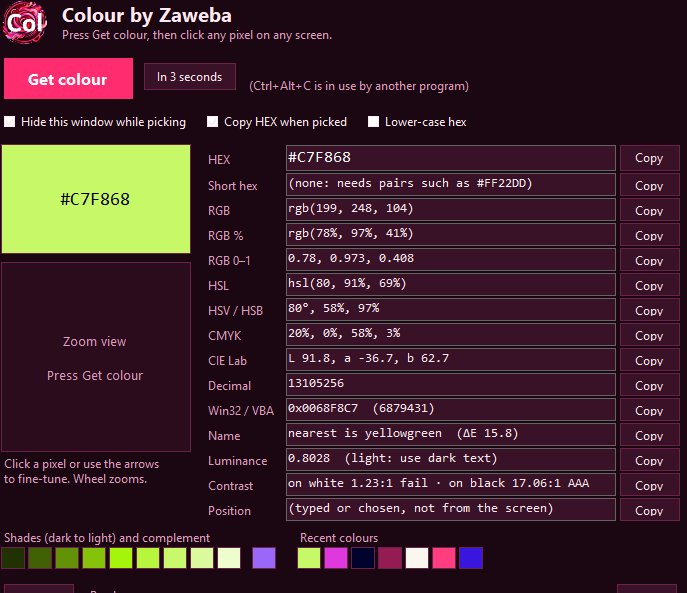
Menus, tooltips and hover effects have a habit of vanishing the moment you reach for a colour picker. The In 3 seconds button in Colour by Zaweba exists for exactly that problem: press it, and you get three seconds to open the menu or rest the pointer over the button before the screen is frozen for picking.
It's a small feature. Without it, though, some colours on your screen are simply out of reach, so it helps to know how it works and when to use it.
Why a frozen screen needs a head start
When you press Get colour, or Ctrl+Alt+C from any program, Colour hides its own window and takes one still picture of the whole desktop across every monitor. The magnifier then works on that picture rather than on the live screen. That's what lets it hold still while you zoom and nudge, and it's why the magnifier can never end up picking its own edge by mistake.
The catch is that the picture shows the screen as it was at the moment the pick began. A hover effect only exists while the pointer is over the item. A drop down menu closes as soon as another program takes the focus. A tooltip fades after a moment. If any of these isn't on screen when the freeze happens, it won't be in the picture, and there's nothing to pick. The In 3 seconds button gives you time to set the scene first, so the freeze catches the state you actually want.
Using the delay, one step at a time
Have the program you want to sample open behind Colour's window, or next to it. Click In 3 seconds. You now have three seconds, which is enough to move the pointer across, open a menu, or hover over a button until its highlighted colour shows. Keep the pointer still once the effect is showing. When the time runs out the screen is frozen and the magnifier appears, exactly as it would after a normal Get colour.
From there everything is the same as any other pick. Zoom in with the mouse wheel or the plus and minus keys, anywhere from x3 to x32. Use the arrow keys to move the boxed pixel by one, or hold Shift to move it by ten. Click, or press Enter or Space, to take the colour. If you missed the moment, Esc or a right click cancels and you can try again.
One habit helps. Before you click In 3 seconds, work out where the pointer needs to go, so you're not hunting for the menu while the clock is running. Three seconds feels short the first time and plenty from then on.
Colours you can only catch this way
Web developers use it to read the hover colour of a button or link on a live site, so the stylesheet they're writing matches the one they're copying. Designers use it for the highlighted row in a menu, or the colour a control turns when it's pressed. If you make slides or documents in house colours, it can pull the shade a company's own software uses for its selected tabs, which often isn't the same as the logo.
It's handy for anything that changes on its own, too: an animated banner that cycles through colours, or a progress bar that shifts as it fills. Start the delay, wait for the moment, and the freeze holds it for you while you take your time choosing the exact pixel.
Small slips that spoil a delayed pick
Moving the pointer just as the freeze happens is the most common one. Many hover effects fade in or out, so if the pointer slips off the item you'll catch a half way colour. Settle the pointer and wait. Another is forgetting that smoothed edges blend into the background: zoom right in and pick from the middle of a flat area rather than its rim.
Remember too that the delay is only for things that disappear. For anything that stays put, the normal Get colour button or the Ctrl+Alt+C hotkey is quicker. And once you've picked, the zoom view in the main window lets you move to a neighbouring pixel without starting again, so a slightly off pick doesn't mean waiting through the delay a second time.
After the pick the colour appears in all its formats, ready to copy, and it joins your recent colours so you can come back to it later. The three second wait is the only extra step.

