
Converting a colour you already have in Colour by Zaweba
Type or paste a hex, an rgb() value, three numbers or a CSS name into Colour by Zaweba's HEX box, press Enter and get every other format.
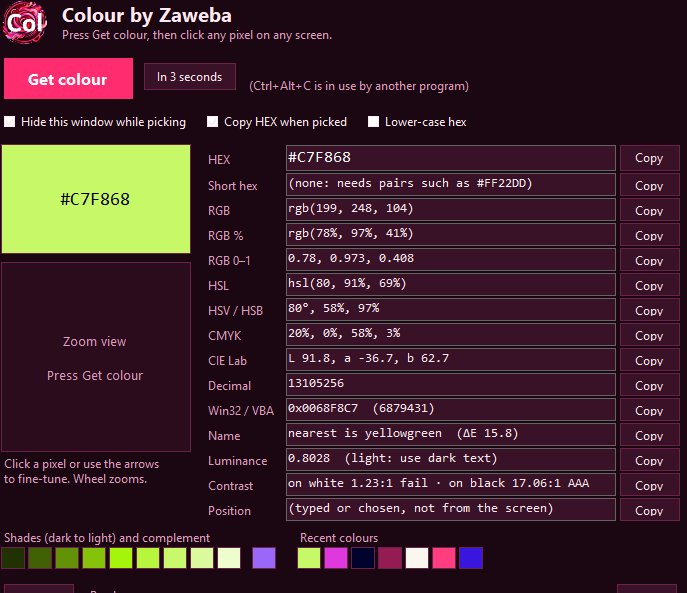
Not every colour you need is on screen. You might have a hex code from a style guide, an rgb() value from someone's stylesheet, or just the name of a CSS colour. In Colour by Zaweba the HEX box is editable, so you can type or paste any of these, press Enter, and every other value updates, with no screen pick at all.
That turns a screen colour picker into an offline colour converter, which comes in handy far more often than you'd expect.
Forms the HEX box understands
The box accepts the forms people actually come across. A full hex with a hash, such as #FF2D6F. A three digit short hex, such as F2D. A CSS rgb() value like rgb(255, 45, 111). Three plain numbers separated by commas, 255,45,111. A hex written the programmer's way with 0x in front, 0xFF2D6F. Or a CSS colour name. Paste or type it, press Enter, and the colour becomes the current one, just as if you'd picked it from the screen.
From there you get the full set: HEX, short hex, RGB, RGB percent, RGB 0 to 1, HSL, HSV, CMYK, CIE L*a*b*, decimal and COLORREF, each with its own Copy button. You also get the nearest of the 148 CSS colour names with the colour difference, the contrast against white and black, a row of shades and the complementary colour.
Everyday conversions it speeds up
Switching formats is the commonest. A brand guide gives you a hex, but the program you're using wants HSL, or a print job needs CMYK. Paste the hex, press Enter and copy the line you need. It works the other way too: paste three RGB numbers from a design file and get the hex for a web page.
Checking a colour before you commit to it is another. Type in the text colour you're planning and see straight away how it reads against white and black, with the WCAG contrast ratio and grade. Or paste a hex someone sent you and see which CSS name it's nearest to, which helps when you're trying to describe a colour in words.
It's also a quick way to get lighter and darker versions of a colour you didn't pick from the screen. Enter it, look at the shades row, which runs from 10 to 90 percent lightness at the same hue and saturation, and click a chip to load that shade with all its values.
Avoiding a wrong conversion
Press Enter when you've finished typing. The other values update when you do, so if they haven't changed, that's usually why.
Watch the order of numbers in formats from different places. Three comma separated numbers are read as red, green and blue. A Windows COLORREF holds blue, green and red, so one copied from code isn't the same as a hex with 0x in front written in the usual order. If a converted colour looks completely wrong, a swapped red and blue is the likely cause.
In CSS, short hex is a shorthand where each digit stands for a doubled pair, so a three digit code is a different colour from the six digits that merely start the same way. If you meant a particular six digit colour, type all six.
Typed colours and picked colours together
A typed colour behaves like a picked one in the main window. You can copy one value or press Copy all (Ctrl+Shift+C) for every value at once, and you can step into the shades and complement. The difference is that you've skipped the screen. Mix the two freely: pick a colour from a logo, then type in the hex from the brand guide, and compare what you see with what you were told.
Because Colour never uses the network, all of this works with no connection and nothing pasted into a website. It's one small program doing the sums on your own PC.

