
Delete in Contact only and the Deleted box explained
Delete in Contact by Zaweba removes mail from the app only and never touches the server. The Deleted box can restore it, delete it for good or empty itself.
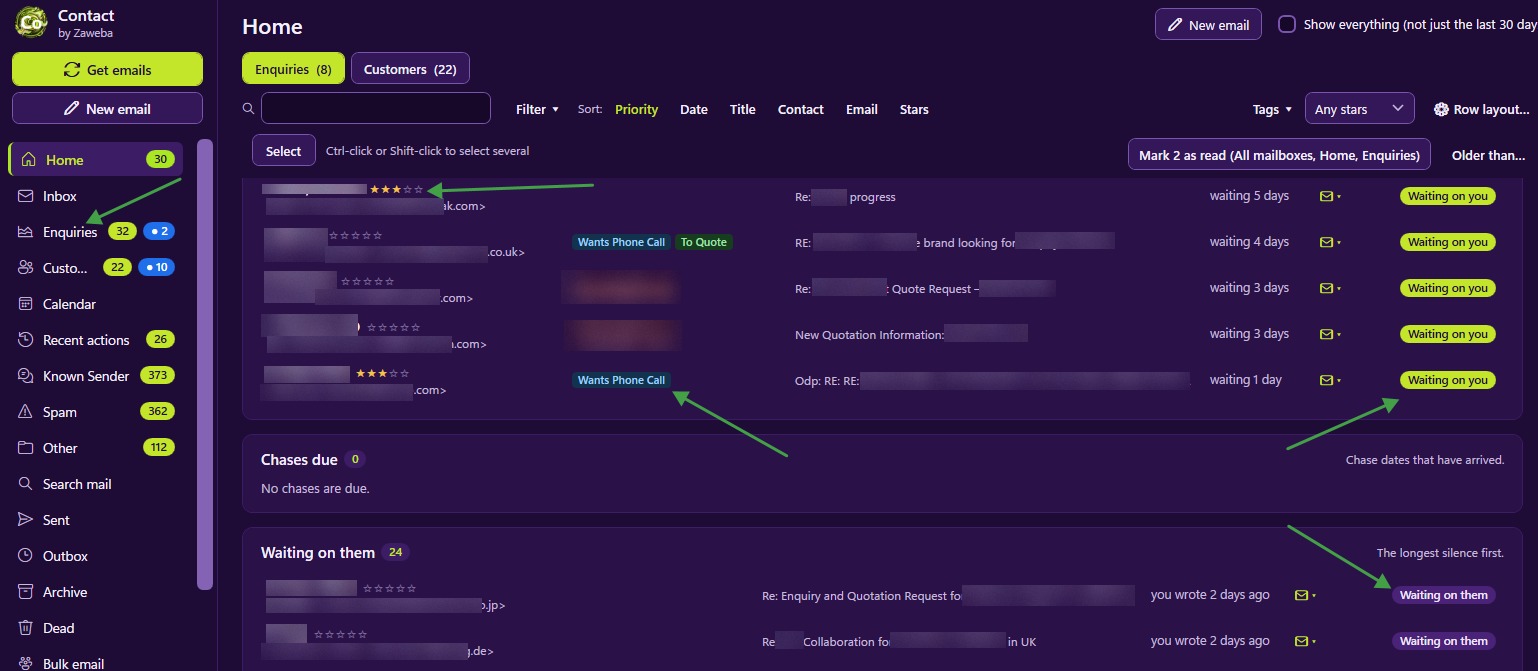
Deleting an email sounds simple, but in a program that sits beside your main mailbox it raises a real question: deleted from where? Contact by Zaweba gives a clear answer. Delete removes mail from Contact only, and the server is never touched. Your email program, and the copy of the mail on your provider's server, stay exactly as they were.
Why Contact deletes only its own copy
Contact is designed to read your mailbox without changing it. It fetches mail without marking it read, deleting it or moving it, with spam the one exception, which goes to the server's Junk folder. Your usual email program stays your general mailbox. Delete follows the same principle. When you delete something in Contact you are tidying Contact, not your mailbox.
That makes deleting safe in a way it often isn't. Clearing out newsletters and one-off notices from Contact's Inbox or mail folders doesn't remove them anywhere else, so if you ever need one, it is still in your email program.
How to delete
Delete arrived in version 4.1 and works in the Inbox and the mail folders. You can use the Delete key, Ctrl+D, the ribbon or right-click, whichever suits the moment. The Delete key is quickest when you are working down a list with the keyboard; right-click suits the odd email you spot while reading.
Clearing out many at once
A Select all and Delete all N shown choice handles many emails at once, where N is the number currently shown. Pair it with a filter or a search to make a precise clear-out. Filter a folder to one sender, or search for a newsletter's name, check the list shows only what you expect, then delete all of them in one go.
The word shown matters. It deletes what is on the list after your filters and search, not everything in the folder, so the safest habit is to look at the count and the list before you confirm.
The Deleted box
Deleted mail goes to a Deleted box rather than disappearing at once. From there you have three choices.
Restore puts an email back where it came from. Use it when you deleted something by mistake, or when an email you thought was finished turns out to matter.
Delete for good removes an email from Contact permanently.
Empty Deleted clears out the whole box in one go.
Because the server copy is never touched, even Delete for good only affects Contact. The original is still on the server unless you remove it in your email program.
A sensible deleting routine
Delete freely in the Inbox. Mail that is clearly not for a record, such as receipts and notifications, can go. But if a sender keeps writing and you never want their mail in Contact, filing them as a Known sender, Other or Spam is better than deleting each email by hand, because Contact remembers the rule for next time.
Leave the Deleted box alone for a while before emptying it. A week or two of grace costs nothing and catches mistakes.
Use filters to aim big deletions. A Delete all N shown after a careful filter is quick and accurate; one after a vague search can sweep up more than you meant.
Delete beside the other tidying tools
Delete sits beside the other ways of keeping Contact tidy: filing new senders from the Inbox, the Known Sender, Spam, Other and Dismissed folders with their rules, and Recent actions with Undo for changes to your data. Together they mean you can keep Contact focused on the mail that matters to your business, while your full mailbox stays untouched in the program you already use.

