
Exporting and importing settings in Contact by Zaweba
File > Export settings in Contact by Zaweba saves rules, templates, tags, folders and layouts to one JSON file, and Import shows what will change first.
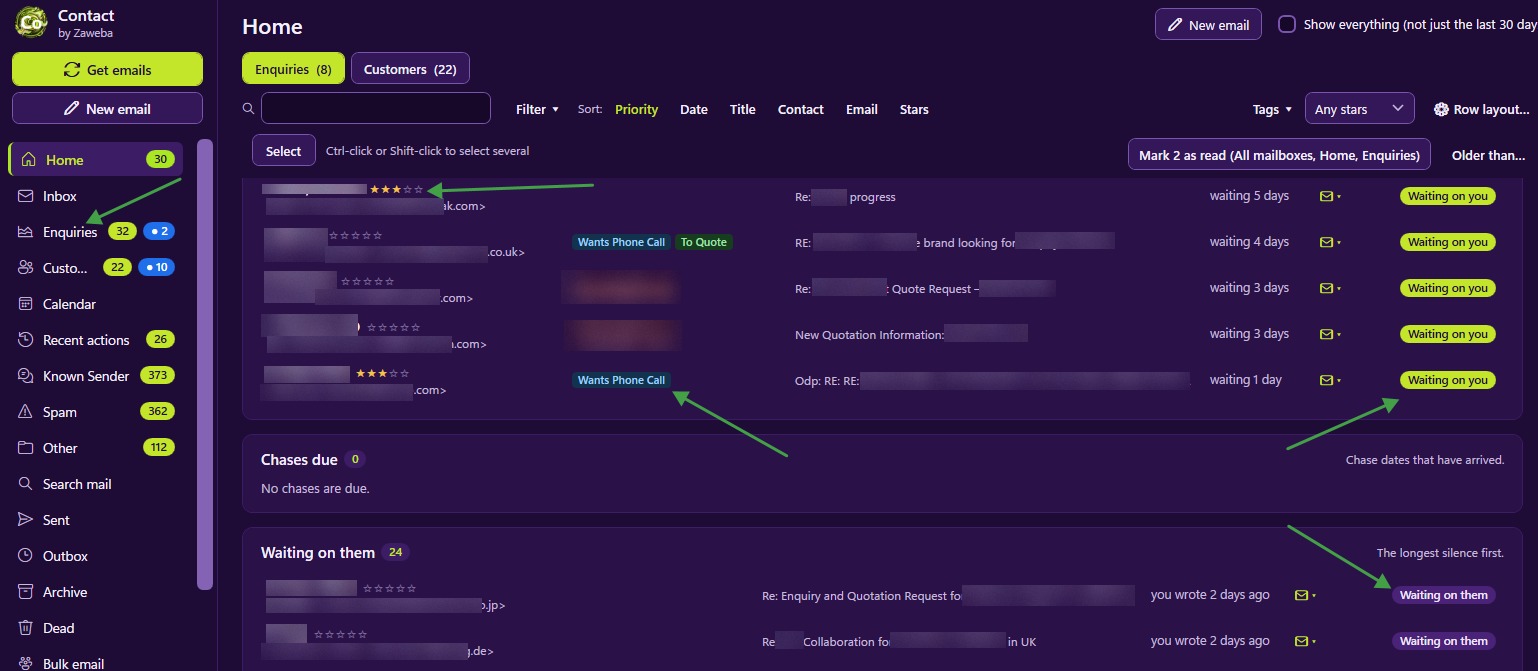
Setting Contact by Zaweba up the way you like takes a while. Over weeks you build rules for who goes where, write templates for the replies you send most, design tags and customer folders, and tune each list's layout. Export and import settings means that work isn't tied to one PC. It all goes into one file you can carry to another machine or hand to a colleague.
What gets exported
File > Export settings writes one JSON file. It holds your settings, rules, templates, tags, customer folders and list layouts. Those are the parts that shape how Contact works for you, as opposed to the mail and records themselves.
Two kinds of thing are handled more carefully. Server settings, the IMAP and SMTP details for your mailboxes, are included only if you tick the option. Passwords are included only if you ask, and then they are sealed with a passphrase you choose. Without the passphrase the passwords in the file are no use to anyone, so a lost memory stick doesn't hand over access to your mail.
What import does
Import doesn't simply overwrite things. It first shows what would change, so you can see which rules, templates, tags and other items are new and which would be replaced. Then you choose to merge or replace.
Merging adds what is in the file to what you already have, which suits bringing a colleague's templates into your setup without losing your own. Replacing makes this PC's settings match the file, which suits setting up a fresh machine to be exactly like your old one.
The import is undoable in Recent actions. If the result isn't what you wanted, undo it and you are back where you started.
Jobs it is good for
Moving to a new PC. Export on the old machine, including server settings, and passwords with a passphrase if you want them carried across. Import on the new one and Contact is set up the way you are used to. For your mail and records as well, File > Back up everything writes one zip of database, attachments, original emails and settings, and Restore from backup brings it in.
Setting up a second person. If someone else in your business uses Contact on their own PC, export your rules, templates, tags and folders without server settings or passwords. They import, add their own mailbox details, and start with the same structure as you.
Keeping a copy of your setup. A settings file is small. Export one after a big round of changes and keep it somewhere safe.
Trying something new. Before reorganising your tags or folders, export first. If the new arrangement doesn't work out, you have a record of the old one, and the import preview shows exactly what would be put back.
Tips for a smooth export and import
Leave passwords out unless you need them. Typing a password again on a new PC is little trouble, and a file without passwords is one less thing to worry about.
Pick a passphrase you will remember, and don't write it on the memory stick. If you forget it, the sealed passwords can't be recovered from the file, though everything else imports normally.
Read the preview. It is quick, and it is the moment to spot that a colleague's file would replace a template you rely on.
Use merge when combining, replace when cloning. Mixing those up is the most common way to get a surprising result.
How it fits with backups
Settings export and full backups do different jobs. A backup protects everything, including your mail and records, and is the thing to restore after a disaster. A settings export carries just the way you have Contact arranged, and is the thing to share or move. Both stay on your PC or wherever you put them, and nothing goes to a Zaweba server.

