
Filtering lists by date, attachments and text in Contact
The Filter menu in Contact by Zaweba narrows any list by Date, Attachments or Text contains, and list search now matches the text of the emails as well.
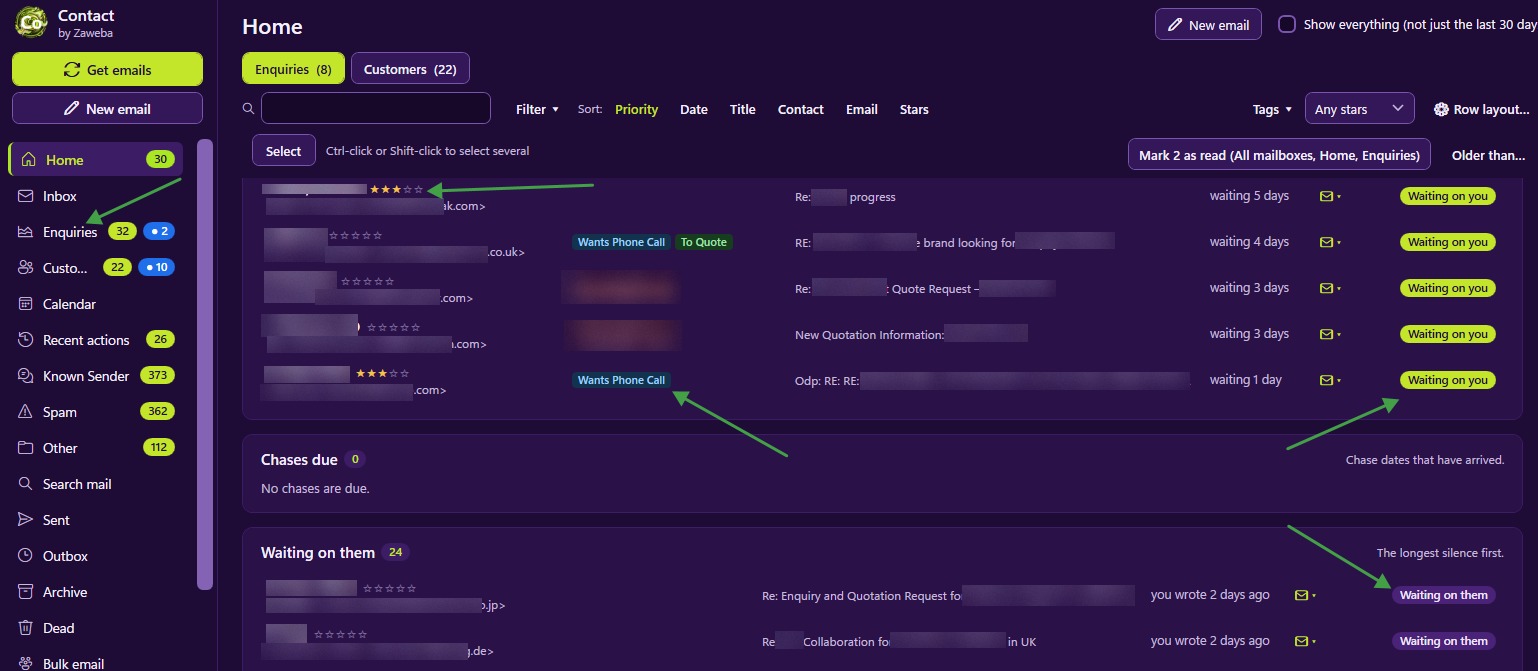
Lists in Contact by Zaweba grow quickly once mail starts flowing, and finding one particular thing needs more than scrolling. Version 4.1 added three filters to the Filter menu on lists, Date, Attachments and Text contains, and made list search match the text of the emails too. Together they turn a vague memory into a short list.
The three new filters
Date narrows a list to a period. It is the filter to reach for when you remember roughly when something happened: the order that came in before Christmas, the complaint from last spring.
Attachments narrows to emails that have them. Photos of damaged items, signed forms, invoices and drawings almost always arrive as attachments, so this one filter cuts a long list down to the emails that carried something.
Text contains narrows to emails containing words you type. A product name, a postcode, a reference number or a phrase the customer used will do. It is the most precise of the three when you remember a detail but not who sent it.
Search that reads the emails
Every list in Contact has a search box, and since 4.1 it matches the text of the emails as well as what the list shows. Type a word into a list's search box and records whose emails contain it come up, not just records whose names do. That changes how you look things up. Instead of working out which customer mentioned a certain part number, you search for the part number.
Combining filters
The filters are most useful together, and with the controls already on the list. The All | Unread switch limits a list to unread mail. Tag and star filters limit it to records with a tag such as Refund or Damaged item, or with a certain number of stars.
A few combinations show how quickly things narrow. Attachments plus the Damaged item tag gives you the photos customers sent of breakages. Date plus Text contains finds the quote you sent about a particular job last autumn. Unread plus a star filter shows new mail from your best customers first.
Sort and Row layout beside it
The Sort menu and Row layout sit beside the Filter menu. Each list remembers the sort you chose, so a filtered list comes up in the order you are used to. Row layout decides which fields show between the name and the status, such as stars, tags, last message, chase date, notes, order number and message count. Putting last message on the row is handy when filtering by text, because you can often see the matching email without opening the record.
Getting good results
Start broad and add filters one at a time. If a combination returns nothing, take the last filter off rather than starting again.
Use distinctive words with Text contains. A common word like order will match almost everything; an order number or an unusual product name will match a handful.
Remember filters stay while you work in a list. When things look emptier than they should, check the Filter menu before assuming mail has gone missing.
Pair filters with Delete in Contact only when clearing out. A precise filter, followed by Select all and Delete all N shown, removes exactly what you meant from Contact and leaves the server untouched.
Finding versus reading
Filters are the finding half of Contact's list tools; sorting and Row layout are the reading half. Home tells you who needs an answer today; filters help when today's job is finding something from months ago. Everything is stored on your PC, so filtering happens there too, with no waiting on a server.

