
How to add Outlook invitations to a calendar
Contact by Zaweba can add Outlook and Google invitations to its own calendar automatically by a setting, and update or cancel them when the sender does.
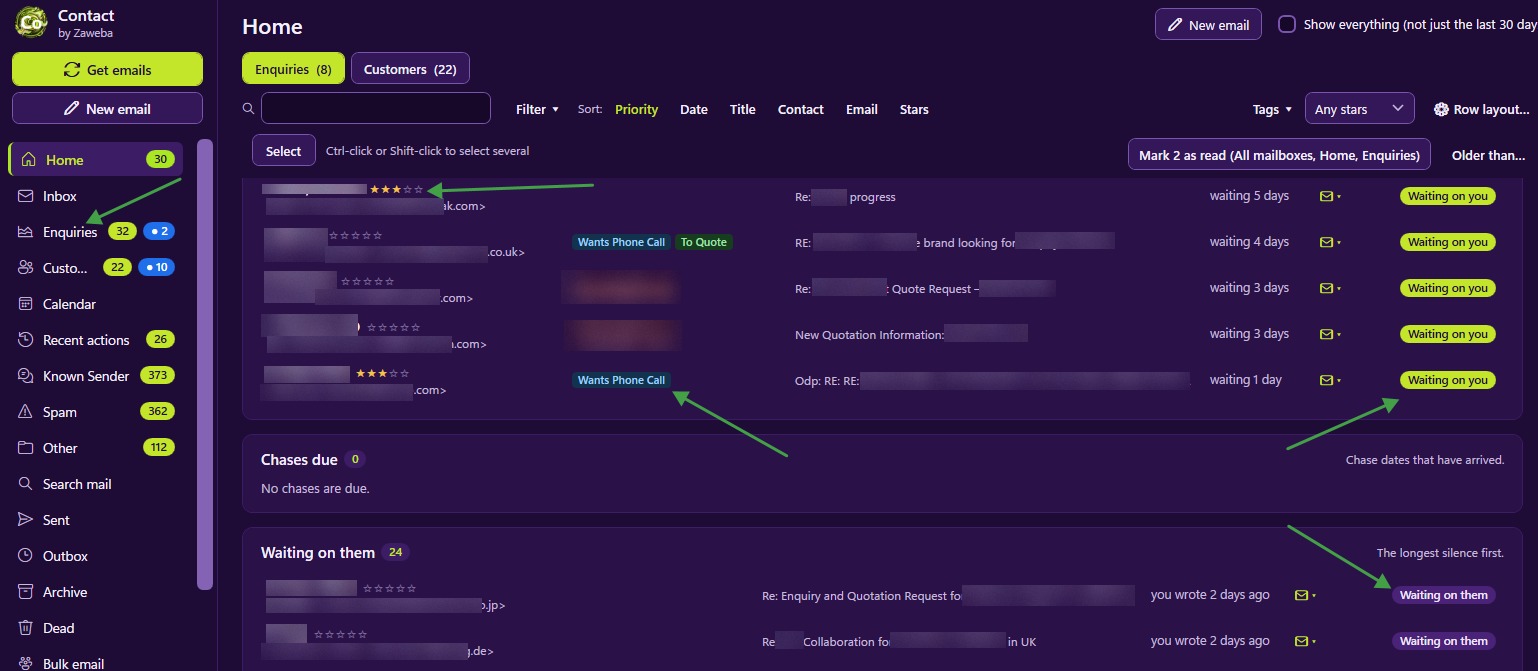
Outlook invitations can go straight into the calendar in Contact by Zaweba without any copying. Switch on the setting and invitations received from Outlook or Google, the .ics files and text/calendar parts that meeting requests carry, are added to the calendar automatically, then updated or cancelled when the sender changes them. Nothing is sent back to the organiser unless you choose Send acceptance.
What counts as an invitation
When someone sends a meeting request from Outlook or Google Calendar, the email carries the meeting details in a standard calendar format, either as an .ics attachment or as a text/calendar part inside the email. Contact recognises those and turns them into calendar entries, with the time and details the sender gave.
Switching it on
Invitations are added automatically by a setting in Contact. Once it is on, you don't need to do anything with each invitation. Contact collects your mail as usual, every 30 minutes by default, when it starts, or when you press Get emails, and any invitations among the new mail go straight into the calendar.
When the meeting changes
Meetings move. The organiser changes the time, adds a room, or cancels altogether. Contact matches each update by the invitation's own identifier and sequence number, so a changed meeting updates the existing entry instead of adding a second one. A cancellation is matched in the same way, so the right entry is the one marked as cancelled.
That matching matters more than it sounds. Without it, a calendar fills up with ghost meetings at the old times, and you can't tell which one is real.
Replying to the organiser
Contact sends nothing back unless you choose Send acceptance. That gives you a choice. If the organiser expects a reply, send one. If you'd rather just note the meeting in your diary, perhaps because you will confirm by phone, the invitation sits in your calendar without the organiser hearing anything from Contact.
What the calendar does with it
Contact's calendar has day, week, month and agenda views. Invitations sit alongside your own appointments (which can repeat and have a location and a linked record), reminders with Windows notifications and snooze, chase dates and scheduled sends. Seeing a customer meeting next to the chase dates for that week helps you plan the follow-ups around it.
Reminders are never dropped when missed. If Contact was closed when one was due, it shows on the next start.
The calendar exports as .ics, so you can take its entries into another calendar program if you need them there.
Contact doesn't sync with your Outlook calendar. IMAP and SMTP, the connections Contact uses, carry mail only, so there is no two-way link to the calendar inside Outlook or Google. Contact's calendar is its own. Your Outlook calendar carries on as it is, and Contact keeps a calendar of the meetings that arrive by email alongside your customer work.
Getting the most from it
Keep the setting on if customers or suppliers often send meeting requests. It saves copying details by hand and keeps the entries right when meetings move.
Use Send acceptance when the organiser is waiting to hear, so they know you're coming.
Add a linked record to your own appointments, so a meeting is tied to the customer it is about. When you look at the week ahead, you can see which customer each meeting is about, and plan the replies and chases around it.

