
How to find an old email from a customer
In Contact by Zaweba, list search matches the text of the emails, and the Filter menu narrows any list by date, attachments or text it contains.
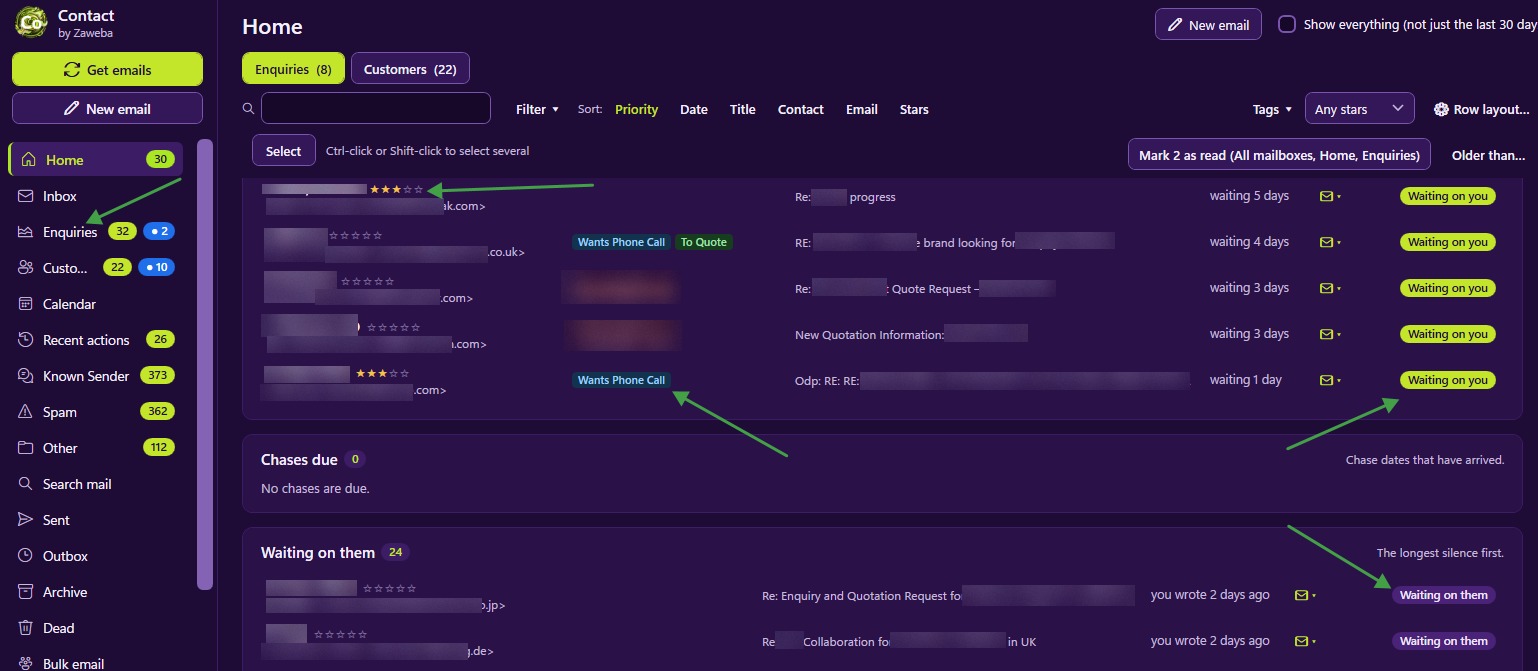
To find an old email in Contact by Zaweba, type what you remember into the search box of the list you are in. List search matches the text of the emails as well as names, so a product, a postcode or a phrase the customer used will bring up the right record. If that still leaves too many, open the Filter menu and narrow by Date, Attachments or Text contains.
Start with what you remember
Old emails are usually remembered by a fragment: roughly when, roughly who, something that was said, or that there was a photo attached. Contact's tools match those fragments.
If you remember who, search for their name or company in Customers or Enquiries. If you remember what was said, search for a distinctive word from it. Ctrl+E jumps to the search box from anywhere, so you can start typing at once.
Narrowing with the Filter menu
The Filter menu on lists has three filters that help with old mail.
Date limits the list to a period. Use it when you know the email came in, say, last spring, or before a particular holiday.
Attachments limits it to emails that carried attachments. Photos, invoices, signed forms and drawings arrive that way, so if you are looking for a file someone sent, this cuts the list down a long way.
Text contains limits it to emails with the words you type. It is the most precise of the three, especially with order numbers, part numbers or unusual names.
The filters combine with each other and with the All | Unread switch and the tag and star filters. Attachments plus a Damaged item tag, for instance, gives you the photos customers sent of breakages.
Choosing good search words
Pick words that are rare. An order number, a product code, a street name or a surname will match a handful of emails. A common word like delivery or thanks will match almost everything.
Try the customer's words, not yours. If they called it a cabinet and you called it a unit, search for cabinet.
Add filters one at a time. If a combination returns nothing, take the last one off rather than starting over.
Once you have found the record
Open the record and the conversation shows every email with that customer, as a list or a timeline with their emails on the left and yours on the right. The Threads strip groups emails by reply and subject, so clicking the right thread often takes you straight to the email you were after. Sender chips filter the conversation to one person, which helps on a record with several contacts.
Where else to look
If you think the email went somewhere other than a customer record, try the mail folders. Known Sender, Spam and Other hold mail you filed out of the way, and Dismissed holds one-off dismissals. The Deleted box holds mail deleted in Contact until you empty it, and Restore puts an email back.
Anything deleted in Contact is still on your mail server, because Contact never deletes from it. If you can't find an email in Contact at all, your usual email program may still have it.
Making future searches easier
Rename threads to say what they are about, so a subject like Re: hello becomes Garden room quote. Use notes on records for things agreed on the phone, since notes are searchable and can be shown on list rows. And tag records as things happen, so filtering by tag later brings up the right group at once.

