
How to see which boxes have new mail in Contact
Boxes in Contact by Zaweba light up with N new when mail arrives after you last looked, and right-clicking a box offers Mark all as seen.
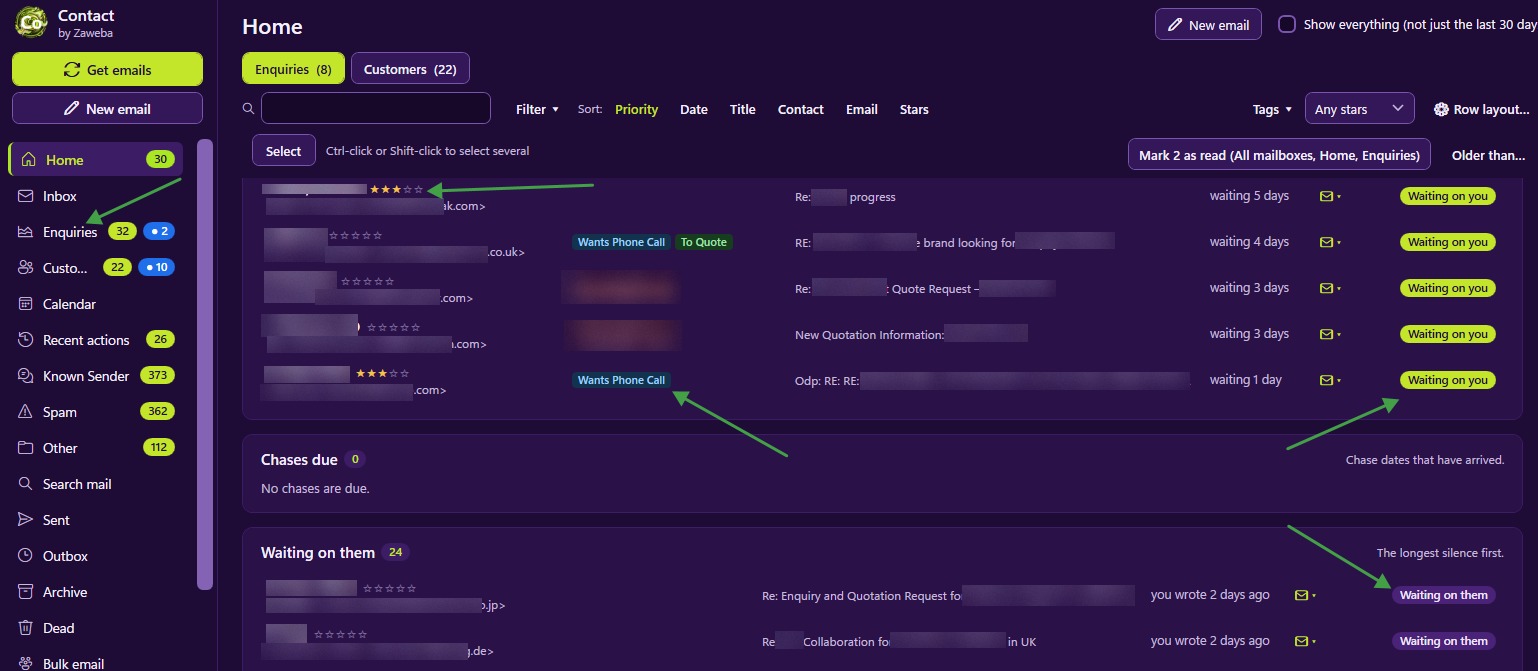
Boxes in the navigation of Contact by Zaweba light up with N new when mail has arrived since you last looked at them. Glance down the navigation and the boxes showing a count are the ones with fresh mail. Right-click a box and choose Mark all as seen when you have dealt with it, and the taskbar shows a badge such as 3 new so you can tell from any other program.
New and unread are different counts
N new is separate from unread. Unread tells you which emails you haven't opened. New tells you what has arrived since you last visited the box.
That difference is useful. You can leave emails unread on purpose, as reminders, and still tell at a glance whether anything fresh has come in. A box with ten unread and no new count has nothing you haven't already seen in the list; a box showing 2 new has two arrivals you haven't seen at all.
After each check for mail
Contact checks mail every 30 minutes by default and when it starts. Get emails, or F5, F9 or Ctrl+M, checks now and shows a summary such as 3 new emails: 2 in the Inbox, 1 in another mailbox. The new counts on the boxes then show exactly where those emails went.
A useful habit is to read the navigation after every check. If only Customers lights up, the mail matched existing records and nothing needs filing. If the Inbox lights up, there are new senders to file.
Mark all as seen
Right-click a box for Mark all as seen. Use it when you have looked through a box and want the count cleared without opening each email. It resets what counts as new for that box, so the next arrival stands out again.
Making the important boxes stand out
You can rename every box and give each one of ten highlight colours. Colour the boxes where speed matters, such as the Inbox or the folder for your biggest customer, so their new counts catch your eye. The colours are tuned for each theme, so they stay readable whether you use a dark or light theme.
Keep it to a few. If every box is coloured, none stands out.
A badge on the taskbar
Contact shows a badge on its taskbar button, such as 3 new, so you can work in other programs and still see when something arrives. When the badge appears, switch over and the navigation shows where it went.
Other ways to see what needs attention
New counts tell you what has arrived. Other views tell you what needs doing. Home lists, for enquiries and customers, who is waiting on you (oldest first), chases due and who you are waiting on, with due reminders on top. Customer folders show counts of waiting and unread. The All | Unread switch on lists shows only unread mail when you want a quick sweep.
Between them, the morning routine is simple: check the badge or the navigation for new mail, file anything in the Inbox, then work through Home from the top.

