
Sorting lists and choosing row layout in Contact by Zaweba
Every list in Contact by Zaweba is searchable, sortable and remembers its own sort, and Row layout lets you pick which fields show on each row.
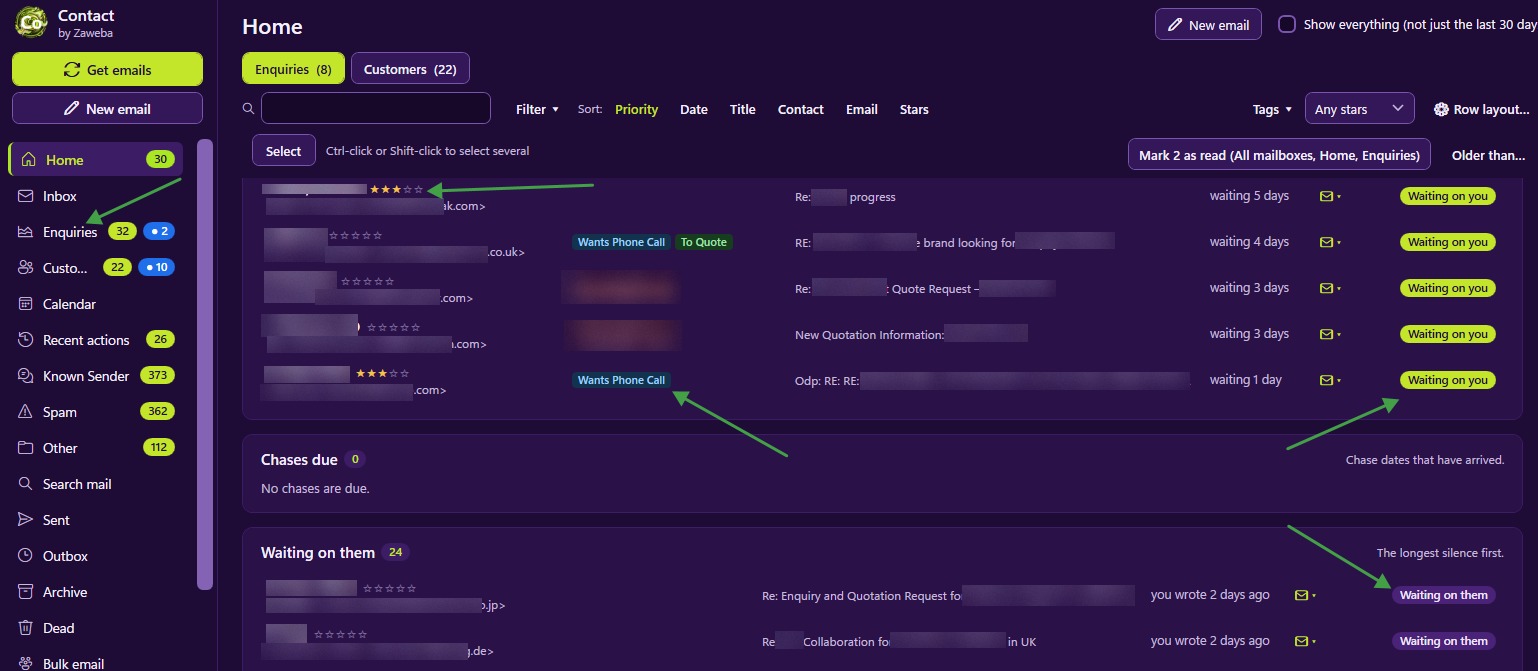
Most of the time you spend in Contact by Zaweba is spent looking at lists. Home, the Inbox, Enquiries, Customers and the other lists are where you decide what to do next, so it pays to make them show what you care about. Two tools do that: sorting, which every list remembers on its own, and Row layout, which decides what each row tells you at a glance.
Search and sort on every list
Every list is searchable and sortable. Type into the search to narrow the list to records that fit, then sort by whatever helps with the job in hand. The useful part is that each list remembers its own sort. Sort Customers alphabetically, sort Enquiries by the most recent message, and each stays that way when you come back to it, rather than one choice overriding the other.
That memory suits the way the lists are used. Enquiries are often worked through by date, newest or oldest first, because timing matters when you are chasing a sale. Customers are often looked up by name. The Inbox is usually best in arrival order. Setting each once and leaving it means less fiddling every time you switch.
What Row layout does
Between a record's name and its status there is room for more information, and Row layout lets you choose what goes there and in what order. The fields on offer include stars, tags, last message, chase date, notes, order number and message count.
Each one answers a different question. Stars show how much a customer matters. Tags show what is going on, such as Refund or Quote. Last message shows what was said most recently, so you can often decide what to do without opening the record. Chase date shows when you planned to follow up. Notes put your own reminders on the row, such as a delivery preference or something agreed on the phone. Order number helps shops that deal in numbered orders. Message count shows at a glance how busy a conversation has been.
Layouts for different kinds of business
A shop handling marketplace orders might put order number and tags first, so a row reads as the order and its problem: Refund, Missing item, Damaged item. Last message comes next, so the customer's latest words are visible without a click.
A tradesperson quoting for jobs might lead with chase date and stars. The chase date says who to ring this week, and stars separate the promising jobs from the long shots.
A consultant with a few long-running clients might prefer notes and message count, since the relationships matter more than individual orders.
There is no right answer, and it is worth trying a layout for a week before changing it. Too many fields make rows crowded and harder to scan. Two or three well-chosen ones usually beat seven.
Getting the most out of your lists
Pair a sort with a layout. If Enquiries is sorted by chase date, putting chase date on the row confirms the order at a glance and makes the next one to ring obvious.
Use search for the one-off question and sort for the standing order of things. Searching for a surname finds a customer in a moment; leaving the list sorted by last message keeps the daily view useful.
Remember the filters as well. Lists can be filtered by tags and stars, and the Filter menu beside Sort and Row layout narrows things further, by date, by whether emails have attachments, or by text the emails contain. Search matches the text of the emails too, which helps when you remember what someone said but not who said it.
Where lists fit in the day
Home is the morning view, showing who is waiting on you, chases due and who you are waiting on. From there you move into the full lists to work through things. Getting the sort and Row layout right on those lists means each row carries enough to act on, and fewer records need opening just to remember what they were about.

