
Scheduling emails with Send later in Contact by Zaweba
Send later in Contact by Zaweba schedules an email in UK time. The Outbox holds it, never sends it twice and never lets it go out silently late.
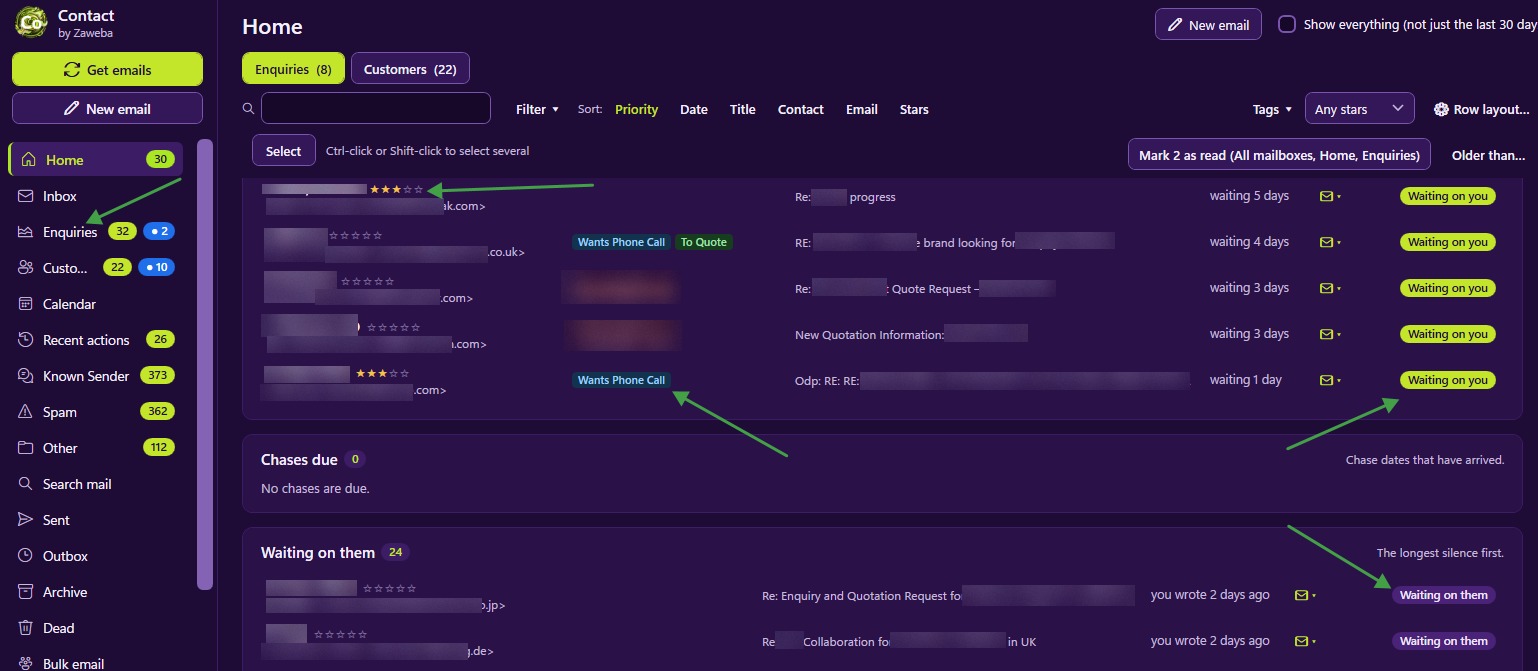
Writing an email and sending it are two different moments, and they don't always belong together. You might answer a customer late in the evening but prefer it to arrive at nine the next morning. You might promise to send a reminder on the day of a deadline. Contact by Zaweba covers that with Send later and the Outbox, and both are built so you never have to wonder whether a message actually went.
Scheduling an email
When a reply or new email is ready, choose Send later instead of Send. You pick the time in UK time, with quick picks for the common choices so you don't have to type a date for the usual cases. The email then waits in the Outbox until it is due.
The inline reply in the main window offers Send later alongside Send, Discard and Pop out, so scheduling is as quick as sending. It works the same way in the compose window for new emails.
Scheduled sends appear in the calendar alongside appointments, reminders and chase dates. That gives you one place to see what is going out this week, and they show as events in the record's conversation timeline too, so anyone looking at the customer can see a message is on its way.
What the Outbox promises
The Outbox is where scheduled emails wait, and it makes three promises worth knowing about.
Scheduled emails are never sent twice. Even if something interrupts Contact at an awkward moment, the same email does not go out a second time and leave the customer puzzled.
They are never silently late. If the due time passes while Contact isn't running, the email isn't quietly sent hours later as though nothing happened. You know about it.
An email being sent when Contact stopped is never lost or doubled. If Contact cannot be sure whether the server accepted it, the email stays marked Not sure it was sent so you can check. That is more honest than guessing, because guessing either way risks a lost message or a duplicate.
When scheduled emails go out
Contact sends anything scheduled that is due when it checks mail. Pressing Get emails, or its shortcuts F5, F9 and Ctrl+M, checks mail now and sends anything due at the same time. Otherwise Contact checks every 30 minutes by default and when it starts. So the precise moment a scheduled email leaves depends on Contact running, which is why the never silently late promise matters.
Using Send later well
Schedule replies for working hours. A thoughtful answer that arrives at a reasonable time reads better than one stamped at midnight, and it sets expectations about when you are available.
Pair it with a chase date. Schedule a polite follow-up for the day after a quote expires, and set the chase date for a few days later in case there is still no answer.
Check the Outbox if your PC has been off. If anything is marked Not sure it was sent, look in the record's conversation and your Sent folder before sending again.
Don't use Send later for something urgent. If it needs to go now, send it now; scheduling is for when timing helps the message.
How it fits with the rest of writing and sending
Send later sits beside the other writing tools: Reply, Reply all and Forward on every email, templates with placeholders for names and order numbers, signatures per mailbox, and bulk email for sending individual messages to a filtered set of records. Replies are sent from the mailbox the email came in to, scheduled or not, so a customer of one brand never hears from another. Together they make it practical to plan your outgoing mail rather than firing it off the moment you finish typing.

