
How do I see a pedigree chart of my ancestors?
Open your tree in Family by Zaweba and press Ctrl+2. The pedigree shows 2 to 7 generations of ancestors, with empty slots for missing parents.
Open your tree in Family by Zaweba and choose View, Pedigree (ancestors), or press Ctrl+2. You'll see the selected person with their parents, grandparents and earlier generations, anywhere from 2 to 7 generations at once, and an empty slot wherever a parent is still missing. Click any ancestor to make them the starting point, and use Back and Forward to retrace your steps.
What you need first
A pedigree chart needs a tree to draw. If you already have one in another program, export it as a GEDCOM file there and bring it into Family with File, Import GEDCOM (Ctrl+I). Family reads GEDCOM 5.5.1 and 7.0, handles the common character sets, and shows a report of anything it skipped or had to guess.
Starting from nothing is fine too. Create a tree with File, New tree, add yourself, then add your parents from the Edit menu. Each new person you add can have their own parents added in turn. There is no Save button to remember, because Family writes each change to the tree file a moment after you make it.
If you would like to see what the chart looks like before typing anything, File, Try the sample family opens an invented family with enough generations to explore.
Step by step
First, pick the person you want at the root of the chart. Usually that is you, or whoever the tree is about. Setting them as home person means the tree starts from them, and Ctrl+H always brings you back.
Next, press Ctrl+2. The pedigree appears with that person and their ancestors. The children of the starting person are listed too, so you can step down a generation as well as up.
Then choose how many generations to show. Two or three suit reading and editing, because the boxes have room for detail. Six or seven show the overall shape of the research and where each line stops.
Finally, explore. Click a great grandfather and the chart recentres on him, showing his ancestors instead. Alt+Left goes back to where you were, and Alt+Right goes forward again. The back and forward buttons on a mouse do the same.
Filling a gap
When the chart shows an empty slot, that is a parent you haven't found yet. Use the slot to add them and they go straight into the right place, already connected as father or mother. Once you have added a parent, it's worth running Tools, Check dates and relationships, which catches a parent younger than their child, a mother under 12 or over 55 at a birth, and other impossibilities that point to a wrong guess.
Making the chart useful
Look for patterns in the gaps. When every line stops in the same generation, the reason is often the records, not the family: that is where civil registration gives way to older parish records in many countries. When a single line stops early, the cause is usually a common name, a move or a missing marriage.
Keep an eye on sources. The chart shows who is there, not how well each link is proven. Opening a person's profile with Ctrl+5 shows every fact in date order with the number of sources behind it, which is a quick check before you push a line further back.
Other ways to see your ancestors
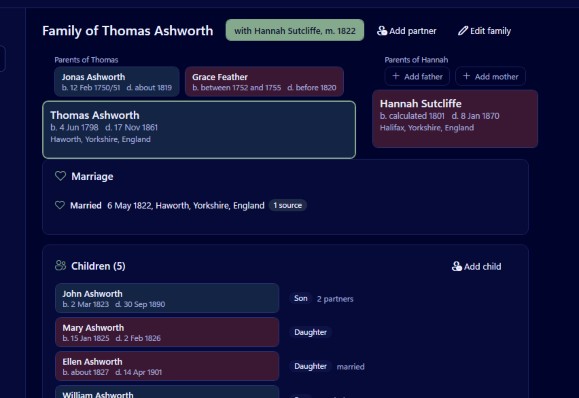
The fan chart (Ctrl+4) shows the same ancestors in rings over 240 degrees. It holds less detail per person but gives a faster overview of how many ancestors you have found at each generation. The family group view (Ctrl+1) shows a single couple with both sets of parents and all their children, including step and adopted children labelled as such.
For a pedigree on paper, Charts and reports makes an ancestor chart as a PDF, tiled across A4, A3 or Letter with overlap strips and an assembly guide, or as one large sheet for a print shop. Family checks the sizes before printing and warns if any text would come out below 7 pt.
Family is free, works offline and needs no account, and the chart you see is drawn from a tree file that lives on your own PC.

