
Light or dark theme, and finding help in Family by Zaweba
Switch Family by Zaweba between its dark navy and light themes, open its own help and shortcut list, and let it remember your window and trees.
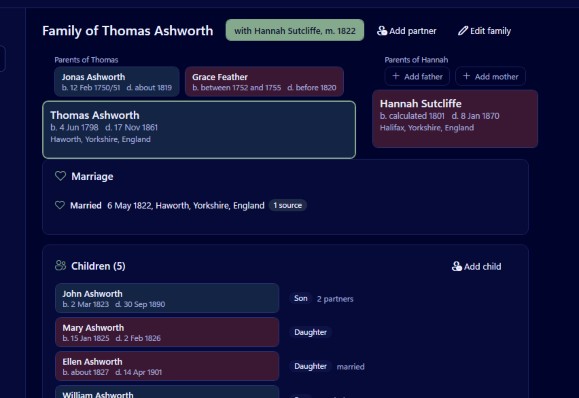
Genealogy is a hobby of long evenings. You sit with a census image on one side and your tree on the other, reading faded handwriting and typing in dates, often for hours. The way the app looks and how easily you can find your way round it matter more than they would in a program you open for five minutes. Family by Zaweba keeps this side of things simple: two themes, a help menu that stays inside the app, and a memory for where you left off.
Dark navy or light
Family starts in a dark navy theme. It is easy on the eyes in a dim room and makes coloured boxes and portraits stand out. If you prefer dark text on a pale background, switch with View, Light theme, or press Ctrl+Shift+L. The same key switches back.
The choice applies everywhere: every view and every dialog follows it. You won't find a bright white editing window popping up in the middle of a dark screen, or the other way round, which is more restful than it sounds when you are opening and closing dialogs all evening.
There is no right answer about which to choose, but a few patterns hold for most people. Dark suits evening work and screens that are bright even on their lowest setting. Light suits daytime work in a sunny room, and many people find it easier for long stretches of reading and typing. Light also gives a closer impression of how a chart will look on white paper, which can help when you are planning something to print.
Since it is one keystroke, it is worth trying both for a session each before settling.
Help without leaving the app
The Help menu has four items. Getting started and Keyboard shortcuts open Family's own help window, so you can read them beside your tree instead of switching to a browser. Licence agreement shows the terms Family is provided under: it is free software, used under the EULA, with no account and no subscription. Send feedback is the way to report a problem or suggest something.
Getting started
If you are new to family history software, Getting started is the place to begin. Pair it with File, Try the sample family, which opens an invented family you can explore safely. Read a section of the guide, try it on the sample, and you will have the shape of the app in under an hour without risking your own research.
Keyboard shortcuts
Family has a small set of shortcuts that cover most of what you do. Ctrl+1 to Ctrl+5 switch views. Alt+Left and Alt+Right go back and forward through the people you have looked at. Ctrl+H goes to the home person. Ctrl+F searches the people list, and Ctrl+E edits the current person. Ctrl+N makes a new tree and Ctrl+O opens one. The Keyboard shortcuts page lists them all, so leave it open beside the tree for your first few sessions and you will soon stop needing it.
Remembered between runs
Family remembers the position of its window and your recent trees. Close it at the end of an evening and next time it opens where it was, with your trees under File, Recent trees. If you work on two screens, with records on one and the tree on the other, that saves rearranging things every time.
It is also worth knowing that there is no Save command to forget. Each tree is one .oft file, and changes are written a moment after each edit. Closing the app does not lose work, and the recent trees list simply takes you back in.
Small settings, used well
None of this is the reason anyone chooses a family tree program. People come for the charts, the GEDCOM import and the way blended families are shown properly. But comfort is what keeps you coming back to a long project, and a calm theme, help that is a click away and an app that remembers you are part of that.
If something in the help is unclear, or a theme makes something hard to read, Send feedback is there for exactly that. The more specific the note, the more useful it is.

