
Working with the pedigree view in Family by Zaweba
The pedigree view in Family by Zaweba shows 2 to 7 generations of ancestors, with empty slots for missing parents and one click to recentre.
Most family historians spend their time looking upwards. The pedigree view in Family by Zaweba is built for exactly that: one person at the root, their parents next to them, then grandparents, great grandparents and so on, out to as many as seven generations. It is the view to keep open while you are pushing a line further back.
Open it from View, Pedigree (ancestors), or press Ctrl+2. The home person is the usual starting point, but you can start from anyone.
Reading the chart
Each box is one ancestor, placed so that fathers and mothers branch away from their child. You choose how many generations to show, from 2 to 7. Two or three generations fit large and readable on any screen, which suits checking a single family. Six or seven show the whole shape of what you have found, and where it stops.
The view also lists the starting person's children above them, so you can step down a generation as easily as up. That is handy when you have climbed a long way and want to come back towards the present by a different branch.
Empty slots are a to do list
Where a parent is not yet in your tree, the pedigree shows an empty slot rather than nothing at all. That slot is a direct way to add the missing parent: use it and you are entering the person already connected in the right place, with no separate step to link them as father or mother.
The gaps also do another job. Set the chart to seven generations and look at it as a whole. The empty slots show at a glance which lines have stalled. A tree that runs back to the 1700s on the paternal side but stops at a grandmother on the maternal side is very common, and seeing it laid out makes it easier to decide where your next session should go.
Moving round the tree
Click anyone in the pedigree and the chart recentres on them. That person becomes the starting point and their own ancestors fill the chart. It is a quick way to follow one surname line upward without losing your place, because Back and Forward retrace your steps. Press Alt+Left to return to whoever you were looking at before, and Alt+Right to go forward again. The mouse back and forward buttons work too.
If you wander a long way, Home person (Ctrl+H) takes you straight back to the person the tree starts from.
When to switch views
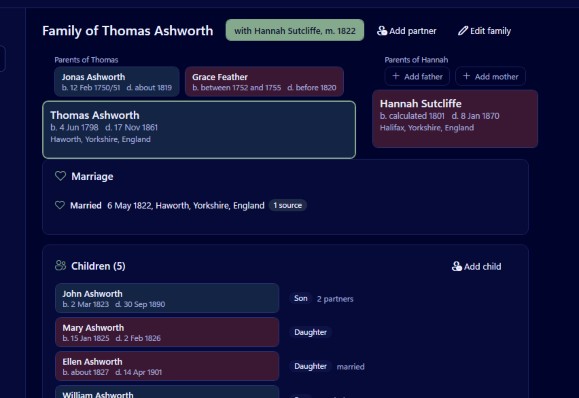
The pedigree is about direct ancestors. It deliberately leaves out siblings, second marriages and step children so that the line stays clear. When you need those, switch to the family group view with Ctrl+1, which shows a couple with both sets of parents, every partnership on its own tab and the children labelled. For a compact count of how many ancestors you have found in each generation, the fan chart (Ctrl+4) is quicker to read, while the pedigree gives more detail per person.
From screen to paper
The same ancestors can be printed as a chart to PDF from Charts and reports. Choose an ancestor chart there and Family lays it out to print tiled across A4, A3 or Letter sheets with overlap strips and an assembly guide, as one large sheet for a print shop, or fitted to A0 to A3. The dialog shows the size, the number of sheets and the smallest text before you commit, and warns if any text would fall below 7 pt.
Getting the most from it
Set the home person to yourself, or to whoever the tree is really about, before you start. The pedigree then opens on the person you care about, and Ctrl+H always gets you back.
Use fewer generations when entering details and more when planning. A narrow view keeps boxes large enough to read dates comfortably, and a wide one shows the gaps.
Fill an empty slot only when you have evidence for the parent. It is tempting to add a guessed father to close a gap, but an empty slot is honest, and it keeps reminding you the question is still open. Once you do add someone, Tools, Check dates and relationships will flag a parent younger than their child or other impossible combinations, which catches a surprising number of wrong guesses.
Above all, use the pedigree as a map rather than a list. A glance at the chart tells you more about where your research stands than any number of rows in a spreadsheet.

