
One page per person: the profile in Family by Zaweba
The person profile in Family by Zaweba gathers a portrait, names, every fact in date order with source counts, family, notes and photos on one page.
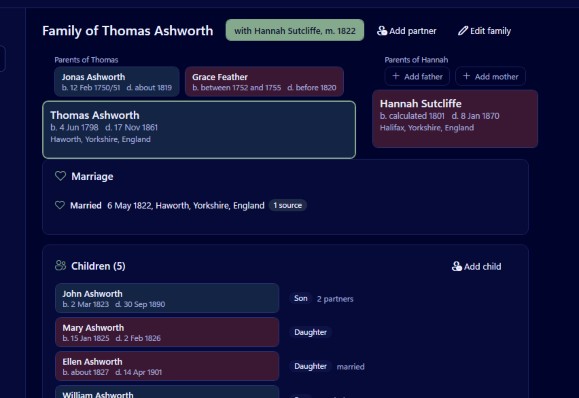
Charts are good at showing how people connect. They are poor at telling you about one person. For that, Family by Zaweba has the person profile, a single page that brings together everything you have recorded about someone: their portrait, their names, every fact of their life in date order, their family, your notes and their photos.
Open it from View, Person profile, or press Ctrl+5 while anyone is selected.
What the page holds
At the top is the portrait, if you have set one, along with the person's names. Family keeps any number of other names alongside the main one, such as a maiden name, a married name or an also known as, and the profile is where you see them together.
Below that comes the heart of the page: every fact in date order. Births, baptisms, census entries, occupations, residences, military service, emigration, deaths, burials and any custom events you have created run down the page as a timeline. Family events are included too, so a marriage or divorce appears in the right place among the person's own events rather than hidden on a separate record.
Each fact shows how many sources support it. That small number is one of the most useful things on the page. A life where every line has a source count reads very differently from one where half the facts have none.
Then come the family, with partners and children, followed by notes and photos.
Editing from the profile
Click a fact to edit it. You don't need to go hunting for the right dialog: the timeline is also the way in to change a date, add a place, attach a citation or correct a detail. For the person's own details, Edit this person is Ctrl+E.
That makes the profile a natural place to work through a single ancestor. Open it, read the timeline from top to bottom, and fix things as you go.
A routine for each ancestor
Many family historians find it helps to treat each person as a small project, and the profile suits that well. Here is one way to go about it, written as a sequence you can adapt.
Start by reading the timeline and asking whether it makes sense as a life. Does the person appear in every census you would expect? Is there a gap of twenty years with nothing in it? Did they marry before the date you have for their birth? The timeline puts these questions in front of you because everything is in order.
Next, look at the source counts. A fact with none is a fact you believe rather than one you can show. Note which ones need work, and when you find the record, add a citation with the page, a quality rating from 0 to 3, the date and a transcript.
Then look at the family section. Are all the children you found in the census actually linked? Are the step children and adopted children recorded with the right relationship to each parent?
Finally, add a portrait and any photos. If you keep sorted photo folders with Disk Sort by Zaweba, the profile's Add a photo button has a From the Disk Sort library choice that shows your stars, keeper marks and keywords.
Checking your work
When you have been through a few people, run Tools, Check dates and relationships. It lists events before birth or after death, burials before deaths, parents younger than their children and other impossible or suspicious facts. Vague dates only raise an error if no day they could mean would do, so a baptism recorded as about 1850 is not flagged without reason.
How it fits with the other views
The profile is the detail view. The family group view (Ctrl+1) shows a couple with their parents and children. The pedigree (Ctrl+2), descendants view (Ctrl+3) and fan chart (Ctrl+4) show shape and connections. A good working rhythm is to find someone in a chart, press Ctrl+5 to read their life, fix what needs fixing, then use Back (Alt+Left) to return to the chart and pick the next person.
The profile also previews what ends up in a family book. Family's book PDF writes each person as register style sentences with portraits and numbered source notes, and the facts it draws on are the same ones on this page. A tidy profile makes for a tidy book.

