
How to try a family tree program with example data
Family by Zaweba has File, Try the sample family, which opens an invented family so you can explore every view and chart before entering real people.
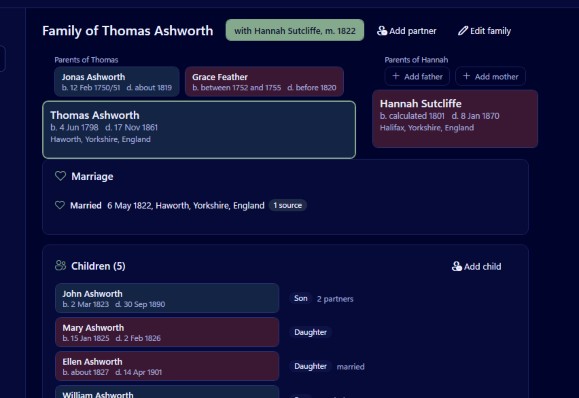
Open Family by Zaweba and choose File, Try the sample family. It opens an invented example family, ready to click round, so you can see every view, try the charts and test the tools before typing in a single real person. Nothing you do there touches your own research, and the program is free with no account to set up first.
Why practise on invented people
Family history software asks you to make decisions early: how to enter a vague date, how to record a second marriage, where to attach a census image. Making those decisions on your own grandparents, before you know how the program behaves, often means going back to fix things later.
An invented family removes the pressure. You can add and delete people, try odd dates, link and unlink children, and run every check without worrying. When you understand how it all hangs together, start your own tree with a clear idea of how you want it to look.
A tour worth taking
Open the sample, then press Ctrl+1. The family group view shows a couple with both sets of parents and their children. If anyone in the sample has more than one partner, each partnership has its own tab, and children are labelled for what they are, such as stepdaughter or adopted son.
Press Ctrl+2 for the pedigree, which shows 2 to 7 generations of ancestors with empty slots for missing parents. Ctrl+3 is the descendants view, laid out exactly as the printed chart will be. Ctrl+4 is the fan chart, ancestors in rings over 240 degrees. Ctrl+5 is the person profile, with every fact in date order and the number of sources behind each.
Click anyone in a chart to recentre on them, then use Alt+Left and Alt+Right to go back and forward through the people you have visited. Ctrl+H returns to the home person.
Things to try deliberately
Add a person and give them a date such as circa 1850, or abt. 1850, and watch the understood as line show how Family read it. Try a dual date like 12 Feb 1750/51.
Give someone a second name, perhaps a married name, and see how it appears on their profile and in search.
Open Charts and reports and set up a descendant chart. The dialog shows the size, the sheet count and the smallest text before anything is printed. Make the PDF and look at the assembly guide page to see how tiling works.
Run Tools, Check dates and relationships, then deliberately enter a child born before their mother and run it again to see the warning.
Moving on to your own tree
When you're ready, choose File, New tree (Ctrl+N). Each tree is one .oft file on your PC. There is no Save command: changes are written a moment after each edit, so you can close the app whenever you like.
If your research already lives in another program, there's no need to start from scratch. Export a GEDCOM file from it, then in Family choose File, Import GEDCOM (Ctrl+I). Family reads GEDCOM 5.5.1 and 7.0 and produces a report of anything skipped, changed or kept. Looking through that report with the sample still fresh in your mind makes it much easier to judge whether everything arrived as you expect.
Help along the way
The Help menu has Getting started and Keyboard shortcuts, both shown in Family's own help window, so you can read them beside the sample. If you prefer a lighter screen than the default dark navy, View, Light theme (Ctrl+Shift+L) switches it everywhere.
You can come back to the sample family whenever you want to test something new, such as a different chart layout or a tricky date format, without risking real data. Treat it as a practice ground for the life of the tree, not just for the first evening.

