
How to pause a game or play full screen
In Games by Zaweba, Esc pauses any of the 82 games and F11 switches to full screen. The bar above each game has the same controls.
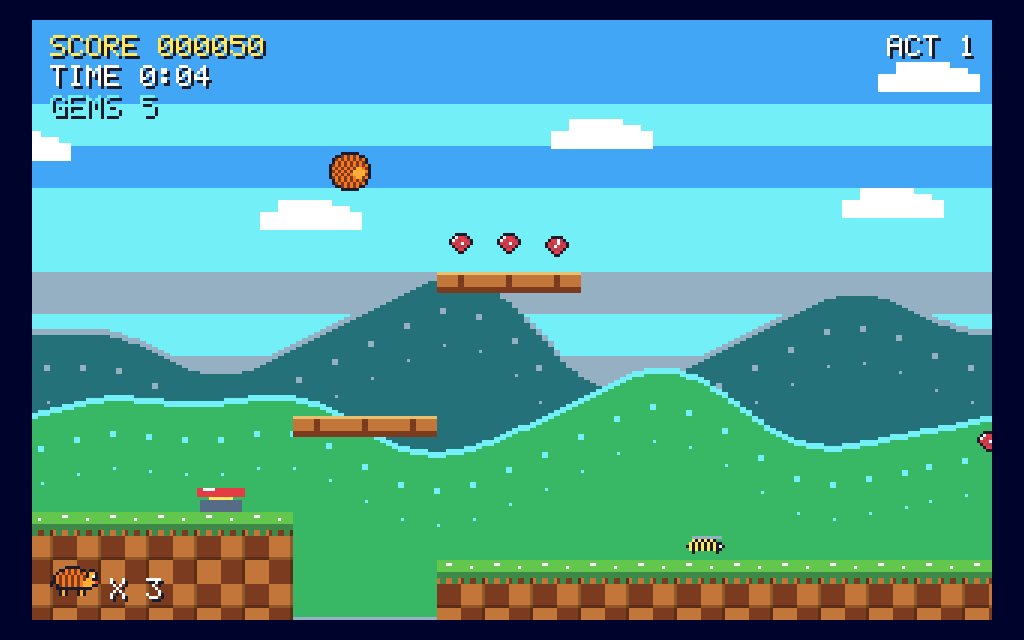
Press Esc to pause any game in Games by Zaweba, and press F11 to play it full screen. Both work in every one of the 82 games, from a calm round of Classic Patience to a frantic arcade level, and the slim bar above the game has a Full screen button too if you'd rather click.
When the game is paused you get two choices: Resume carries on exactly where you were, and Restart begins the game again. Pressing F11 a second time takes you back to the normal window.
The bar above every game
When you open a game it fills the window under a narrow bar. That bar holds All games (back to the library), How to play, Restart, Sound on or off, and Full screen. It's the same in every game, so once you've learnt it you don't have to hunt for anything when you try something new.
How to play brings up the rules. F1 does the same from the keyboard, which is useful mid-game when you can't remember whether an ace counts high or low, or what a particular power-up does. Restart is there for the times you know a deal or a level has gone wrong and you'd rather start clean.
The sound switch is worth knowing about on a shared PC or late at night. Every sound in the app is synthesised in code, and you can turn it all off from the bar without leaving the game.
Pausing without thinking about it
Esc pauses any game, whether it's a board game against the computer or a retro shooter where things are falling on you. You don't lose your place: Resume picks up from the same moment.
There's a quieter feature that matters just as much. The game pauses itself when the window loses focus. If you click on another program, switch to your email, or a notification pulls you away, the game stops and waits. That's especially welcome in the skill and arcade games, where a few seconds of not looking could otherwise cost you a life or a round.
So for a short break you don't have to press anything at all. Click away, do what you need, come back and resume.
Full screen and when to use it
F11 makes the game take over the whole screen. In card and board games it gives the table more room, which makes cards and pieces bigger and easier to click. In the skill and sport games, such as darts, pool or archery, a larger view helps you judge an aim. And on the retro arcade shelf, full screen suits games drawn in the style of 8-bit and 16-bit home computers, which were meant to fill a television.
To get back to the window, press F11 again. If you want to get back to the library rather than just shrink the window, use All games on the bar.
A few habits that help
Read the title card. Each game opens on a card that sets out its rules and controls, and where a game has modes, such as difficulty, board size or a variant, you choose them there before you start. Knowing the keys before you begin means you're less likely to need the pause in a panic.
Use F1 rather than guessing. If a rule surprises you, the explanation is one key away, and it's quicker than restarting after a mistake.
Turn the sound off from the bar when others are around, rather than muting the whole PC. That keeps your other programs' sounds as they were.
Don't worry about losing scores when you pause or switch away. Best scores, plays and wins are kept for every game and mode in a file on your PC, and the result card at the end of a game shows your score next to your best.
The rest of the controls
Outside a game, Ctrl+F searches the library, Ctrl+R (Surprise me) picks a game at random and Ctrl+T switches between the light and dark theme. Inside a game, each one has its own controls, which the title card and F1 explain, but Esc, F11 and F1 are always the same. Learn those three and you're at home in any corner of Games by Zaweba.

