
Pausing, full screen and How to play in Games by Zaweba
How the playing window in Games by Zaweba works: the slim bar, Esc to pause, F11 for full screen, F1 for the rules and the title card that opens each game.
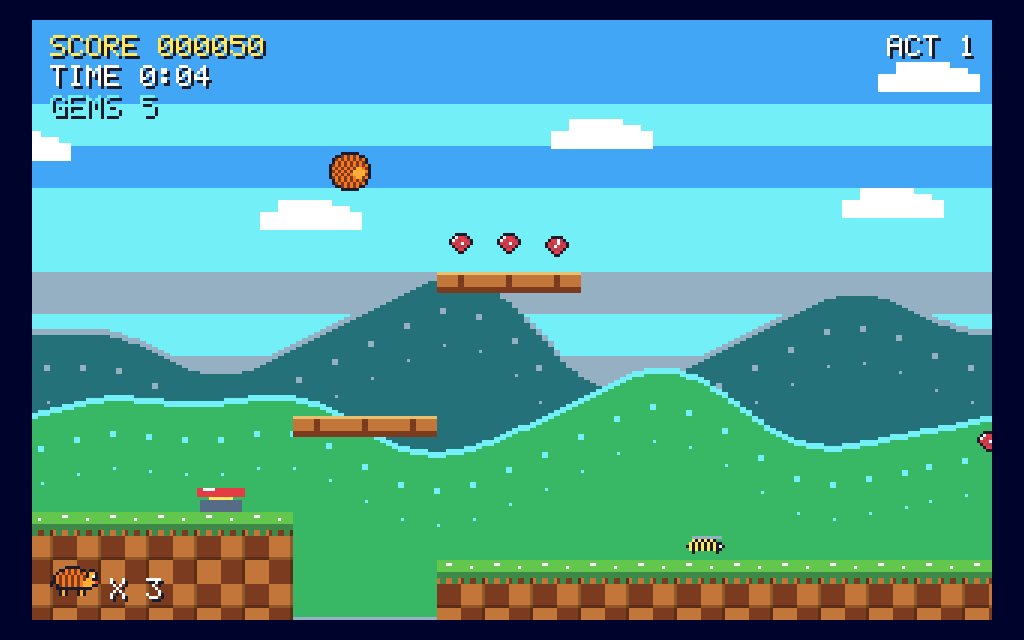
When you open a game in Games by Zaweba, it takes over the window. The library steps aside, and above the game sits a slim bar with just five things on it: All games, How to play, Restart, Sound on/off and Full screen. That is all the control most people ever need, and it stays out of the way of the game itself.
The same bar and the same keys work in every one of the 82 games. Learn them once and you know how to pause, restart, read the rules or go full screen whatever you happen to be playing.
Starting from the title card
Every game opens on a title card rather than dropping you straight into play. The card sets out the rules and the controls, so you know whether you will be clicking, dragging or using the keyboard. Where a game has them, the card also offers its modes, such as a difficulty, a board size or a variant of the rules.
It is worth reading the card the first time you try a game, even one you think you know. Traditional games often have house rules, and the card tells you which rules this version uses. It also tells you which keys do what, which saves you hunting for an undo or a hint later. Once you know a game well, you can move past the card quickly.
Pausing, restarting and getting help
Esc pauses any game. The pause gives you two choices, Resume or Restart, so it doubles as a quick way to start a fresh round if a game has gone badly. The Restart button on the bar does the same without the pause first.
F1 explains the game, as does the How to play button on the bar. This is handy in the middle of play when you have forgotten a detail, such as what a particular card is worth or when you are allowed to do something. You can check and get back to your move without losing your place.
The game also pauses automatically when the window loses focus. If you switch to another program to answer a message, or someone calls you away, the game waits for you. That matters most in the skill and arcade games where things keep moving, but it is a comfort in any game with a clock running.
Full screen and sound
F11 switches to full screen, as does the Full screen button on the bar. Full screen suits games where you want to see every detail, and it removes the distractions of the rest of the desktop. Press F11 again to return to a window.
Sound on/off is a single button. Every sound in the app is synthesised in code, and some people love the clicks and chimes while others prefer silence, especially late at night or in a shared room. The button lets you choose without opening any settings.
Getting back to the library
All games on the left of the bar takes you back to the library. Your plays, wins and best score are recorded on the game's tile, so you can see how you got on as soon as you return.
Habits that keep play smooth
Use Esc rather than closing the window when you need a break. It is quicker to come back to, and you keep your place. Press F1 rather than guessing when a rule surprises you, since a wrong assumption can cost you a game. And try the different modes on a title card once you are comfortable, because a different board size or variant can make a familiar game feel new.
The playing window in Games by Zaweba is deliberately plain. It gives the game the whole space and keeps a few sensible controls within reach, which is exactly what a game collection should do.

