
How to copy a picture to paste into an email or document
In Image Viewer by Zaweba, Ctrl+C copies the picture itself and Ctrl+Shift+C copies its file path, ready to paste into an email or document.
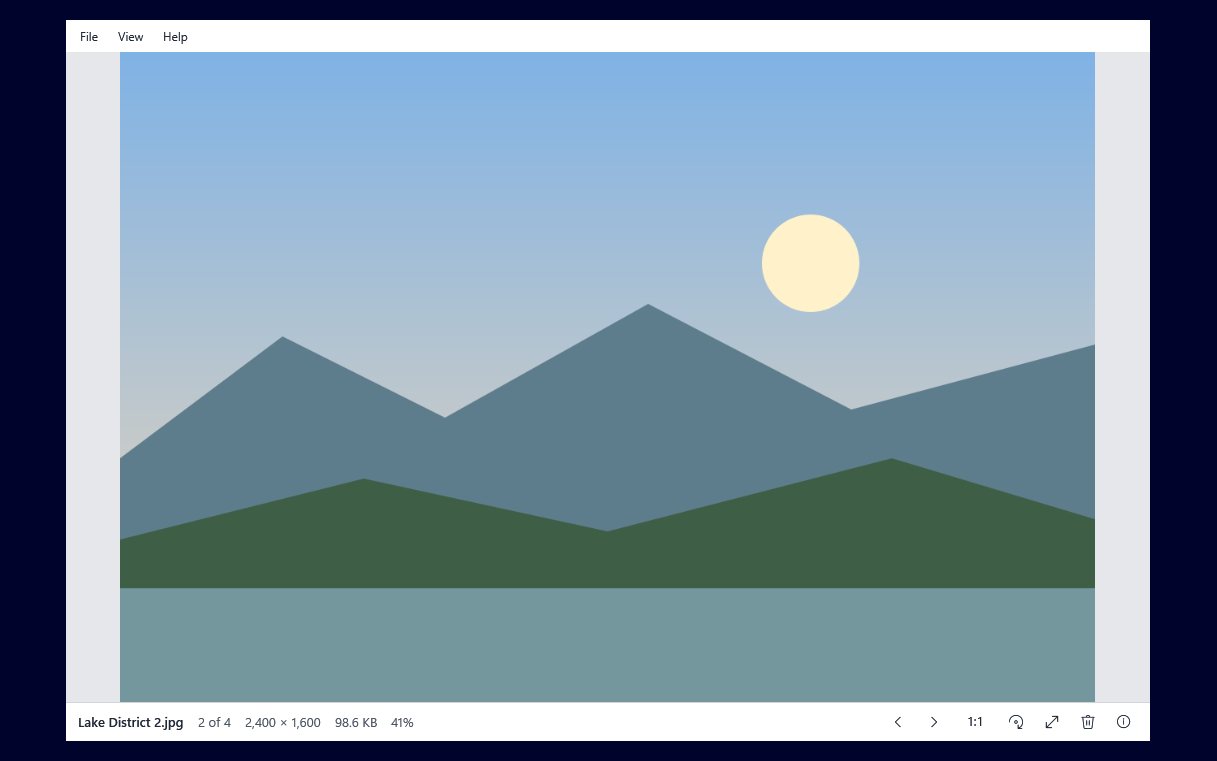
With the picture open in Image Viewer by Zaweba, press Ctrl+C and the picture itself goes onto the clipboard, ready to paste into an email, a letter or a chat. Press Ctrl+Shift+C instead when you want the file's path rather than the picture. Both work without leaving the photo you are looking at.
That covers two quite different jobs. Sometimes you want the image to appear in the body of a message or a document. Other times you want to attach the file, or tell someone exactly where it lives on a shared drive, and the path is what you need.
Copying the picture itself
Open the photo, or step to it with the arrow keys from any other picture in the same folder. Press Ctrl+C. Switch to your email, document or message, put the cursor where the picture should go and press Ctrl+V.
What lands there is the picture, not a link to it, so the person reading your message sees it straight away. This is the quickest route for sharing a screenshot with a colleague, dropping a photo into a newsletter you are writing, or pasting an image into a slide.
Check the bottom bar before you copy. It shows the picture's dimensions and file size. A very large photo pasted into an email can make the message heavy to send, while a tiny one may look poor in a printed document. Knowing the size first saves a surprise.
Copying the file path
Press Ctrl+Shift+C and Image Viewer copies the file's full path instead. Paste it into an email attachment box, a file dialog's name field or a message to a colleague who has access to the same folder.
Pasting a path into an Open or Attach dialog is often quicker than clicking down through folders to find the same file again. It also helps when you are writing instructions for someone else ("the logo is in this folder, under this name") and want to be exact.
If you would rather see the file in its folder, use Show in Explorer from the File menu. It opens the folder with the file already selected, so you can drag it into an email or right-click it for other options.
Getting a good result
Turn the photo the right way up before you copy it. Image Viewer shows photos upright by honouring the EXIF orientation tag, but if one is still sideways, R turns it right and Shift+R or L turns it left. When you leave the picture it asks once whether to save the rotation, so the file itself is fixed for next time.
Give the file a sensible name before you copy its path or attach it. Press F2 to rename it while it is on screen. A file called "Garden plan" makes more sense to the person receiving it than a camera number.
For an animated GIF, bear in mind that many email programs and documents treat a pasted picture as a still image. If the animation matters, attach the file itself using its path.
Which one to use
Use Ctrl+C when the reader should see the picture in the message. Use Ctrl+Shift+C when you need to attach the original file, share where it is kept, or open it in another program's dialog.
If you need to change the picture before sending it, such as cropping out a corner or adding an arrow, the Edit button on the bottom bar opens it in Paint by Zaweba when Paint is installed and opens that type. Image Viewer itself is a viewer: it turns pictures and handles a few file jobs, but does no other editing.
A quick routine for sharing photos
When you have several pictures to send, open the first and step through the folder with the arrow keys. At each one worth sharing, press Ctrl+C, switch to your message, paste, and switch back. The bottom bar's position tells you how far through the folder you are. It is a plain way to pick the right photos while seeing each one at full size, rather than guessing from small thumbnails.

