
How to print a photo straight from a picture viewer
Image Viewer by Zaweba prints the photo on screen with Ctrl+P, fitted to the page, so you can go from looking at a picture to paper in seconds.
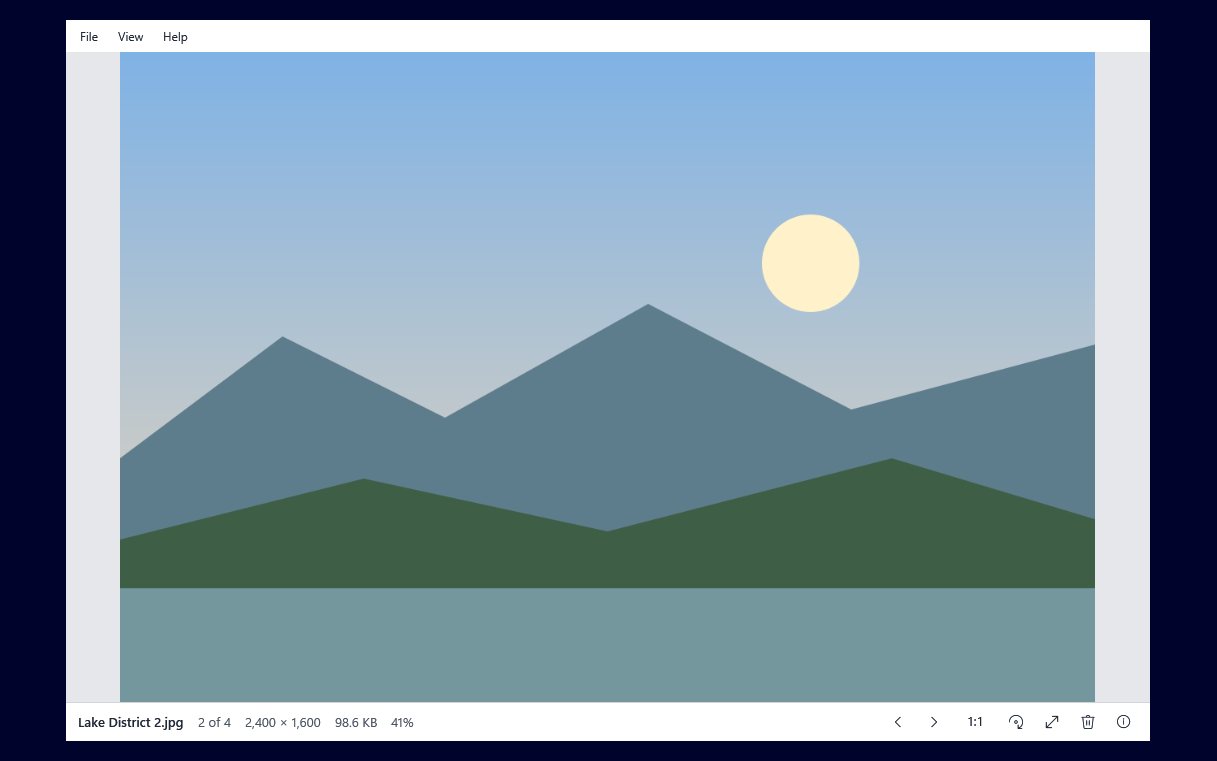
Open the photo in Image Viewer by Zaweba and press Ctrl+P: the picture prints fitted to the page through your normal Windows printer. There is no layout screen to work through first. You see the picture, you decide it is the one, and it goes to the printer.
A picture viewer is often the place you are when you decide something needs printing, whether it is a boarding pass saved as an image, a photo for a card, or a screenshot of a map. Doing it from there saves opening a separate program.
Before you print
You need a printer that works with Windows, the picture, and Image Viewer. Open the picture by double-clicking it, dragging it onto the window, or with File > Open (Ctrl+O). If it is one of many in a folder, open any of them and step to the right one with the arrow keys, Space or the mouse's back and forward buttons.
From screen to paper
Look at the bottom bar first. It shows the name, the position in the folder, the dimensions, the file size and the zoom, so you can confirm you have the right picture and see how large it is.
Press Ctrl+P, or choose Print from the File menu. The Windows print dialog opens. Choose the printer, the number of copies and any paper options your printer offers, then print. The picture is fitted to the page, which means it is scaled to fill as much of the printable area as it can without being cut off.
Things that make the print better
Check which way up the picture is. Photos are shown upright using the EXIF orientation tag, but a scan or an image saved from elsewhere may still be sideways. Press R to turn it right, or Shift+R or L to turn it left, and print once it looks right.
Match the paper to the shape of the picture. A wide photo printed on upright paper fills the width and leaves a band of white below. If your printer lets you choose landscape, use it for wide pictures.
Mind the resolution. A small image, such as a thumbnail saved from a website, is stretched to fit the page and may print soft or blocky. Press I to open the information panel and check the dimensions. If they are only a few hundred pixels across, look for a bigger copy before using good paper.
Use the printer's own quality settings for photo paper. Paper type and print quality live in the printer's options, and they change the result far more than anything a viewer can do.
When printing needs more control
Image Viewer keeps printing to one picture on one page, fitted. That suits most quick jobs. If you need to crop first, add text or put several pictures together, the Edit button on the bottom bar opens the picture in Paint by Zaweba when it is installed. Make the change there, save, and come back to Image Viewer to look over the result before printing.
For address labels or sheets of identical stickers, a label program is the right tool rather than a viewer, because it knows where each label sits on the sheet.
Printing a few photos in a row
To print several pictures from one folder, open the first, press Ctrl+P and print it. Then press Right to step to the next picture in Explorer's name order, and print again if it is one you want. The step is instant because Image Viewer loads the neighbouring pictures in advance. Pictures you don't want stay untouched, and you never lose your place, because the bottom bar keeps counting through the folder.
That is the whole routine: look, print, step on. For most household printing it is all you need.

